
Onyx Boox is one of the most well-known brands when it comes to eReaders. Their devices are well-designed, powerful, and offer a premium experience.
However, one aspect that might be limiting your eReading experience on Onyx Boox devices is the lack of apps. The company has its own app store called BOOX Store, but unfortunately it just doesn’t have as many apps as Apple’s App Store or Google’s Play Store.
Don’t worry though! In this article we have listed some of the best apps for Onyx Boox devices that you can install.
Best Apps For Onyx Boox
Onyx make some exceptional ereader’s and being able to download apps onto your device will raise your productivity levels and get the best out of your device.
Dropbox
This simple cloud-based file hosting service is quickly becoming an essential part of any office desktop.
Its seamless integration with native file directories makes it particularly useful when saving important documents or reports that users can save and easily access on multiple devices and locations.
Dropbox has become as essential to my workflow now as Google is for searching the web and I think with it will become more widely adopted as we are all working more remotely from our offices.
One of the great features of having all your files in the cloud is when you come to upgrade your ereader or other devices, you simply install the Dropbox app and login and all of your files are there ready and waiting. No need to transfer anything in/out using clumsy USB cables.
The Basic package allows you to connect up to 3 devices to any one account. But if you’re like me, and have several devices connected to the cloud, then if you may benefit by upgrading to Dropbox Pro which gives you some added benefits which include: 3TB secure storage (from 0.2TB), document watermarking and larger file size transfer.
Firefox Browser
As ereaders become more powerful and power efficient we’re seeing a lot more apps that we use in everyday life. You will find a web browser now on all BOOX e-reader devices.
But not all web browsers are created equal and some of the manufacturers own default browsers are just plain irritating.
Generally, they are poorly designed and inefficient with longer load times.
There are three popular web browsers which dominate our desktop, these are: Safari (Apple), Chrome (Google) and Firefox.
There is also a dark theme option
I’ve gone with Firefox by Morzilla as it’s a lightweight, optimized browser with some interesting features. Morzilla is also a not-for-profit organization so I hope they are less likely to collect my search data than Google or Apple.
I have been using Firefox now for over a decade and find it reliable and fast, just what you want from a web browser.
Firefox also has a few interesting features; such a Private Window (also known as incognito on Google Chrome) which allows you to open a new window without any saved data or cookies. This can be useful when you are looking for something to buy for your partner on Amazon and you do not want them to see what you’ve been looking at.
You can also open an account with Morzilla which allows you to sync any bookmakers you may have between devices. Let’s say you have a webpage you want to save for later, you quickly click on the STAR icon to bookmark the page. When you go to your Firefox app on your ereader, provided your signed in, the bookmark will be there for you to access.
Firefox is an incredibly powerful and helpful tool and when used in conjunction with Dropbox, gives you instant access to resources and saved data.
Alternatives: Google Chrome, Brave, DuckDuckGo (Private Browser)
Xodo PDF Reader & Editor
Now I appreciate most ereader’s will come with a pdf reader app pre-installed on your device. But I have found that most of these have limited functionality or are missing some features that you find on some of the more premium apps.
Having played around with over a dozen ereader apps on the Play Store I’ve final settled on the Xodo PDF Reader & Editor and it’s for a number of reasons:
Why did you not choose Adobe PDF reader?
It mainly comes down to price.
Whilst the basic free version is fine and does the job of reading pdf documents, more premium features such as editing come with a monthly subscription (that’s right you can’t even purchase outright).
You’re also constantly bombarded with pop-ups to upgrade to PDF Pro. To date I have not come across a single paywall with Xodo asking you to upgrade to their full version.
Chess Free
Now do not tell anyone this! But I used to be part of a Chess Club when I was a teenager.
I wasn’t particularly good, or had no understanding of strategic play and opening moves, but I found the game fascinating and still do to this day.
Chess is wonderful to play on an ereader as it does not require any high-end graphics or resolution and the e-ink really makes it stand out of the display.
I have played around with several chess apps over the years and have settled with Chess.com:
Free multiplayer option
Intuitive menu layout and features
You can play some classic games such as Bobby Fisher vs Spassky
10 Million+ users
It also happens to be the Editors Choice on the Google Play Store and downloaded over 10 million times.
Chess Free has an online multiplayer mode, which means you can connect and play with family/friends or anyone over the internet. It’s a great way to improve your skills and you may even get a chance you play against myself sometime.
If you enjoy chess, then I encourage you download and give it go.
Other classic games with low-end graphics you could consider are Bridge, Sudoku and Dominoes. In fact, we have an article on 7 Cognitive Games to Play on your ereader.
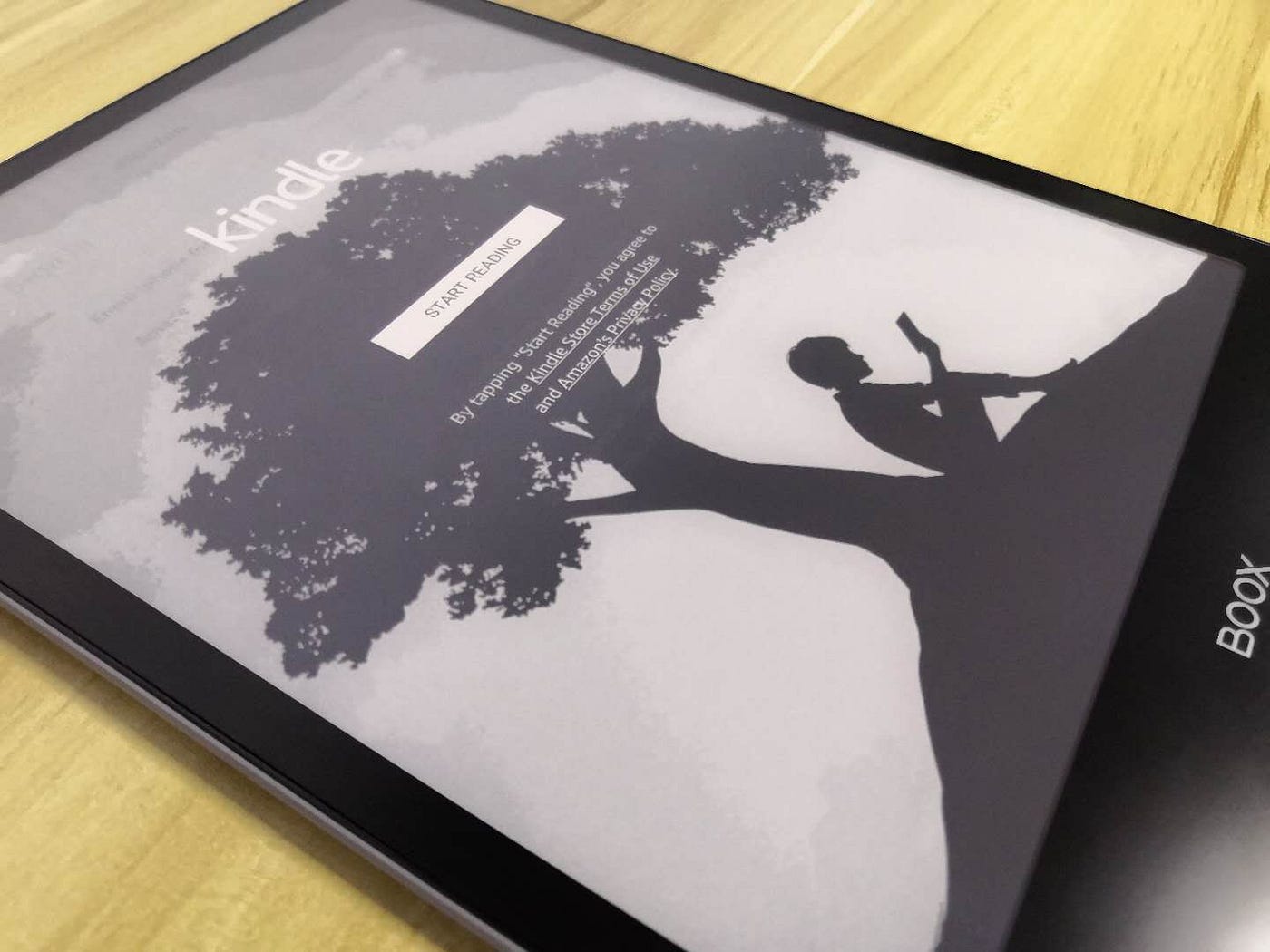
Amazon Kindle
The Kindle Reader app is not exclusive to kindle devices.
If you are thinking of buying a new ereader but are concern you can’t transfer your Kindle books over to another manufacturer, then fear not!
You can download the Amazon Kindle app to any Android ereader device such as the BOOX Nova 3 and still enjoy all the eBook’s you own on your new ereader.
Amazon have made a shrewd move by allowing their Kindle app on other devices as it’s likely that if you have purchased books with them before, it’s more likely you will continue to do this even if you switch to a different device.
As you would expect, the user interface is very impressive…
New York Times/ Financial Times
In a conscious effort to reduce the amount to time I spend on LCD displays I tend to read most of my news during the evening on an ereader as I find it less tiring while reading.
I have mentioned the New York Times and BBC News apps in the title, but some other great candidates include The Guardian, Wall Street Journal, FT, and CNN.
The Google News app is another useful resource which pools international news from around the world and from multiple news outlets and presents it to you in a structured manner.
You can also tailor Google News to specific news feeds by filter certain categories such as sport or business, so you only ever receive content that is relevant to you
onyx boox file manager
ReLaunchX is a versatile reading programs launcher and system-wide shell for Onyx Boox Max. It is a continuation of ReLaunch 1.3.8 made for Nook Simple Touch (also supported by Sony PRS-T1). It is assumed that the user library is organized in an ordered structure of folders and files have names of books that match their names. ReLaunchX supports flexible configuration of many on-screen buttons for quick access to certain features of the program and run third party applications.
Non-obvious possibilities:
Some functions of the program available only with run as a desktop shell for system.
Some functions require a device with root-access, or only implemented for Nook Simple Touch (you will receive appropriate notice).
On-screen scrolling buttons support double click to navigate to the specified number of percents in list and long-click to quickly move to the end (beginning) of the file list. This feature often will not work properly, be careful (you need to enable it in settings).
If you open with the button, for example, the second-to-read book, it will be after the opening of the first. Thus, you will start in round fashion two (three, etc., depending on the configuration), the last-readed books.
Note: I aim to keep compatibility with previously supported devices however the only device on which I can run/debug the app is Onyx Boox Max as of today hence I decided to rename/rebrand the product in order to not cause any confusion.
The tool is able to work in two modes:
Application mode
When ReLaunch is invoked from other launcher (technically speaking when it invoked using main intent – android.intent.action.MAIN) it works in application mode.
filemanager You see a directory structure, you can walk on it. Tap on directory name to go into the directory, tap on “..” labeled line to go one directory up.
on-file actions, single tap When you tap on regular file (not a directory) the ReLaunch may perform a few actions, depending on you settings (see 4.)
call explicit package or create intent for that file if such action is defined in Settings->Associations screen
for .apk file – install it
for any other file – open viewer (if file is small enough, see 4.). Note that editor can be opened from the viewer
do nothing if file is too big for viewer and association for that file not found
on-file actions, long tap On long tap context menu is opened. The file can be added to favorites, marked as read (we are speaking about ebooks, isn’t it?) or removed (with confirmations, see 4.). Note that directories can be removed too, even recursively. Be careful!
settings (first from left button on top panel) Some application-wide settings. Pay attention to “Filter settings” and “Association”. Filter settings defines which files are visible in file manager. If you define some rules there do not forget to switch on “Filter result” checkbox in general settings section. Association defines action which performs on file tap (according to file’s extension)
search (second from left button on top panel You can search files (books) from any root by some patterns. Note “Show all books” button. By pressing it you see all files with known extension (see 4.).
last opened files list (third from left button on top panel) Each file opened by ReLaunch remembered in last opened files (LIFO order).
favorites list (fourth from left button on top panel You can manage favorites list by adding / removing books to it.
about (fifth from left button on top panel) Application info
Launcher mode
When ReLanuch is invoked by pressing “Home” (in a NookSimpleTouch case by SoftKey “home” button), or by pressing “Nook button – > Shop” or “Nook button – > Library” it works in launcher mode. In that mode it has all standard launcher functionality (task manager / application manager) in addition to application mode possibilities described above.
Launcher mode functionality:
Task manager (tap on memory status, first left bottom button)
Last used applications (second left bottom button)
All applications (third left bottom button) You can launch application by taping on it, or uninstall it by long tap (context menu opened)
Favorites applications (fourth left bottom button)
Battery status (tap on battery status, fifth left bottom button)
CREDITS
ReLaunch project
CoolReader Engine project (Eink support code)
Android Asset Studio (icons)
DefaultIcon (icons)
Interactivemania (icon pack)
CHANGELOG
2.1.3
Add possibility to remove item from recent list
2.1.2
Fix off-by-one-line navigation bug on PgUp button action. Now PgUp should return to exactly the same view as before PgDn.
2.1.1
Fix Go Up button animation.
Fix txt directory icons.
Fix PgUp / PgDn scrolling.
2.1.0
UI improvement: detection of optimal number of columns based on text size and display width.
Hidden items and filtered items icons and easy manipulation by long press on Upper Dir button.
2.0.2
Fix build for Nook Simple Touch. Reverting to gradle 2.3.1 as gradle 3.0.1 auto uplift project minimum supported platform to Gingerbread.
2.0.1
Fix app settings compatibility with 1.x.x version
Fix bug related with file name / file extension display.
Adjust height of Current Dir bar.
Fix bug related to favorites list display.
Fix bug, file added to favorites was treated as directory.
2.0.0
Add support for Onyx Boox Max2
Rework of hdpi layout, size increase – it was very small
UI speed improvements
Rework of search screen. Add option for hidden items.
New list mode: extensions instead of icons. Works faster. Icons can be enabled via settings.
Version increased to 2.0 to stop confusion about original ReLaunch v.1.4.4 from some fork.
1.3.0
Adds Lock Screen.
1.2.3
Fixes for Boox Max on Android 4.4, WiFi button, SD card, compatibility list
1.2.2
Fix for crash on Boyue T63. Changed method to hide app window status bar.
Added action to Settings button – Open Options Menu. Active on long tap by default.
1.2.1
Added setting to adjust buttons size (height).
Fixed launcher mode: back button does not cause about to quit message.
Simplified run mode: removed the setting about start mode. When started from another launcher the app always works in file manager mode. When started as launcher (at boot time or by pressing home button) it works as launcher.
1.2.0
Added nice graphical storage info view.
Added preference “Advanced Settings > Appearance > Storage Info View”, enabled adds the old filesystem details print to Storage info view.
Fixed app hungs due to signal interrupted exec() by using Android API.
Fixed text visibility on a few views (in few places text was white on white).
1.1.0
Added more file sorting options
Added new setting for File Manager ‘Show file details’
Minor bugfixes
1.0.0
fixed partition size and free space view for Onyx Boox Max
added Onyx Boox Max to supported devices
changed name to ReLaunchX and icon to differentiate from Legacy ReLaunch app
changed Application ID to not conflict with Legacy ReLaunch app
imported legacy project to AndroidStudio
forked ReLaunch 1.3.8 project
Legacy changelog from ReLaunch
1.3.8
added file properties dialog
rewritten book annotation dialog
returned function “add to Start folders”
1.3.7
added annotation window for fb2/epub files
Back button may be used for folder navigation
Start Folder, selected from context menu, replaces the old ones
single line output mode for filenames
fixed bug, then longpress event fired after doubletap
1.3.6
updated preferences screen for SONY PRS-T1
new option “Add start folder” in context menu
new options for double and long taps on “Favorite applications” button
disabled fullscreen mode in Preferences activity
fixed bug with symbol # in file names
tunable number of columns of All and Favorite applications
added new variable %f to book name template
1.3.5
new appearance of preference screen
added support for Sony PRS-T1 buttons
added new file associations
fixed bug with second line of book title disappearance
added options for clear Favorites and Last opened lists
1.3.4
showing the book title in two lines
database cleanup function implemented
added items separator to files list
fixed font size for SONY-PRS-T1 in preferences screen
fixed rename file from tags with a template with line break
fixed sort order in “Show titles” mode
1.3.3
interface is partially adapted for SONY-PRS-T1
save/restore settings function implemented
show book titles in Favorites and Last recent opened lists
a new mechanism of context menu implementation
fixed bug with battery status intent reciever
fixed bug of incorrect book series sorting
fixed some minor bugs
1.3.2
almost fully implemented file operations (create, rename, copy, move file and folders)
book title pattern changed
added context menu item [Rename from fb2/epub tags]
added saving current position in the directory between calls bookreaders
fixed sorting in book titles mode
1.3.1
Option “Show hidden files” added to preferences
Copy/move file functions added to context menu
Show book titles functionality implemented for .fb2 and .epub files
1.3.0
source code cleaning and formatting
fixed filtering on directories, now not under filtering
some fixes in search (strange behavior)
quick scroll in “results screens” fixes
preferences “save dialog” only after changing something
added ability configure icon size
added on-screen scroll buttons for preferences
added ability to disable (buggy) percentage scroll on Nook
added extended functionality to Last Used, Favorites and Settings buttons
added Setup WiFi button to advanced screen
Advanced, Memory, Battery buttons now configurable
Full new icons and some layout changes – in original NOOK look and feel.
Scroll by on-screen buttons changed to satisfy Sony users.
Lock functionality in Advanced screen.
some changes in Home button configuration.
simplify buttons on Preferences screen.
force screen orientation change (configurable).
Some fixes in power adapter show when attached.
Configurable File Manager (now implemented deletion only, sorry) menu items (user can disable).
Configurable hiding of known (via associations) file extensions (user can enable).
Configurable hiding of known (via home dirs) parts of directories names (user can enable).
Fixes in context menu creation for empty dir and leaking of mount sdcard broadcast receiver.
1.2.10
skipped due quick development
1.2.9
Home icon changed.
Spanish translation added.
1.2.8
Added USB or AC adapter connection information.
Redone support for Eink Nook display.
Configurable multicolumn output.
Close Fav, Lru and so on windows after start reader (configurable).
Font size for files and directory names (configurable).
User may have now many home folders.
User may disable to go up from home folders.
Smart configurable Home button with distinct reaction to tap, double tap and long tap introduced.
Fixes: “scroll buttons” sometimes not working; invocation dir from favorites and search results, now shown in main window; search results representation when search from root.
1.2.7
Preferences Light Theme for Sony reader and mobiles.
Application and readers invocation code fixes.
Small layout and visual fixes.
1.2.6
Source code and resources reformatted, caused by i18n.
Russian translation.
WiFi signal strength receive fixed, now with dBm level and “classic” visual output.
Application and readers detection and invocation code rewritten, many bugfixes.
Fully redesigned to original White NOOK ST “look and feel”.
Startup as launcher at boot fixes.
History supporting fixes.
1.2.5
Source code cleaned, now compiled without warnings.
Source code prepared to i18n.
Reading Lists (i.e. FAVs, LRUs) with full UTF8 support.
Writing Lists (i.e. FAVs, LRUs) now is more frequent.
Added “Power Off” functionality (in complement to “Reboot”) and rewriting implementation.
1.2.4
Sony PRS-T1 support is added, some layout changes.
Optional return to main window after application starts from “All Applications” window.
1.2.3
Context menu items ‘Open with …’ and ‘Create intent …’ added. Note that these items can be disabled via configuration settings.
Search root can be comma separated directories list as well as a single directory.
1.2.2
All configured networks now are present in advanced screen.
1.2.1
New buttons: scroll up/down by big steps. Note that the step length is configurable.
New advanced information screen (marked with ‘#’ character).
1.2.0
New directory navigation, visible scrollbar (see settings).
gl16 mode (eInk refresh mode) may be set now via settings.
1.1.3
Check HW and warn if it isn’t NookSimpleTouch.
1.1.2
Associations settings allows now to configure explicit applications invocation as well as general intent creation.
Obsolete ‘how to call readers’ setting removed.
1.1.1
New Cancel/Revert buttons in settings screen.
1.1.0
Task manager / battery manager – just tap on memory or battery status (bottom of the main screen, launcher mode only).
Conclusion
Let us know your thoughts in the comment section below.
Check out other publications to gain access to more digital resources if you are just starting out with Flux Resource.
Also contact us today to optimize your business(s)/Brand(s) for Search Engines