
Writing is one of the most vital skills that you can possess. The ability to express yourself clearly and compellingly is not only a helpful tool for academic and professional success, but it’s an important asset in your personal life.
If you are an Android user who has been looking for an app that will help you write better, then you’re in luck: there are a ton of great apps out there for writers. When choosing one for yourself, consider how much feedback you want and how important grammar is to you.
If you want to brush up on your writing skills before applying them, we’ve got a guide here covering the best apps for writing on Android devices.
Best Apps For Writing Android
Numerous types of writers exist for bloggers, tech writers, screenwriters, magazine writers, authors, novelists and even researchers.
That’s why apps are designed to help writers of all backgrounds.
Remember, Google Docs is a great choice as it’s free, syncs across all devices and is built for Android. But this guide examines some of the other best Android writing apps so that you can find one for your writing projects! Don’t expect any Apple products or iOS apps to appear here.


Android Apps We Recommend
| Product | Availability | Use For | Free Trial | Learn More |
|---|---|---|---|---|
Grammarly | Browser, web and desktop apps | Grammar checking, self-editing, plagiarism reports | Yes | Learn More |
Living Writer | Web and mobile | Story outlines, novels | 14-days | Learn More |
1. LivingWriter
Pricing: From free to $9.99 per month

LivingWriter is a newer writing app for writing stories or a book via your Android device and also online. Rather than using a word processor, It helps writers arrange plots and stories using boards and templates. Living Writer also contains a series of outline templates for popular story structures like the Hero’s Journey.
It’s a good choice for short stories and novels. You can take out a 14-day free trial without using a credit card.
Check out my interview with LivingWriter’s founders.Living Writer$8 per month
Living Writer contains time-saving templates for authors and novelists. iOS and Android apps available
Try NowWe earn a commission if you make a purchase, at no additional cost to you.
2. Grammarly Keyboard
Pricing: Free with in app purchases

No matter what kind of writer you are, Grammarly can help you. It includes a keyboard for Android. A virtual keyboard might not be the best way to write, but with Grammarly, it can be incredibly helpful. The biggest strength of Grammarly is that it can catch typos and grammatical errors. It even works on a smartphone.
As you write, your eyes sometimes see what you wanted to write instead of what is actually there. Grammarly solves this problem by identifying your mistakes and correcting them. While you might not need the virtual keyboard, Grammarly is still an important app for fixing errors on the go.
Check out my Grammarly review.Best Grammar CheckerGrammarly$30
Grammarly is a top spelling, grammar and plagiarism checker. It’ll help you find and fix errors fast, and it works everywhere. It’s trusted by millions of writers for a reason.

Get a 20% DiscountBecome a Writer Today is reader-supported. When you buy through links on our site, we may earn an affiliate commission.
3. Google Docs
Pricing: Free

Google Drive has historically been one of the most powerful online office suites, and it remains so to this day. It provides a relatively clean and portable writing experience, particularly on Android smartphones and tablets.
It provides you with access to a word processor in Google Docs, cloud storage in the form of Google Drive, and the ability to take notes using Google Keep. As a result, this is an excellent suite of apps for writers.
It can even be used to write scripts for your YouTube videos.
All of these apps are free, and they provide you with up to 15 GB of free space on your Google Drive as well.
If you’re a professional writer, check out my Google Workspace review.
4. Character Story Planner 2
Pricing: Free

Character Story Planner 2 is one of the best book writing apps for Android on the Play Store.
While this app was actually designed to be an app for tabletop gaming (such as “Dungeons and Dragons”), this is also a great resource for those looking to write novels and short stories.
This app is great at creating stories for your characters, coming up with locations, and even creating magical spells. If you are writing something that requires you to create an entire world, then this is the app for you.
You can write an entire book in this app and transpose it into a word processing app later!
5. JotterPad
Pricing: Free with in app purchases

JotterPad provides a free version, and it’s geared specifically for writers.
It can help you write novels, screenplays, and other forms of writing as well. There is a no-distraction mode that helps you get into the zone and tune out distractions.
It even has a word counter, a dark mode, and support for cloud storage. You can even access split-screen mode, where you can work on two documents at once.
6. Markor
Pricing: Free

Markor is a free writing app for Android. It is about as simple and straightforward as it gets. It supports Markdown, meaning you can write HTML relatively quickly (an ideal use case for bloggers).
The app is a basic writing app that helps you write notes, to-do lists, and simple documents. It also provides you with the ability to convert your documents to PDFs.
Finally, it allows you to change the color and size of your font when necessary. With offline support, this is a straightforward app that gets the job done.
7. Microsoft Word, OneDrive Or OneNote
Pricing: Free with in app purchases

This suite of apps is a lot like Google Drive. It provides you with a full range of apps that you can sync across all devices.
While Microsoft Word is pretty self-explanatory, OneNote provides the ability to take notes easily.
If you are looking for desktop versions of these apps, then you will need an Office 365 subscription; however, a free version also is available that lets you use Microsoft Word and all that comes with it.
8. Novelist
Pricing: Free

As the name suggests, this is one of the best novel writing apps for Android.
Its numerous features help you plot, prepare, and export your novels and short stories. A timeline feature also helps you track your story as it unfolds.
This app also comes with formatting options, Google Drive support, and a strong text editor. Best of all, this app is free.
9. Pure Writer
Pricing: Free with in app purchases

If you are a minimalist, then this is the app for you. The features are easy to use, making the learning curve short.
There is little to get in the way of your focus. You’ll find paragraph and line spacing options, a dark mode, and the ability to save your documents as you write.
It also reminds you to save your document before you lock your phone to make sure your work is saved. There is even a history feature that lets you restore your work if it gets deleted accidentally.
10. Writer Plus
Pricing: Free with in app purchases

Writer Plus is one of the best writing apps for Android on the Google Play store.
It is popular because of its massive array of features, including headers, text formatting, an undo macro, a night mode and even word counters. It includes a dark theme or night mode.
The user interface is straightforward, and you can navigate through your documents easily. While it doesn’t include everything that’s featured on desktop apps, it’s easy, quick, and intuitive.
Finally, a free version of this app is available as well.
best handwriting app for android
1. Google Lens
The first app on the list is Google lens. After the recent update, Google lens can now copy and paste handwritten notes to your computer. However, to get this working you will require both your smartphone as well a computer with Google Chrome installed. As of now, it doesn’t work as a standalone app.
To get started, install the Google lens app on your Android or Google app for iPhone. Also, logged in to the same Google account on your computer running Google Chrome. Once done, open the Google lens app on your smartphone and capture the handwritten text, highlight it on-screen, and select copy. Next, head over to your computer, open Chrome browser, and then go to any document in Google Docs, click Edit, and then Paste. You will see the handwritten text appear magically. And that’s it.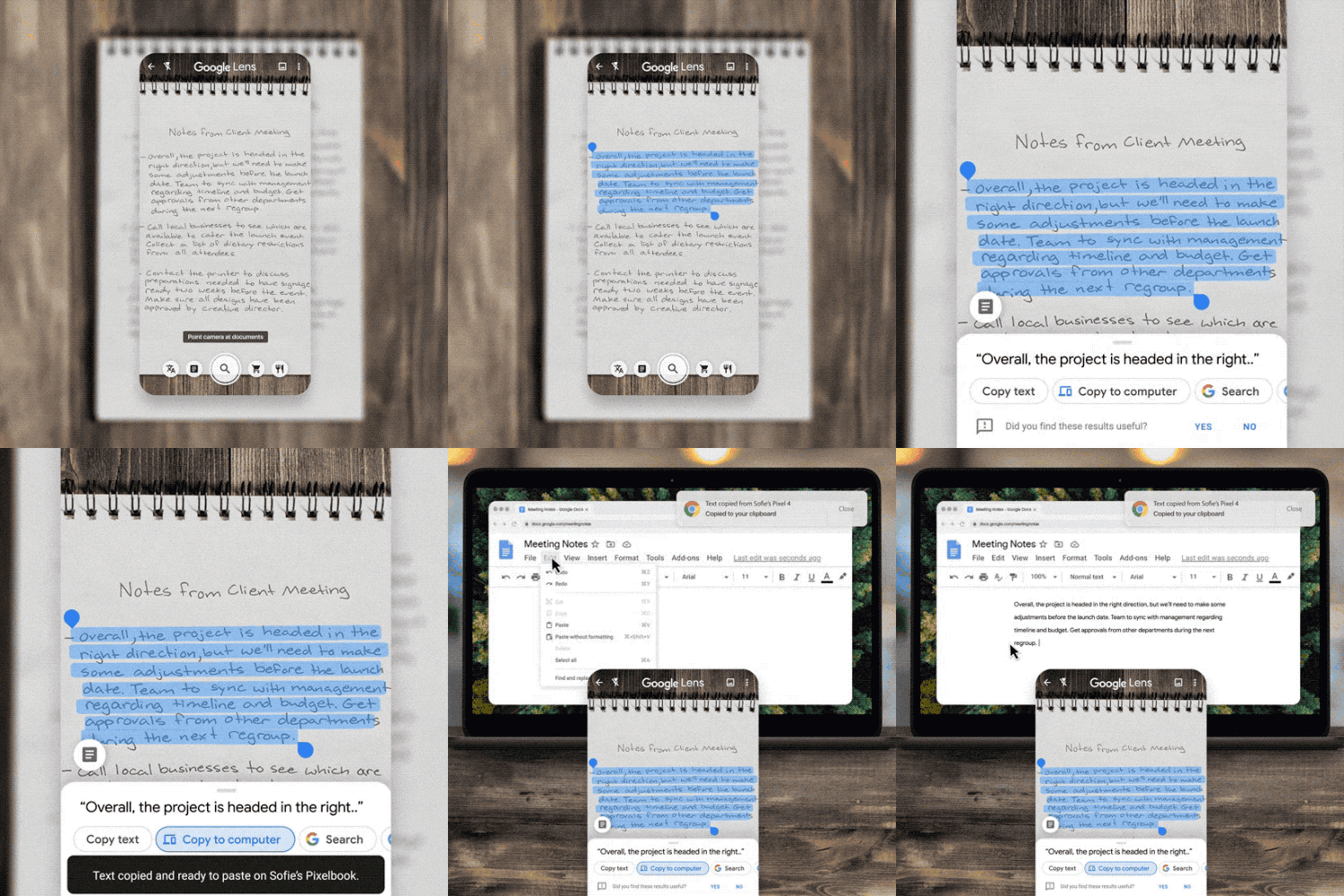
Source: Google
I tested it with a doctor’s prescription, and it wasn’t accurate, partly because you know Doctor’s handwriting. Next, I tested with my own handwriting, and I’ve to say, I was quite impressed.
Pros: Works on both Android and iOS, The accuracy is around 90% since the handwriting recognization seems to happen on Google server.
Cons: Requires active internet connection and a use of a computer.
Install Google lens (Android)
2. Handwriting Memo “A Paper”
t, Handwriting Memo is a simple note-taking app that lets you input using your fingers or a stylus. The interesting feature of this app is the boundless drawing area, you can simply scroll through the app whenever you run out of writing space and the app creates more space right away.
The app is easy to use and offers a natural writing experience with three different pen types. You can also draw shapes like lines, rectangles, and circles to highlight during note-taking. The size of the tip can be adjusted by tapping the pen and adjusting the slider. You can save the notes in the app or share it with other social media as an image.
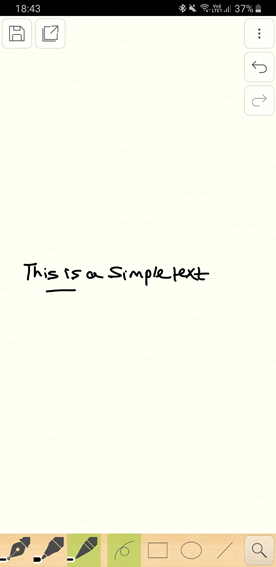
Pros: The app is fluid and offers an endless canvas which makes it easier to take notes. You can easily share the notes as an image.
Cons: The app only has a limited number of tools which limits the potential of the app. Also, the gestures to move around the page take a while to get used to.
The app is free on the Play Store and only has a few ads.
Install Handwriting Memo
3. Squid
Squid is an attractive program formerly known as Papyrus that lets you create handwritten notes on many paper templates, but what makes it popular is that you can use Papyrus to fill out forms of all kinds. You can create markups on PDFs on your device as you fill in the blanks on any PDF form you have.
Read: Best PDF Editor Apps For Android
This also uses a press-sensitive setup for handling your handwriting. You can write with your stylus pen and then erase with your finger. The program identifies the pressure from either item and uses it to determine what will happen when you are trying to clear something off of your app. You can also adjust the colors of all the things you use, thus allowing you to distinguish between different items that you are posted on Squid.
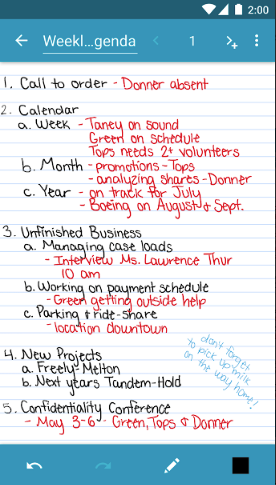
Pros: Supports exporting notes into many file formats, lets you crop and edit images as you see fit, allows you to use an HDMI port, Chromecast or other items for presenting your notes on a larger screen (works best for tablets).
Cons: Pressure sensitivity might be too intense, tough to get fine print out in some cases.
The app is Free, although you would have to pay extra for some functions within the app.
Install Squid
4. FiiWrite
FiiWrite is a free program that lets you not only write notes but also paint. You can use the palette tool with your stylus pen to adjust the color or thickness of what you are writing.
This is essentially a lighter version of the much larger FiiNote program. You can organize many items based on subject and date among other factors. Individual files can also be exported into PDFs and other picture formats. Each of these can be edited on your own as well. The thickness of your writing and the colors for what you are adding can be quickly adjusted to feature different styles that fit your requirements.
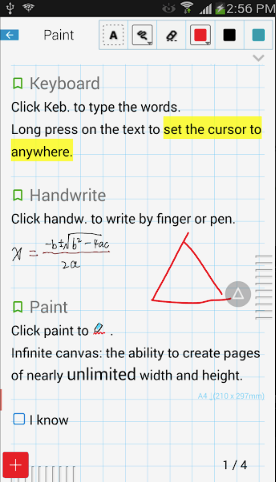
Pros: Works quickly, light in weight on your phone or tablet, offers many data saving and export options.
Cons: Does not work with a keyboard for tying added notes; you would have to install FiiNote separately to do that.
Install FiiWrite (free)
5. INKredible
Look at INKredible next when looking for a handwriting app. This uses a basic design layout and adds a fine feature for adding both text-based notes but also pictures. You can upload pictures from your phone into INKredible or even take screenshots you just took and edit them with the program.
An automatic palm and wrist rejection feature is also included. This feature identifies the amount of pressure being laid onto a screen and then keeps you from adding unwanted pressure to whatever it is you are trying to write. This is a convenient setup for note-taking that offers a good layout for your use.
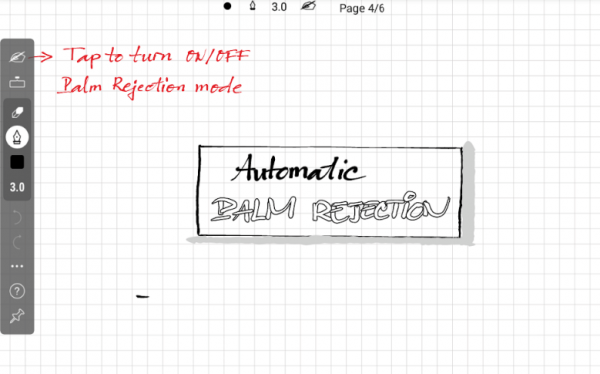
Pros: Simple layout, allows you to share files in many formats, lets you zoom in to find specific details or to add content into extremely small spots.
Cons: Design might look too plain for some, tough to go from text to images when adding content.
Conclusion
Let us know your thoughts in the comment section below.
Check out other publications to gain access to more digital resources if you are just starting out with Flux Resource.
Also contact us today to optimize your business(s)/Brand(s) for Search Engines