
Zendesk is one of the most popular customer support software solutions on the market. If you’re using Zendesk to manage your customer relationships, you should consider it a home base for your customer-facing operations. This means that if you have a robust set of tools, Zendesk can help you take your business to the next level.
There are hundreds of apps available for Zendesk users. We’ve compiled a list of some of our favorites—apps that we think every user should try out.
Table of Contents
Best Apps For Zendesk

Top Zendesk Apps —Top Rated 3 in the Marketplace
Here are the three top-rated apps:
1. Hide Ticket Fields
Hide Ticket Fields is one of the best apps for Zendesk. This is an app specifically for hiding ticket fields on an agent’s screen. When this is not utilised, some of the tickets that are supposed to be hidden for all agents could actually turn out to still be visible to some.
With Hide Ticket Fields, the app ensures that the tickets that are meant to be hidden are done so consistently for each agent in the office.
2. MaestroQA
MaestroQA is another top Zendesk app. This specific app is used for reporting team progress, assigning grading for tickets, and more. Because all of the information is located side by side when tickets are involved, it allows the agent to understand how they are graded and more.
Those who use MaestroQA say that it encourages agents to resolve issues by themselves, rather than needing someone to tell them or show them how. Empowering your agents is a great way to improve productivity.
3. Read Receipts
Read Receipts is a Zendesk app that is perfect for email. When using this app, you’ll be able to see when an email was sent, opened, and which comments were read. This ensures productivity and encourages response times to decrease.
zendesk time tracking app reporting

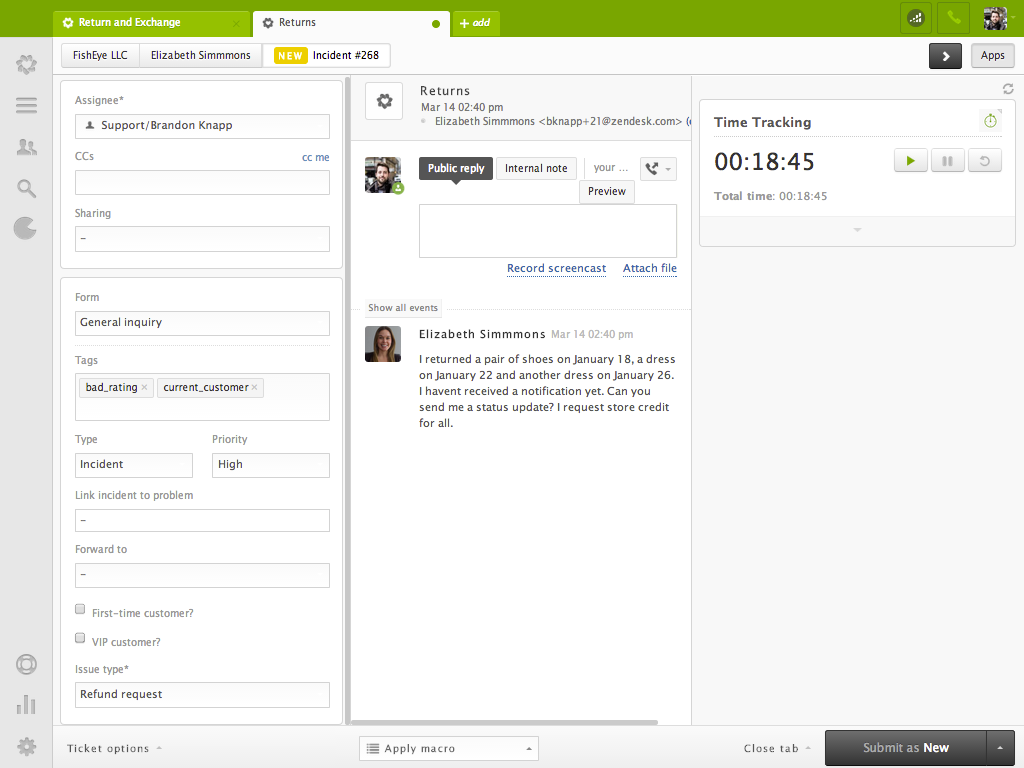
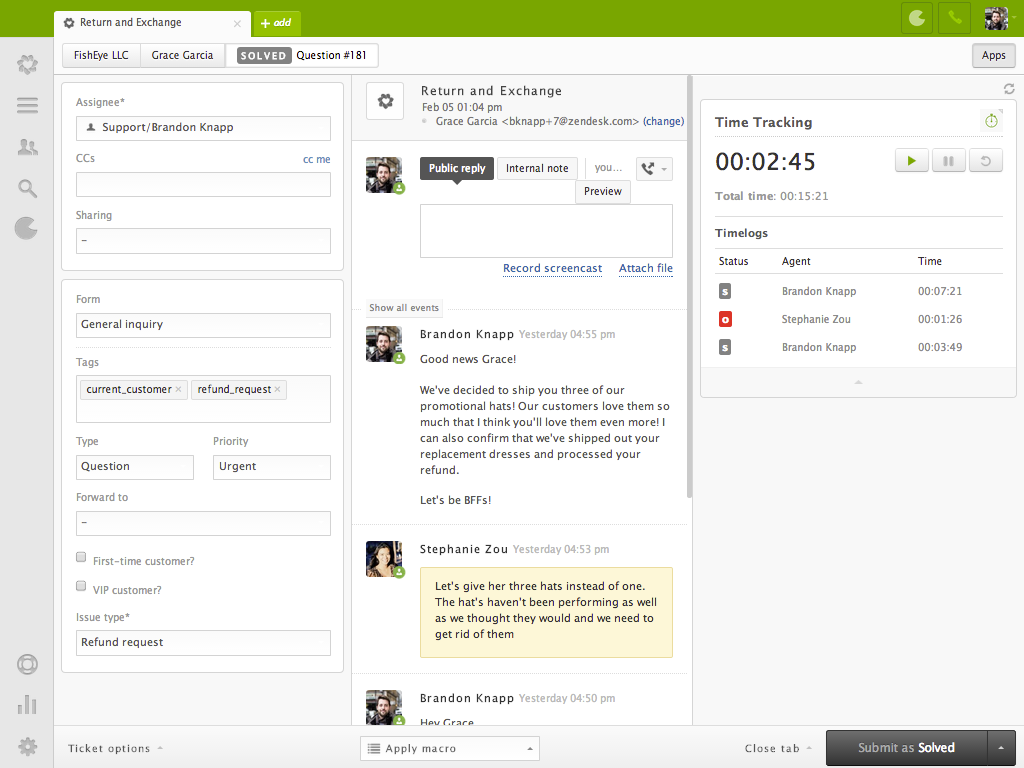
Time Tracking
Helps you track time spent on tickets.

- Description
- How to install
- Automatically track the time spent on each of your Zendesk Support tickets
- Customize the app to include the exact functionality that your team needs
- Leverage Insights to create detailed reports with your time tracking data
The Time Tracking app makes managing your team’s performance and overall support operations easier. Easily identify which customers send in the most complicated tickets, or which issue types take the longest for your team to resolve. Dig down into an agent’s tickets to discover what’s taking up their time and which issues they’re experts on.
Know exactly how and where your team is spending their time
Keep a running log of which support agents have worked on a ticket and how long each interaction lasted. Automatically log the total time spent the second your agent updates a ticket or let them manually enter their time.
Easy to setup, customize, and use
The Time Tracking App doesn’t require any third party setup or login. Simply customize how the Time Tracking app displays and works for your support team, for a seamless fit into your team’s current workflow.
Report on your time logs and take action
Start reporting right away with easily built custom time tracking reports through Insights. Know exactly what’s draining your support team’s resources and find the best areas for optimization and improvement.
Getting started with the Time Tracking app:
- Sign in to your Zendesk Support account, then click the Admin icon in the sidebar.
- Select Apps > Marketplace, then find the Time Tracking app and click the tile.
- On the Time Tracking app page, click Install app in the upper-right corner. This app is only available to customers on the Professional and Enterprise plans.
- Enter a name for the app, select the configurations you want, then click Install.
- If you are using Ticket Forms (part of the Productivity Pack add-on), go to Admin > Manage > Ticket Forms and add the ticket fields ‘Total time spent’ and ‘Time spent last update’ to each of your Ticket Forms.
Conclusion
Let us know your thoughts in the comment section below.
Check out other publications to gain access to more digital resources if you are just starting out with Flux Resource.
Also contact us today to optimize your business(s)/Brand(s) for Search Engines