
Flash Player is one of the most commonly used plugins on the internet. With its help you can watch videos, play games and listen to music, but also run complex web applications written in Flash.
However, as HTML5 and other new web languages become more widely available, Flash is losing its importance. Google Chrome has even announced plans to stop supporting it by 2020. For now though, you still need Flash for many things. That’s why we created this extension: a simple way to enable Adobe Flash Player in your Chrome browser.
Whether it’s a video game or an interactive form, you can use our service to access all of your favorite content without any limitations. It’s up to you whether you want to download a separate player or enable it via an extension. Try both options and decide which one is better for your needs!
Chrome Extension For Flash Player
Remember Adobe Flash player? It’s that nifty software that lets websites embed videos and web games. Whole websites can even be powered by Flash.
Although Flash usage is way down, and Adobe is retiring the software in 2020, certain sites still use it today. And if you come across one of those sites, you’re probably gonna want to see what that content is.
In this tutorial, we’ll walk through the steps you need to follow to enable Flash player in Chrome.
How to enable Flash player in Chrome
Since Google Chrome automatically disables Flash player, you’ll need to enable it if you want it to work.
Access content settings
As Chrome has its own built-in version of Flash, you don’t need to install a plugin or anything.
And the easiest way to get into Chrome’s settings is by visiting chrome://settings/content. Once you’re there, scroll down until you see the option for Flash player:
adobe-flash-chrome-settings
Scroll down to Flash, right below JavaScript
Allow Flash to run
Click on “Flash” and, where it says “Block sites from running Flash (recommended)”, toggle the switch on. It’ll now say “Ask first”:
adobe-flash-allow
Flash will ask whether you want to allow it to run
Now, when you go to a site that uses flash, it’ll ask you whether you want to allow Flash to do its thing. Always good to double check.
Congrats – you’re halfway there.
How to give specific sites permission to run Flash
Now that you’ve given Chrome permission to ask for your permission to run sites with Flash (whew), you need to tell it which sites to allow.
Go to your favorite Flash-using site
Let’s embrace a little child-like wonder and magic, shall we? Disney’s Magic Kingdom site uses Flash, and we want to see all that glittery magical goodness.
Once you navigate to the site, look for the little grey lock in the address bar:
Adobe-flash-disney-homepage
Disney sites certainly need pretty animation…
Update its Flash settings
Click it, and then select “Site settings” at the bottom:
adobe-flash-site-settings
This will bring you to a menu with a number of options. Partway down you’ll see Flash. To the right, you’ll see a dropdown that says “Block.”
To allow Flash, you must click that dropdown menu and select “Allow” instead:
adobe-flash-allow-flash
Find the Flash setting and select “Allow”
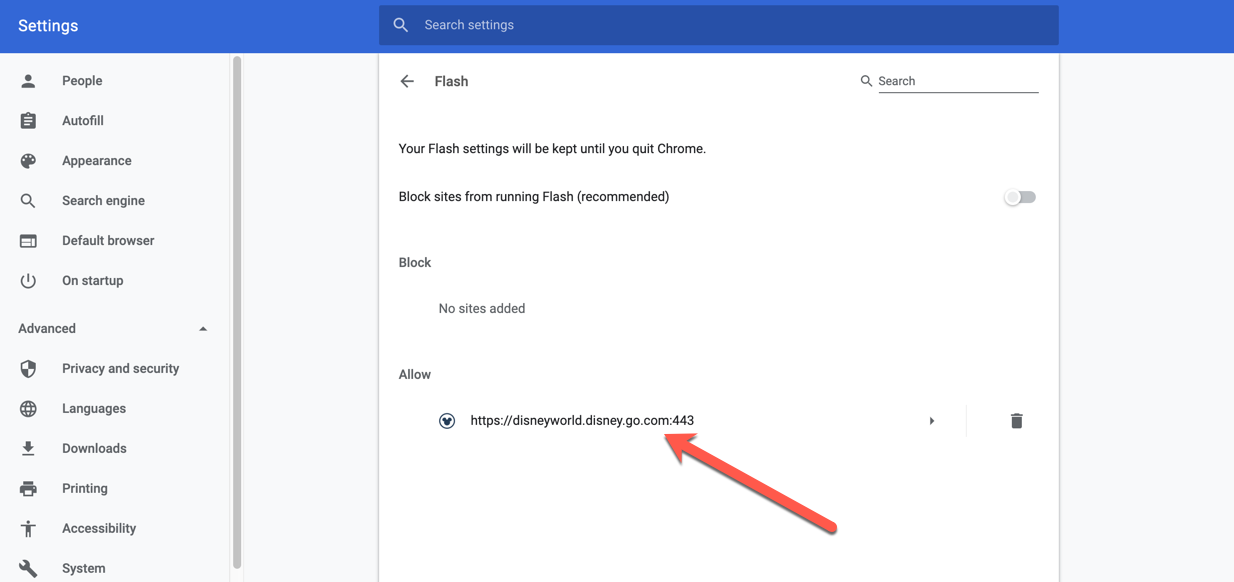
Now if you go check your general Flash settings again in Chrome, you’ll see that site on your “allowed” list:
adobe-flash-enabled
Go back to the site and reload the page. All that Flash content will be flashing away.
Caution: if you’re using a site you don’t know, beware: Flash is prone to security vulnerabilities, so be careful when enabling it.
And one final note: if you close your browser, you’ll have to go through this process again the next time you want to enable Flash. Chrome is actively discouraging users from allowing Flash to be enabled, so they make it as irritating as possible.
best flash player extension for chrome
Looking for some Flash Player alternatives that can do the job for you? Well, you’ve come to the right place. As Adobe Flash Player has retired, here are the 9 best flash player alternatives that can serve as an ideal replacement.
What is a Flash Player?
A flash player is a special kind of computer software intended for running multimedia content, graphics-rich applications, user interfaces, games, animations, and more. Flash Player is a flexible, cross-platform software that can be used on any device or platform for streaming audio and video.
No matter which web browser you use, whether Google Chrome, Firefox, Microsoft Edge, or Opera, at some point in time or other, you may require a flash player plugin for streaming audio or videos. A wide variety of flash player plugins is available online. In this post, we have listed the best flash player alternatives that you can use instead of Adobe Flash Player.
Also read: How to Unblock Adobe Flash Player
9 Best Flash Player Alternatives
1 Lightspark
Lightspark
Lightspark is a free, open-source flash player and browser plugin that you can use on Windows and Linux platforms. It is also supported on popular web browsers, including Google Chrome and Firefox. The flash browser plugin Lightspark is written in C/C++ format. It can serve as a decent alternative for Adobe Flash Player and can be used for running a variety of flash APIs on your device without any streaming interruptions. Lightspark is also compatible with H.264 flash videos on YouTube. The latest version of Lightspark 0.8.3 was released last year in July 2020.
Pros
Free & open source.
Allows code editing.
Cons
Some users reported slow speed.
2 Gnash
Gnash
Gnash is a GNU movie flash player plugin that can be used for running audio, video, ActionScript, and other multimedia applications. The Gnash flash player is available in two different versions, one as a standalone desktop app and the other in the form of a browser plugin. Gnash is a part of the GNU open-source project and is located under FSF (Free Software Foundation), a non-profit worldwide mission. The last update of the Gnash flash player was released back in 2012 and since then there have been no major updates or bug fixes in the source code.
Pros
Free to use.
Open source extension.
Cons
Some ActionScript are not supported.
3 Ruffle
Ruffle
Ruffle comes next on our list of best flash player alternatives. Ruffle is not exactly a flash player but more of a flash player emulator that is developed based on Rust programming language. You can use the Ruffle flash plugin across platforms including Windows, Mac, and Linux. It is also compatible with popular web browsers including Chrome, Firefox, Edge, and others. Although, here’s one catch. Ruffle does not support SWF files containing ActionScript 3. Well, barring this particular fact, Ruffle can be used as a great alternative as it also addresses the security issues of Flash Players.
Pros
Secure Flash Player Emulator.
Regularly updated.
Cons
Some websites do not support Ruffle.
Also read: How To Uninstall Adobe Flash Player Completely From Mac
4 CheerpX for Flash
CheerpX for Flash
ChreerpX for Flash is an advanced flash player emulator that you can use for running almost any flash application seamlessly on any web browser or platform. It is powered by WebAssembly and is fully compatible with ActionScript 3, ActionScript 2, Flex, Spark, and most Flash-based APIs. You can also use the CheerpX for Flash player for running external B2B and B2C applications without having to install any additional software components.
Pros
API compatibility.
Works with most browsers.
Cons
Will not support everything.
5 BlueMaxima’s Flashpoint
Flash Player Alternatives
Developed by the BlueMaxima, Flashpoint was launched in the year 2018, and it can be used across several frameworks, platforms, animations, and standards. Flashpoint is an open-source project that is compatible with almost any kind of web-based media. The Flashpoint plugin combines the power of Apache, a built-in launcher, and the Flashpoint Secure Player that offers a user-friendly interface. You can use BlueMaxima’s Flashpoint for playing any online media content efficiently without facing any interruptions.
Pros
API compatibility.
Works with most browsers.
Cons
Will not support everything.
6 Supernova Player
Supernova Player
Next on our list of best flash player alternatives comes the Supernova Player. The Supernova Player is a standalone application that you can use for running SWF files on almost any browser or platform. From playing graphics-rich games to watching high-resolution videos, Supernova Player can take your streaming experience to a whole new level.
Pros
A stand alone flash player.
Play SMF files on internet.
Cons
Compatibility issues with browsers.
Also read: How To Enable Flash Player On Chrome, Firefox, And Edge?
7 Shubus Viewer
Shubus Viewer
Shubus Viewer is a light-weighted utility that you can use for viewing HTML5 pages, videos, games, animations, and almost any flash-based content across platforms. Apart from running flash applications, it also offers you the ability to view and edit text. The Shubus Viewer plugin will also allow you to run Adobe Shockwave games and Unity3D games.
Pros
Integrated flash player.
Play unity games.
Cons
Lacks some functions.
8 Photon Flash Player and Browser
Photon Flash Player
Developed by Appsverse. inc, the Photon Flash Player and Browser plugin allow you to run any kind of flash content on browsers or across platforms. Photon Flash Player is also available for Android and can take your browsing experience to a next level.
Pros
Browse flash websites on iPhone with a web browser.
Supports flash apps and games online.
Cons
Shows errors on Android.
9 Flashfox Browser App
Flashfox Browser App
The Flashfox browser app can be used on Windows as well as Mac for running flash multimedia content seamlessly. It also comes packed with an additional set of features that include recent tabs, synced tabs, bookmarks, history, and more. Flashplayer is a web browser app that includes Flash player support so that you don’t have to install any other additional plugin for viewing flash-based content.
Pros
Android browsing app.
Runs flash content smoothly.
Cons
Lots of advertisements.
10 Lunaspace
Lunaspace
Lunascape is another of the Flash player alternatives for Windows which can be used in the web browser. Using this you do not require an additional flash player to run the flash content on the web. It is an easy to use web browser and has been downloaded over 20 million times on Windows. It is also available on iPad, iPhone, Android and recently released beta version for macOS.
Pros
Available as a dedicated app.
Plays flash videos online.
Cons
Needs for features.
Download Now
Also read: Steps To Download Embedded Flash Files Via Browser
Frequently Asked Questions
Q1. What is the best alternative to Adobe Flash Player?
As Adobe Flash Player was discontinued on 31st December 2020, you can use any of the above-mentioned flash plugin tools as an alternative. This post lists down the 9 best flash player alternatives that are available for free on the web.
Q2. Why is Flash being phased out?
Flash Player Alternatives
Image source: BBC
Adobe has officially announced that no further updates will be rolled out for the Adobe Flash Player plugin. The two main reasons that have caught the attention about why hasFlash phased out are, security issues and other is Flash being not so mobile-friendly.
Also read: How To Troubleshoot Flash Video Not Working On Mac
Q3. Is HTML5 better than flash?
Yes, for sure! HTML 5 is light-weighted, fast, and runs efficiently on any device. It is well compatible with any modern-day media or interactive content. Also, another reason why developers are migrating towards HTML5 rather than Flash is due to the fact the Flash cannot fit in the mobile demands.
Q4. What will replace Flash in 2022?
Adobe Flash Player retired in the year 2020, so what do you think will replace Flash in 2022? Well, a myriad of free, open-source projects is available on the web that can be used instead of Adobe Flash Player. You can pick any of the above-mentioned Flash player alternatives that will allow you to view multimedia interactive content on any platform including web browsers, your PC, or laptop.
Conclusion
This wraps up our guide listing the 9 best flash player alternatives. As Adobe Flash Player is no longer available, you can pick any of the above-mentioned flash plugins to enjoy streaming graphical content on any device without experiencing any hindrances.
Conclusion
Let us know your thoughts in the comment section below.
Check out other publications to gain access to more digital resources if you are just starting out with Flux Resource.
Also contact us today to optimize your business(s)/Brand(s) for Search Engines