
This extension will auto admit your guests to your Google Meet Class. It will automatically admit your guests to the class so that you do not have to spend time doing that.
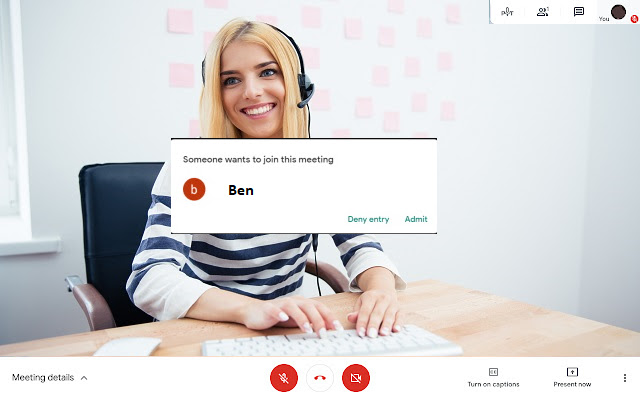
Table of Contents
Chrome Extension For Google Meet Auto Admit
Google Meet Auto Admit is a free Chrome extension that lets you do it with ease. It automatically clicks on the “Admit” button in Google Meet and instantly adds the participants to the meetings. It can even click on the “Admit All” button in case multiple people join the meeting together. If you host private meetings on Google Meet with a lot of participants, then it can be exhausting to manually admit people to the meeting. But with the Meet Auto Admit extension, you can put this on auto-pilot. Just install the extension and sit back, relax. It will accept a new member to the meeting as soon as he or she wishes to participate.
Google Meet Auto Admit:-
Are you concerned about how you’ll keep track of attendance throughout the Google meeting? After that, you must use Google Meet Attendance Collector. Google Meet is a video conferencing service provided by the company. It’s a fantastic solution for the two individuals and companies to meet via audio and video chats. It was made possible by the Google Hangouts Attendance Collector extension, but it includes some unique features.
Here, we look into Google Meet by defining what an Attendance Collector is and how it evolved from Google Hangouts. We also look into the finest Google Meet Attendance collector components and show you how to use Attendance collectors to create or join a Google Meet meeting.
How to automatically Admit the participants in Google meet meeting:-
Google Meet is one of the top online video conferencing options. It’s completely free to use. However, some users may encounter an issue while holding a meeting if participants keep appearing with a dialogue box that says “Someone wants to join this meeting” and an Admit/Deny option. This feature is for security reasons, and it helps Google keep you safe from unwelcome participants, as demonstrated in past months with Zoombombing.
Steps to achive Google Meet Auto Admit:
- On a laptop or computer, open the Google Chrome browser.
- Search for Google meet Auto admit and click on it.
- The “Google Meet Auto Admit” page will appear.
- Select “Add to Chrome” from the drop-down menu.
- A pop-up window will appear at the top of the page.
- Select “Add extension” from the drop-down menu.
- To start a new meeting, go to meet.google.com or click here.
- Participants who have a meeting code or link will be added to the meeting automatically the next time you host it.
Online attendance collector Extension:-
Attendance collectors for Google Meet keep track of who is coming to the gathering, including when they arrived, using a Google Spreadsheet. This is how the attendance collector should be designed.
Search for “Meet Attendance collector” on the Chrome Web Store. Click on install and give all the necessary permissions to download. After you’ve discovered the extension, click ‘Add to Chrome.’ Allow me to present you to the advantages of using an attendance collector extension. When you’re on an upheld page — Meet’s genuine entryway — the expansion will glow after you’ve successfully introduced it.
To begin, open Google Meet in your software and sign in with the required credentials. The Google meet attendance collector chrome extension is then used to start a gathering. When you’re in the middle of a Google Meet meeting/meetings, you’ll see a new tab — checkbox — right next to the ‘Individuals’ tab. To go to the Google Sheet where participation nuances are stored, click on the tab. If you scroll down the tab, you’ll see a number of options. To create a separate bookkeeping page for larger meetings, click the ‘+’ Spreadsheet icon. The main anonymous switch, on the other hand, is used to subsequently log the members. Switch now and again to catch the current participants, and afterward click on the checkbox tab to get to the accounting page. The names of attendees, the URL of a nearby meeting, and the joining time would all be displayed on the sheet with the help of the attendance collector.
How to take attendance in Google Meet:-
Although Google Meet does not have an official function for taking attendance, you can do so with the help of a Chrome extension. The sessions are now limited to 60 minutes, which is 33% longer than Zoom’s 40-minute limit. However, with the help of the Google Meet feature, Attendance Collector, keeping track of your guests who are attending the meeting on Google Meet is now a simple chore. However, because it is difficult for one person to maintain track of every attendee at a meeting, we employ an attendance collector to keep track of who is in attendance.
Check more about How to take attendance in google meet.
Accept all Guests on Google Meet automatically using online Attendance Collector extension:-
You can easily choose between manual and automatic attendance options when using an attendance collector. This Google Chrome plugin provides the most frequent method of evaluating participation a problem-free approach to gathering attendance by employing an attendance collector — for educators. The attendance collector tool is a simple programme that allows you to check all of the participants and keep track of their attendance.
So, if you’re looking for a way to interact with your understudies while also utilizing a useful participation tool, go no farther than this fast plugin. Finally, in the CSV or HTML sheet that follows, it shows you exactly when participants join and depart a gathering.
You can now easily keep track of all the participants who are attending the meeting at the same time with the help of the Google Meet Attendance collector. Currently, select ‘Add to Chrome.’ It will be introduced after it has finished downloading. When the collector is on an upright Google Meet screen, it will only light up.
how to allow auto admit in google meet
Google Meet is one of the best video conferencing tools available online. It is available to use for free. But some users might face the problem while hosting the meeting when participants keep popping up with the dialog box like “Someone wants to join this meeting” along with an Admit and Deny option. This feature is for security purposes, and Google helps keep you away from the unwanted participants from joining as it was seen in previous months like Zoombombing.
But still, if you want to auto admit the participants for Google Meet meetings, here is a solution for you. Just follow the below steps and your problem is solved.
1. Open Google Chrome browser on a Laptop or Computer.
2. Click on THIS LINK.
3. You will see the “Google Meet Auto Admit” page.
4. Click on the “Add to Chrome” button.
5. A pop up will appear on the top.
6. Click on the “Add extension” button.
7. Open meet.google.com or Click Here, to begin with, the new meeting.
8. Participants with a meeting code or meeting link will be automatically added to the meeting next time you host the meeting.
how to use auto admit in google meet
This tutorial explains how to automatically admit participants in Google Meet. Meet Auto Admit is a free Chrome extension that lets you do it with ease. It automatically clicks on the “Admit” button in Google Meet and instantly adds the participants to the meetings. It can even click on the “Admit All” button in case multiple people join the meeting together.
If you host private meetings on Google Meet with a lot of participants, then it can be exhausting to manually admit people to the meeting. But with Meet Auto Admit extension, you can do put this on auto-pilot. Just install the extension and sit back, relax. As a new participant requests to join, it will instantly admit him/her to the meeting.
How to Automatically Admit Participants in Google Meet
How to Automatically Admit Participants in Google Meet?
The whole process of getting started with this Chrome extension is simple and straightforward. Just install it from here and it will work on its own. After the successful installation, you will see its icon in the Chrome toolbar, which looks like this.
Meet Auto Admit
Now, you just open Google Meet, create the meeting and share the code with the people you want to invite. Now, when they start requesting to join the meeting, the extension will let them in automatically. You can go out and make coffee of something, and this extension will keep admitting people to the meeting without your intervention.
Meet Auto Admit in action
In this way, you can use this simple and useful extension to save a lot of time on Google Meet. Just install it, and forget it. It will automatically let people in the meeting room. No matter if the people join one by one or simultaneously, it will take care of the admitting process on its own.
Closing thoughts:
If you use Google Meet so often, then you will like this simple extension. With this, you will not have to admit people manually in a meeting. Just install it and then let it handle the rest. No matter if you are a school teacher or team lead, you can now put the Google Meet admission on auto-pilot.
Conclusion
Let us know your thoughts in the comment section below.
Check out other publications to gain access to more digital resources if you are just starting out with Flux Resource.
Also contact us today to optimize your business(s)/Brand(s) for Search Engines