
There are many apps for the iPad Pro and choosing the best app for your requirements can be difficult. How to pick the best iPad Pro 2018 apps from so many on offer?Download Apk App Free
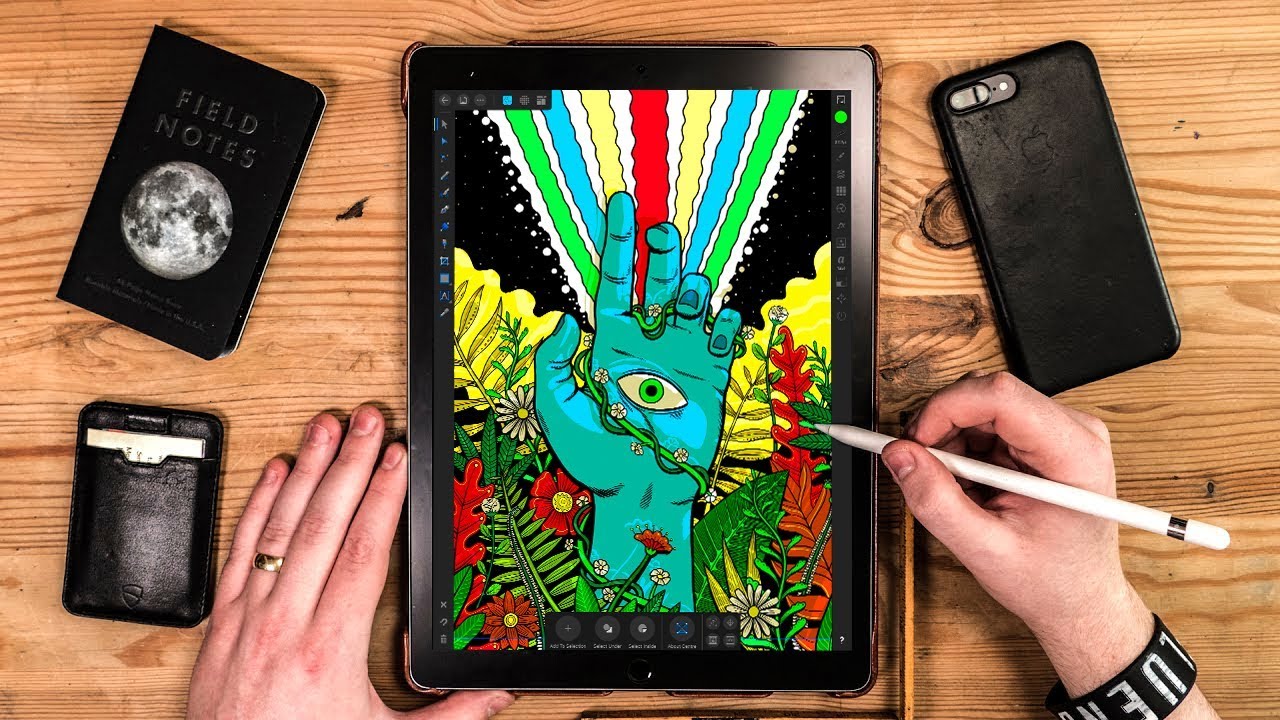
Table of Contents
Best Apps For Ipad Pro 2018
Procreate
If you’ve got an iPad and an Apple Pencil, Procreate is an app you should buy (doesn’t matter if you’re not a creative/artist). You can do so much in this app. You can create complex drawings, illustrations, or just make awesome patterns or mandalas. Procreate is also the best way to do lettering work on the iPad.
There are tons of Procreate resources available online. You’ll find YouTube videos that will teach you to draw just using the Apple Pencil in Procreate, and you can download templates, calligraphy worksheets and more.
Download: Procreate ($9.99)
Pixelmator
Pixelmator is one of the best photo editors on the iPad. It’s not a Photoshop replacement (we’ll get to that in a second), but it’s more than enough for quickly fixing images, and editing them. You’ll find all the standard retouching and editing tools in the app.
Download: Pixelmator ($4.99)
Microsoft Outlook
Best Apps iPad Pro 2018 5
Funnily enough, Outlook is the best email app for both iPhone and iPad. It’s feature-rich, reliable, and supports a myriad of email services. The best part about Outlook is its all-in-one approach. You’ll find your inbox, calendar, and files all in the same app. This makes it easy to schedule meetings, set a reminder, attach files and send it all in a nice email to your boss.
Download: Microsoft Outlook
Affinity Photo
Affinity Photo is the Photoshop replacement for the iPad (until the real Photoshop shows up in 2019). You get the full photo editing suite on the iPad and on the new 2018 iPad, this app is crazy fast. The app supports limitless layers, masks, blends and everything in between (including more than 120 brushes). Of course, you can use the Apple Pencil to precisely select parts of the image you want to edit. Oh and you can import PSD files to edit on your iPad.
The app supports RAW as well, so you get access to desktop level image editing tools right on your iPad.
Download: Affinity Photo ($19.99)
Affinity Designer
Affinity Designer is yet another drawing app for the iPad. You can use it to sketch your designs no matter where you are. If Affinity Photo is the Photoshop replacement, then Affinity designer is like using Illustrator on your iPad. You can create artwork in vector. This means you can design any kind of graphics – logos, brochures or posters, right on your iPad.
Use the Apple Pencil to draw directly on the iPad. Then use the available tools to add color, pop and play with shapes to create something truly stunning.
Affinity Designer is a must have if you’re any kind of designer. Even UI designers can use the app to create user interface mockups.
Download: Affinity Designer ($19.99)
LumaFusion
There’s no Final Cut X on the iPad. But LumaoFusion comes close. It’s the best video editing app available on the iPad and on the new iPad Pro, this thing just flies! Even when editing and exporting 4K footage.
You have multi-track editing so you have three separate tracks for video and audio each. Everything else like transition effects, slow motion, audio mixing, text layers, background music, and trimming is all here.
Download: LumaFusion ($19.99)
Autodesk SketchBook
Autodesk has made the full version of their SketchBook app completely free on the iPhone and iPad. This is reason enough to download the app, take your Apple Pencil and just start sketching. You never know where it might lead.
Download: Autodesk SketchBook
Paper
Best Apps iPad Pro 2018 6
Paper is the a creativity app that is a must-have on the iPad, even if you don’t use your iPad for art. It’s one of the first apps on the iPad that proved how easy and fun it was to just doodle and draw on the screen. And this was ages before the Apple Pencil showed up! Now, you can use Paper to take notes, doodle, create art, and even make graphs and charts.
Paper can serve as a great tool to offload whatever is going on in your mind. You can use templates like a grid paper or an iPhone body to even create UI wireframes for apps. Paper is super extensible.
Download: Paper
LiquidText
LiquidText will change how you interact with documents and PDFs. It’s a must-have app for students, researchers, writers, editors and academics alike. The app lets you easily annotate papers, extract parts for taking notes (which you can arrange and control independently).
LiquidText takes the rigid format for a PDF and makes it fluid. Just open a PDF, and start doodling, connecting different parts, taking handwritten notes anymore. You can also open web pages in the app.
Download: LiquidText
Microsoft Office Suite
Best Apps iPad Pro 2018 4
The entire Microsoft Office Suite – Word, Excel, and PowerPoint are available on the iPad. And if you’re already paying for an Office subscription, you can use the iPad as one of the devices on your account. And almost all features from the desktop apps are available on the iPad, including keyboard shortcuts, cloud sync, templates and more.
Download: Microsoft Word
Download: Microsoft Excel
Download: Microsoft PowerPoint
Annotable
Best Apps iPad Pro 2018 2
Annotable has everything you need to annotate an image. You can easily crop, blur, annotate and zoom into a part of the image.
Download: Annotable
iCab Mobile
Best Apps iPad Pro 2018 1
Safari on the iPad can be pretty frustrating, especially when the UI changes to the mobile view in split screen mode. And iPad Safari is still mobile safari. iCab Mobile is the closest you can get to a desktop browsing experience on the iPad. You’ll get Chrome-like UI, proper tab management, download manager, inspect tool and more. Plus iCab Mobile has its own version of extensions called Modules. Using the modules you can save web pages as ebooks and even do things that aren’t possible on iOS – like play YouTube videos in a picture-in-picture view.
If you’re serious about being productive on the iPad, you should replace Safari with iCab Mobile.
Download: iCab Mobile ($1.99)
Must have apps for ipad pro 2021
- Nebo: Take notes
Nebo: take notes iPad Pro app
(Image credit: Nebo)
Requirements: iOS 13.0 or later
Double-tap support: Yes
Price: Free (with in-app purchases)
Download Nebo: Take Notes from the App Store
Nebo is the go-to app for digital note-taking as it’s praised highly for its handwriting recognition. Nebo has the ability to understand a whopping 66 languages and can even translate your handwritten notes into a format that can be sent as an email – how nifty is that? Using your Apple pencil, you can also create a range of shapes and sketches, making your digital notes feel just like the real thing.
On Nebo, you can also insert images and diagrams, and also annotate external media. Then once you’ve finished all your hard work, you can save/export your notes as HTML, PDF and text formats that are compatible with Microsoft or Powerpoint and iCloud. This means that you have so much flexibility with the Nebo app, but if you ever find yourself stuck or need some guidance, there’s a whole community of Nebo users ready to help you over on the Nebo tips and tricks videos.
- Noteshelf
Best iPad Pro apps: Noteshelf
Noteshelf is a great notetaking app that’s improved on its original functionality
Requirements: iOS 13.0 or later
Double-tap support: Yes
Price: $9.99/£8.99
Download Noteshelf from the App Store
Noteshelf is jam-packed with features like pressure sensitivity, double-tap support and integrated Siri to make sure it’s the best note-taking app it can be. With Noteshelf, you can record audio notes, mark up PDFs or images as well as accurate handwriting recognition and autoshapes.
- Notability
Best iPad Pro app: Notability
Notability is so good you might want to ditch the Moleskine
Requirements: iOS 14.0 or later
Double-tap support: Yes
Price: Free (with in-app purchases)
Download Notability from the App Store
Notability is so much more than a note-taking app with its combination of handwriting, photos, typing and drawing tools. Meaning that you don’t have to hop to a totally separate app to get your sketch on. One of the coolest features of the Notability app is the palm rejection feature. This means you can rest your hand on the screen without having to worry about it affecting your work. Notability will also straighten any lines you’d like to be ruled, so all your notes will look as neat as neat can be.
- Evernote
Best iPad Pro apps: Evernote
Evernote is a rich, capable iPad Pro app
Requirements: iOS 13.2 or later
Double-tap support: Yes
Price: Free (with in-app purchases)
Download Evernote from the App Store
Advertisement
Evernote is a notetaking iPad Pro app but it’s a little like marmite because some people love it and others, well, not so much. It’s a great app for collecting sketches, notes, to-do lists and websites, but some users find it a little difficult to navigate.
One of the cool things about Evernote is that you can record audio while sketching, meaning that you can work as you listen. But the fun doesn’t stop there, the Evernote app also offers automatic palm rejection, as well as pressure sensitivity, meaning that you can really fill your notes with expressive lines strokes.
- LiquidText
Best iPad Pro apps: LiquidText for iPad
This PDF document reader enables you to annotate and excerpt texts
Requirements: iOS 14.1 or later
Double-tap support: Yes
Price: Free (with in-app purchases)
Download LiquidText from the App Store
LiquidText is the perfect app for reading and annotating. The app allows users to annotate PDFs, Word or Powerpoint documents and even web pages. LiquidText prides itself on its ability to support active reading, which means that you can highlight sections of what you’re reading to come back to later, or collapse parts and sections of the document so you can refer to different parts at once.
Again, having the Apple Pencil will benefit you greatly when it comes to using these iPad Pro apps. The Apple Pencil will make it faster to use the app with its pressure and tilt sensitivity features, making LiquidText feel similar to the real thing. And if you’ve bagged yourself the Apple Pencil 2 then you can also use LiquidText’s adjustable double-tap compatibility.
Conclusion
Let us know your thoughts in the comment section below.
Check out other publications to gain access to more digital resources if you are just starting out with Flux Resource.
Also contact us today to optimize your business(s)/Brand(s) for Search Engines