
I’m looking for an app was one of the most common questions I received back when I was writing software reviews full-time. I’d usually point people to my own favorite piece of stop motion software, and recommend they check out a couple of iOS apps that did little more than record your footage in GIF form, and let you export it to the web or even Facebook. Before long, someone would invariably ask whether or not there was an app that had basic editing tools, or perhaps the ability to export video.
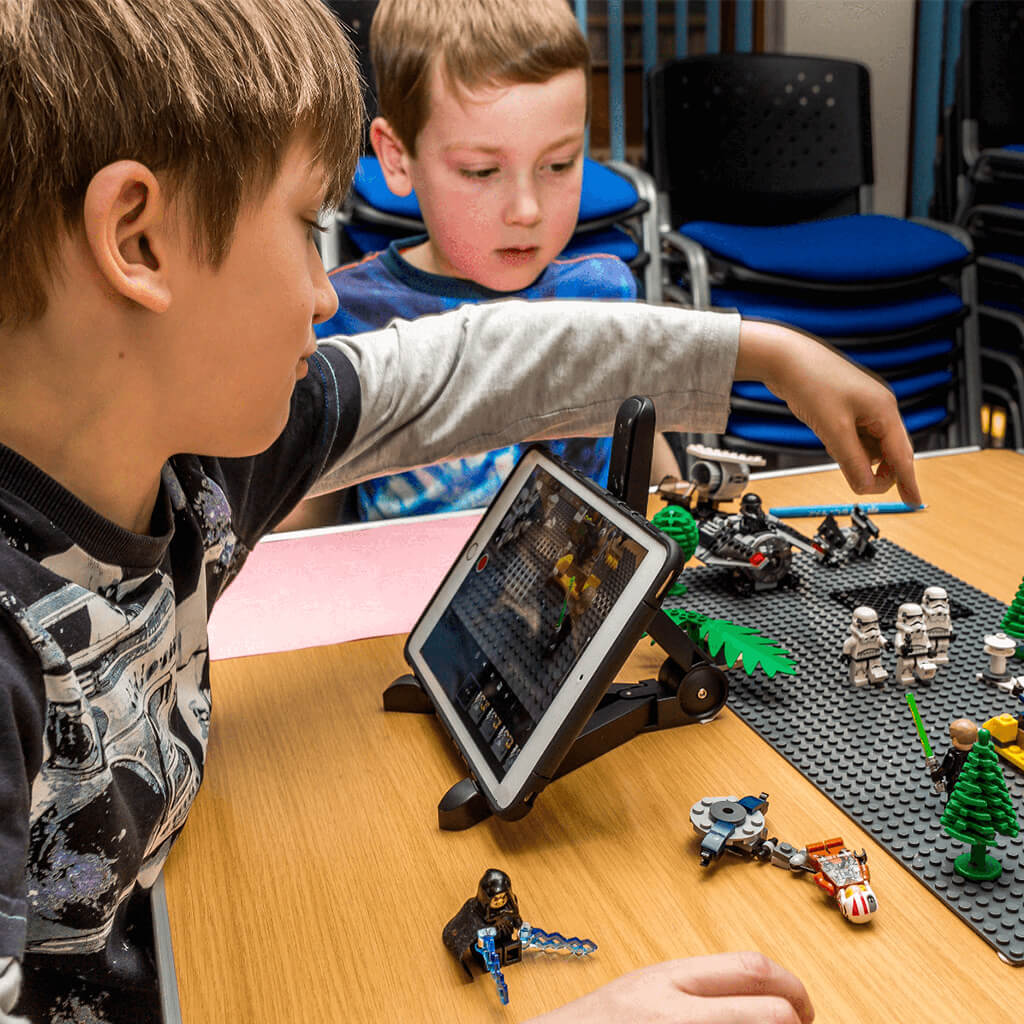
Table of Contents
Best Apps For Lego Stop Motion
- I Can Animate
Cost of app: $2.99 on Apple Store or $4.99 per item on Google Play
For children 4+
Unique feature – the timeline allows for simple reordering and editing
I Can Animate for iOS Interface
I Can Animate is a way to produce movies quickly and with little need for that much tech knowledge. You can use your iOS device, whether tablet or phone, to create and then share your videos. This app is produced by Kudlian Software Ltd and retails on different prices on Apple Store and Google Play.
I Can Animate is unique in its simplicity. You use the camera on your iOS device, and the app will show you the differences between frames, so you can check your progress. This is called onion skinning and is essential to the success of your animation.
There are some basic editing features. These features include an ability to view the images on a timeline and duplicate or reorder these. You can also change the exposure, balance and focus settings to ensure there is a replication of conditions between photographs.
I Can Animate for Andriod Interface
A useful option is the ability to connect a Bluetooth keyboard and capture your images without returning to your device. This means you can secure your phone or tablet and avoid knocking or changing the angle by tapping on the screen. Also helpful for streamlining the filming process is the inbuilt time-lapse feature. You can automatically capture images one after another without having to return to the camera.
You can then share these movies by exporting them to Facebook, YouTube or Dropbox.
- Stop Motion Studio
Free basic package with in-app purchases
Pro version costing $9.99 on Apple Store and $4.99 on Google Play
For children 4+
Unique feature – the ability to add and edit audio
Stop Motion Studio Interface
Stop Motion Studio, produced by Cateater, is an app offered for people age 4 and over and is available on iOS and Android – for your phone or your tablet. There is also a full-featured movie editing software that you can buy for your PC and Mac.
The app is free to download, with some free features. However, there are in-App purchases for some of the better features. You can purchase the Stop Motion Studio Pro app at the cost of $4.99 for Android devices, which then opens all the advanced features in the app.
The advanced features include a function to add and adjust audio, importing and cropping images as well as 4K Ultra HD and much more. The Green Screen function is particularly smart, as this allows you to include a background, which is preloaded onto the phone.
Reviews are positive. Most note that the product appears simple to use – and you can get high-quality Lego movies without feeling daunted. However, the intuitive nature of the app design belies the smart tools available for your movie production. You can add in text, speech bubbles and titles. You can add facial expressions to your Lego figures. The eraser tool is wonderful, as you can delete unwanted objects from your images.
- The Lego Movie 2™ Movie Maker
Free
For children 8+
Unique feature – a chance to be part of a Lego moviemaking community
The Lego Movie Maker
This branded movie maker is free on iOS and Android. It is suitable for children aged 8 and above, so a little more advanced than the more basic I Can Animate – but it is designed only to be used on your phone, using the in-built camera. There is the option to add sounds and visual effects to the live footage, as well as edit material within the app. There is no save facility, which means your project needs to be sensible for the time you have before sharing to the site.
You will need to set up an account to be able to share your movies. However, for parents, this adds a reassuring level of moderation and support. Every video is moderated before it is shared. The set-up of the account is not too arduous. You are asked for your home country, your email address and your date of birth. All your videos will be anonymised as part of a stringent adherence to GDPR and safeguarding policies. The strength of this app is the infrastructure of a large brand that understands how to protect children. Be aware, your movie will become the property of the Lego group when uploaded.
Probably the most attractive selling point of this app is that there is no third-party advertising. Consequently, there are hours of uninterrupted fun offered.
- LifeLapse Stop Motion Maker
Free for the basic package
PRO subscription plan, after a 7-day trial
Pro Monthly $7.99/ Pro Yearly $39.99 on App Store
For users 12+ with a focus on B2B adult target market
Unique feature – professional-level design features – with Instagram cropping guidelines
Created by Bolandia Creative Inc., Life Lapse Stop Motion Maker is designed for a more sophisticated audience. It is available on iOS and Android. It is aimed at users 12 and above, and there is a definite feel of a professional design package. The interface is a clean white with simple black icons for the function buttons. Essentially, the company is aiming the app at other businesses looking to produce marketing material.
This is not to say that the app cannot be used by Lego movie makers. The app has an intuitive interface, with simple icons that make it clear how the features can be used. There is the option to adjust the brightness, contrast, saturation and warmth of each image. You can also change the speed and size of images.
LifeLapse Stop Motion Maker
The apparent marketing leaning of this app is evident in the offer of Instagram crop guidelines, which will allow businesses to upload the stop-motion animations to the site. However, the in-app tutorials are excellent for helping younger people compose the Lego movies with a degree of sophistication that the other apps don’t provide. There is the option of an exposure lock, so the conditions stay the same for each photograph. You can use the ghosted image overlay, which allows you to check the difference from one frame to another.
Particularly useful, the grids allow you to clearly map the changes from one image to the next. This stop motion maker app helps you to track your stop-motion animation with some accuracy and it’s quite popular for making Instagram Stop Motion Videos.
- Onion Cam2
Free
For children aged 4+
Unique feature – simplicity and the onion skin feature allowing you to easily track the stop motion effect
Onion Cam2 Stop Motion Maker
From the developers Yosuke Seki, this StopMotion camera is a simple tool for taking a series of images to produce your Lego movie and then play it back. You can now store the images within the app, which is new from Onion Cam1, which means you can come back to your movies and continue your work. You can also export your video with OnionCam 2.
The “onion” in the title comes from the onion-skin function which allows you to check the lapse between photographs. There is a translucent display of the picture you took last time – allowing you to gradually build up your time-lapse movie.
The guidelines are also a useful way to measure the changes you are making.
If you want an app that allows you to create a simple movie without too many bells and whistles, then this is the app for you. There are not too many advanced features, only the changing order function stands out. However, your young child should be able to use this app without much intervention from you.
Basic Tips for Improving Lego stop motion videos
The essential ingredients for the best Lego movies include creativity and patience. If you have both vital qualities, read on to understand how to maximise the effects in your film.
- Get your timing right
If you want your characters to move quickly, then you need fewer images and movements per second. If you’re going to slow the characters down, you need to take more pictures with more actions. Getting this right is a matter of trial and error, to begin with.
However, you can make this easier for yourself by planning a little. If you have a shooting rate of 15-frames per second, then you will need to plan out 15 images to fill a second of film. Each action in your movie that would last a second will need 15 pictures with gradual changes per image.
- Making your characters’ movements natural
If you are not careful, your characters will move around in a jerky fashion. In real life, we ease in and ease out of actions. We start and finish an action slowly. Therefore, when taking images, use more pictures at the start and end of a movement, giving the impression of easing in and out of actions. - Master the walk cycle
A great place to start your Lego movie-making is in the perfection of the walk. Your characters will go through 4 movements in a walk.
One leg will step forward, heel down, and toe up.
The toe on this foot then descends
The other leg passes the standing leg
The passing leg heel hits the floor
This movement will likely take about 20 frames. When moving the arms, make sure the opposite arms move with the leg – so the left arm swings as the right leg is moving forward.
- Practice and perfect
Finally, watch how people move in real life. Notice how the heads, arms, and legs move together. Then, try to recreate this with your Lego characters. Watch your material, reflect on what could be improved, and try again. The only way to become a great Lego movie maker is to practice, practice, and practice some more!
stop motion studio
Want to create movies like Wallace and Gromit or those groovy Lego shorts on YouTube? Stop Motion Studio is an amazing app to create terrific stop action movies with a whole host of unique features. Like the frame-by-frame editor, the never get lost timeline and the cool sound editor.
Stop Motion Studio it’s simple to use, it’s deceptively powerful, and it’s tremendous fun. Available for iPhone, iPad, and macOS as well as Android and Windows.
Take a tour ►
Capture the perfect picture.
Capturing images has never been easier before. No matter if you choose automatic or full manual control of camera settings such as focus, exposure, ISO, and white balance. Capture images in 4K or use a live green-screen effect. You can also use a second device as a remote camera to get a new perspective.
Use your digital camera.
Stop Motion Studio supports digital cameras from all the most popular camera makers, including Canon, Nikon, and Sony. Use live view to easily control objects and movements. Control shutter speed, ISO and aperture directly from the app and take advantage of the full-size camera quality.
Check camera compatibility.
Desktop-class movie editing.
The unique frame-by-frame view shows you all the images you took in chronological order, much like the single frames of a movie. Cut, copy, paste, delete, and insert frames at any position. Zoom in and out on the timeline view so you never get lost, even if you have hundreds of frames. Add audio clips, titles, credits, and filter effects. Creating the movie the way you want it.
Discover the ease of animating with In- and Out Points.
With Stop Motion Studio you can quickly set In and Out points to mark a specific portion of your movie for playback and looping. Then use the loop playback to animate the sequence until it looks perfect.
Use composition guides for perfect positioning.
Use the Grid and Onion Skin controls to help you position animated objects more easily and precisely. Define aspect ratio masks and safe guides. Add a path layer to define movements, use the draw tool to mark positions or load an image or video file as a reference. The onion skin overlays the last captured frame on top of your camera’s live view. This way, you can see how far you have moved your character between frames.
Bring it all to life with great sound effects.
Stop Motion Studio comes with dozens of sound effects and music clips for you ready to use in your movie. Bring characters to life by recording a voice over track directly to your movie. Use the built-in audio editor to trim the audio clip, set fade-in and -out, change the volume or add dozen of funny audio effects to sound like an alien, a robot, or an old radio station.
Make it your canvas.
Use the different painting tools to paint as you would on a traditional canvas. Control brush size and strength. Add multiple layers to define foreground and background objects. Use the painting tools to get creative. Draw a laser sword to a figure or fireworks in the sky. Stop Motion Studio has Apple Pencil support for and works great on the iPad Pro.
Magically get rid of unwanted objects in your movie.
The masking tool in Stop Motion Studio will help you to make unwanted objects to disappear from the image. Erase objects like a string you used to hang objects during capturing. The eraser has two tools, conceal and reveal. Reveal will reveal the clean frame image wherever you touch the image, whereas the conceal brush will restore the original frame image.
Turn good looking pictures into spectacular.
Use the image editor in Stop Motion Studio to change the composition, adjust color levels, or apply amazing filter effects. Everything is nondestructive to let you perfect all the details.
A powerful tool to design beautiful title and credit screens.
Stop Motion Studio comes with dozen of beautiful designed titles and credit cards ready for you to use. Or use the powerful editor to design your own. With its advanced typography features, you can make your design that fits perfectly with your movie.
Make your movie pop.
Choose from dozen of breathtaking effects to completely change the look of your movie. Add an extra touch of creativity by adding beautifully designed foregrounds, backgrounds, movie masks and fade transitions.
Green Screen
Using chroma keying or green screen, you can change the background of your scene to make the figures you capture fly or appear anywhere you can imagine – just by changing the background image.
Add Facial Expressions to LEGO® figures
Add mouth and eye shapes to your LEGO® figures to create facial expressions or let them speak. Choose from dozen of different mouth and eye shape that fit the expression you want to give your character.
Get close to the action.
With Stop Motion Studio you can use a second device as a remote camera. Use your gorgeous new phone device as a camera while controlling it remotely using Stop Motion Studio on your tablet device.
Conclusion
Let us know your thoughts in the comment section below.
Check out other publications to gain access to more digital resources if you are just starting out with Flux Resource.
Also contact us today to optimize your business(s)/Brand(s) for Search Engines