
Apple Pencil has revolutionized the way we write and draw. An Apple Pencil can be used to make your written words more legible, and it’s a great addition to your writing arsenal if you want to take notes, sketch, or design a new app.
There are many apps compatible with Apple Pencil that will allow you to write on your iPad and turn your handwriting into text that can be shared with others. But how do you choose among all of these different apps? Here are some of the best apps for writing with Apple Pencil:
Table of Contents
Best Apps For Writing With Apple Pencil
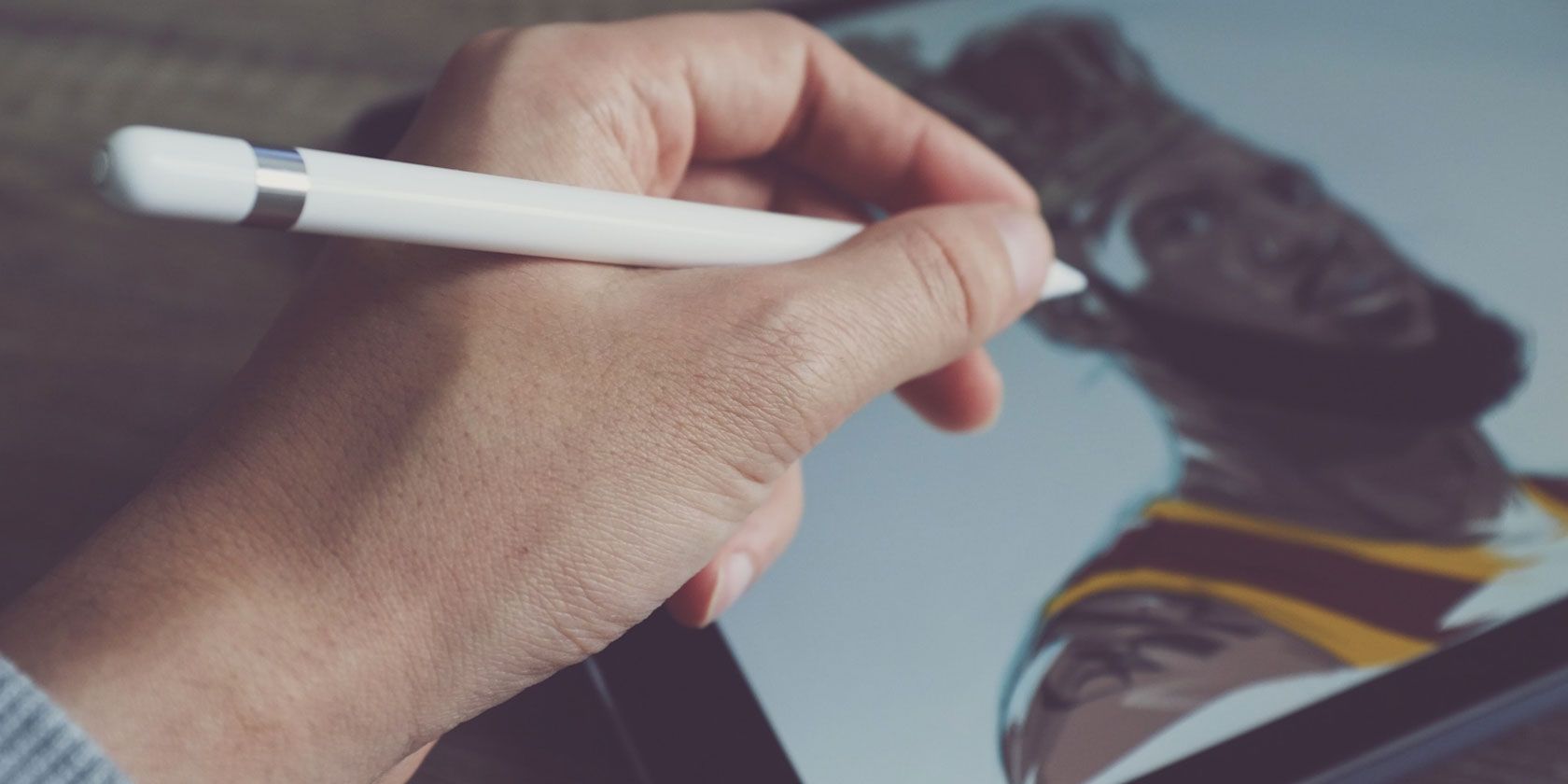
The Apple Pencil transforms the iPad from a touchscreen tablet to a computer with a precise pointing instrument. Add an Apple Pencil to your iPad or iPad Pro and you’ll watch the device spread its wings.
Tasks like editing photos, taking notes in class, drawing, and graphic design become more intuitive, faster, and easier. Check out our list of the best Apple Pencil apps for iPad and iPad Pro.
1. Apple Notes
Before you jump into the abyss of amazing third-party apps, don’t forget everything Apple Notes can do. The built-in Notes app comes with support for the Apple Pencil.
Make a new note, then just start writing with the Apple Pencil. You can scribble, draw, or do whatever else you want. Tap on the Pencil icon at the bottom to reveal the toolbar. From here, you can switch to a pen or a marker tip and pick any color you want.
Tap on the lasso tool icon to make a section. With it, simply draw over part of the note and you’ll be able to pick it up and move it around.
The best reason to use Apple Notes as a quick note-taking app on iPad is its integration with iOS/iPadOS. Tap on the Lock screen with your Apple Pencil and you’ll instantly open the Notes app with either a blank note or the last note you accessed (you can specify this in the app’s settings).
2. Notability
Notability is designed as a multipurpose note-taking app, especially for students. When you open a note, you can choose to write with your Apple Pencil or type with the keyboard (and easily alternate between them).
Plus, you can record the audio in the background. This makes Notability the best tool for taking lecture notes. You can change the background to show graph paper and write as much as you need, thanks to the infinite scrolling feature. Notability also marks page breaks, which makes it easy to export notes as PDFs or print them later.
Download: Notability ($8.99, in-app purchases available)
3. Adobe Photoshop
As the iPad continues to become more powerful, desktop-class apps are making their move to the tablet, including Adobe Photoshop. Adobe designed the app to take advantage of the iPad’s touchscreen and include support for the Apple Pencil.
With the app, you can create full PSDs with layers and use features you know from the desktop version, like spot healing and blending. There are other familiar tools like the Layer stack and Toolbar. To better help you while working, the app’s UI is context-aware, so it will only show tools that you really need.
You can try the app out with a 30-day free trial. Anyone with a current Adobe Photoshop monthly membership can use the app at no additional cost.
Download: Adobe Photoshop (Free trial, subscription required)
4. AstroPad Standard
You can bring an iPad and Mac together with AstroPad Standard. Requiring a special app to run on a Mac simultaneously, connect your iPad via Wi-Fi or plugged in with a USB connection. On the iPad, you’ll be able to mirror any Mac app on the tablet screen. Along with full touch support and gestures, you can use the Apple Pencil all across the system and with any app. That opens up a wide variety of ways to bring stylus support, including full pressure sensitivity, to the Mac.
For example, you can draw directly into any creative software like the popular Adobe Creative Suite, Pixelmator, and more. You can also use the Apple Pencil for annotation, whiteboarding, and other tasks. When using the app, it bursts up to 60 FPS, even when using Wi-Fi. The app also sports accurate palm rejection for an even better experience.
Download: AstroPad Standard ($29.99)
5. Linea Sketch
Linea Sketch sits somewhere between a simple doodling app and more professional drawing tools like Procreate. It gives you the simplicity of doodling whatever you want, with power user tools like unlimited layers, transform tools, automatic ruler, grids, and more.
Like every other drawing app, Linea takes a canvas-based approach. Unlike Notability, you won’t find an endlessly scrolling page here. However, you can create multiple canvases and organize them in projects.
RELATED:The Best IPad Drawing And Painting Apps For Beginners
The grid tool gives you backgrounds for note-taking, drawing, and user interface design. Linea Sketch’s genius lies in its simple design. The tools are arranged in two panels on either side of the screen, letting you ignore features you don’t need.
But this is a double-edged sword, as many of Linea’s interesting features are hidden behind buttons. Once you get comfortable with the app, you should create a blank page and try all the tools at least once.
Download: Linea Sketch (Free, subscription available)
6. GoodNotes 5
GoodNotes 5 is the modernized version of the original versatile note-taking iPad app. The first app’s premise was simple: it replicated a physical writing environment on the iPad. If you liked writing on a yellow legal pad, you could essentially get the same feeling on your iPad.
But this also meant that GoodNotes was limited in functionality. For example, it didn’t have the endless vertical scrolling we’re used to in apps like Notes and Notability. Instead, you had to flip pages every time.
GoodNotes 5 takes care of these annoyances. The continuous vertical scrolling makes note-taking much easier. And this version improves on all the aspects that make GoodNotes such a robust note-taking app. You can now nest as many folders as you want and organize them easily.
Plus, the handwriting recognition works even if your handwriting is poor.
Download: GoodNotes 5 ($7.99)
7. LiquidText
LiquidText takes the usual note-taking app to a new level. The app is designed to bring the true paper experience to an iPad. On the tablet, using an Apple Pencil you can gather and organize notes, ideas, a more from a number of sources. And a single tap can show the original context of the information. The app’s unique visualizations allow you to bring search results and highlights to see the big picture. Once the notes and excerpts are organized how you’d like, results can be exported into a PDF and other standard formats to share with others.
The free version offers limited functionality. There are multiple purchases opportunities for a single device or a cloud-based version that can be used across multiple devices.
Download: LiquidText (Free, in-app purchases and subscriptions available)
8. Pixelmator
Pixelmator is known as an intuitive and simple image editor. While you can use Pixelmator to quickly edit photos, it does a lot more than that. You can create an empty canvas, add and arrange photos, create shapes, add text, and more. Each lives on its own independent layer.
The Apple Pencil adds an extra layer of creativity. Using the selection tool, you can accurately single out parts of images that you want to edit. You can also write over images freehand, or draw any shape you want. Pixelmator comes with a variety of brushes, from calligraphy to crayons.
Download: Pixelmator ($4.99)
9. Procreate
Procreate is the ultimate Apple Pencil app. If you can dream it, and you have the skills, you can probably make it using Procreate on iPad. If you don’t want to use Photoshop, Procreate is rightly championed as an Adobe suite replacement and one of the best professional iPad apps.
However, Procreate is best suitable for drawing and painting. It’s not really designed for graphic design and vector work.
Download: Procreate ($9.99)
10. Nebo
Nebo is a full-featured note-taking app that’s made even better with the Apple Pencil. With it, you can edit and format text and do tasks like add or remove content and space, plus decorate and apply different styles.
One of its headlining features is converting handwriting from the Apple Pencil into text that you can edit and add to different notes. The app recognizes more than 65 languages and will also convert handwritten symbols. You can also enter text using a keyboard if you prefer. When looking for specific information, both typed and handwritten text are searchable.
When you finish a note, it can be converted into Word, PDF, HTML, or text. While the app is free to download, the majority of features require an in-app purchase to unlock the Pro version.
Download: Nebo (Free, premium version available)
best apps for apple pencil coloring

retail stores recently. That’s because it is a great way for grownups to take some time to relax and focus on art without having to be particularly artistic. There are some great coloring book apps built specifically for the iPad that cater to different techniques. We’ve got a list of the best coloring books for adults for all occasions.
Pigment Lake Colorfy Recolor Colorest Colorgram
Pigment
Pigment
Pigment
Pigment offers the most versatile coloring experience. You can color with a variety of tools, including pencils, markers, airbrushes, watercolors, oil paints, and more. You can blend colors, including lighter on top of dark, and press light or hard to produce a different thickness of strokes. There are hundreds of colors to choose from, each with a shading gradient so you can customize your hues.
Sponsored Links
Avoid Writing Mistakes With This Desktop App
Grammarly
There are three ways to color with Pigment. You can use Automatic, which will allow you to color wildly, but you will still stay within the lines, Freehand, which is like real-life coloring where you will go outside of the lines if you aren’t careful, and Advanced, which lets you select multiple spots on an illustration to color in at once. This last option allows you to color across different sections, while only coloring the objects you want.
There are also a few tools that are not at all realistic but can be loads of fun to work with. The Fade and Broom brushes create a unique shading on your illustrations and the Fill brush lets you simply tap to add color to an object.
The best part is that Pigment works beautifully with Apple Pencil to create shades and depth to each page you color.
There are dozens of free pages and plenty of great tools, but if you are a coloring fanatic, you can subscribe to Pigment’s premium service for hundreds of illustrations, additional brushes, and new coloring books each week.
If you color in real life and are looking to recreate that experience on your iPad, Pigment is the best app in the App Store.
Free with in-app purchases – Download now
Lake
Lake
Lake
Lake has the unique feature of being a coloring book for artists, by artists. Well, you don’t actually have to be an artist, but if you are, you’ll really appreciate the time and effort that each of these Instagram illustrators put into their work, work that you can make even more interesting with your own color creations.
The color palette is vast, with varying shades conveniently connected on a rotating wheel. You can start with red and switch to the lightest shade of pink or a deep reddish brown. Each page also comes with a pre-made color palate suggestion, curated by the artist who illustrated it.
You can pick from five different artist tools to work with, and you have the ability to adjust the brush size of each. You can also choose whether to restrict or free up coloring outside the line.
If you feel good about supporting working artists, you won’t want to skip this coloring book app. It’s full of great illustrations and gets updated all of the time.
Free with in-app purchases – Download now
Colorfy
Colorfy
Colorfy
Colorfy offers a simple fill-in-the-object style of coloring so that you don’t have to work as hard to get a beautiful illustration. You can choose from a few dozen hues or upgrade to a monthly subscription to unlock more than 100 different shades. Plus, you can create your own shades using the pigment shading tools.
When you are finished coloring, you’re definitely not done creating. The next step is to add a filter. These fun overlays will make your page look like an oil painting, graffiti on a brick wall, or even a knitted swatch. Your finished artwork can be shared to various social networking sites. You can also publish pages to the Colorfy feed for others to comment on, or even add their own colors, too.
You can also create your own illustrations to color by creating artwork from pre-made stickers and backgrounds, or by taking a picture of something you’ve drawn in real life.
If coloring can sometimes stress you out because of all of that movement you have to use with your hands, Colorfy will give you a pleasant experience without all of the scribbling action.
Free with in-app purchases – Download now
Recolor
Recolor
Recolor
Recolor takes the whole digital coloring thing to the next level with 3D objects that you can actually color all sides of. Grab a soda can or ceramic vase and turn it into a virtual work of art. There are more than a dozen categories with hundreds of illustrations.
Recolor uses the tap-to-fill style of coloring, which can be very helpful when you are trying to fill in those tiny objects. In addition to the flat color gamut, you can upgrade to gradients and “Live” colors, which make things have a sort of swirling effect.
You can submit your artwork to the Recolor gallery where others in the community can “Like” your stuff.
My favorite tool in Recolor, though, is the scanner. You can scan in illustrations and color them digitally. I have a couple of vintage Star Wars comic books that I’ve been afraid to jump into because I don’t want to ruin their value. Recolor’s scanner lets me color the pages without affecting the original book
If you like fill-in style coloring, but want a lot of hue options, give Recolor a try.
Free with in-app purchases – Download now
Colorest
Colorest iPad
If you’re looking for an adult coloring book app that will let you fully express yourself with different colors and effects, then Colorest is a good choice.
With Colorest, you get a large variety of different coloring pencil sets, including rainbow and even glitter pencils that actually sparkle when they’re used. The rainbow pencil features about six colors at once, and it definitely offers a unique effect. There are also multiple ways to color, including different brushes, and full Apple Pencil support.
Colorest also features different canvas types, which will alter the end result. The app includes wood, carpet, and even underwater. There are also plenty of different coloring books available in Colorest, from mandala to entangle to girl’s life to middle earth, and more. Once you’re done coloring, you can put your art in an AR frame to share it with friends and family.
Free with in-app purchases – Download Now
Colorgram
Colorgram iPad
Colorgram is jam-packed with thousands of pictures for you to color, including mandalas, patterns, animals, florals, and other beautiful pieces of artwork.
If the initial download isn’t enough to satisfy you, there are always images being added daily, which you’ll be able to access with a premium subscription. Colorgram also has a ton of colors to choose from, and while the app is designed with adults in mind, it’s still great for younger boys and girls thanks to the variety of images. Once you’re done coloring, you can watch a time-lapse video of your coloring from start to finish, and there are even cool effects that you can add to finalize the art’s beauty.
Conclusion
Let us know your thoughts in the comment section below.
Check out other publications to gain access to more digital resources if you are just starting out with Flux Resource.
Also contact us today to optimize your business(s)/Brand(s) for Search Engines