
Web developers can be a picky bunch. They know what they want, and it might not be what you think it is. That’s why we compiled this list of the best Chrome extensions for web developers. We’ve pulled from personal experience, as well as the opinions of other web developers, to make sure that these extensions are the ones worth your time and attention.
We’ve also included a range of different types of extensions—from those that help you with debugging code to those that make your browsing experience more efficient. No matter what kind of web developer you are, we think you’ll find something here for you.
It’s also important to note that this isn’t a complete list of all Chrome extensions for web developers—there are thousands out there! What we wanted to do was highlight some of the best ones, so you don’t have to spend days sifting through the Google store looking for good ones.
Best Chrome Extension For Web Developer
As development has several specialities, we have divided our list into two. One part containing tools useful for web developers and the second tools for generalist developers.
There’s sure to be something here you could use!
1. Githunt
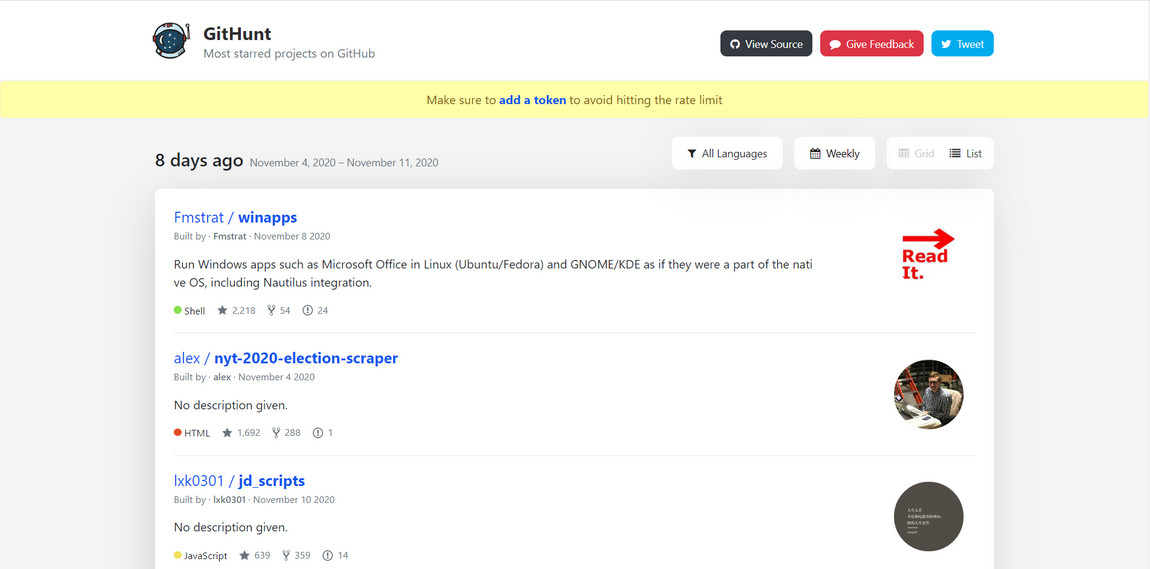
Githunt is useful if you spend a lot of time on GitHub looking for new projects to work on. Rather than depending on GitHub’s trending projects feed, this Chrome developer extension brings it to the fore by highlighting all trending projects in a new tab area in your browser.
You can search projects in different languages, read a brief project description and the number of current open issues. You can then simply select the project within the tab to go to the project and inspect further. It’s a very useful little extension if you like contributing to new projects.
4,000+ users
2. WhatFont
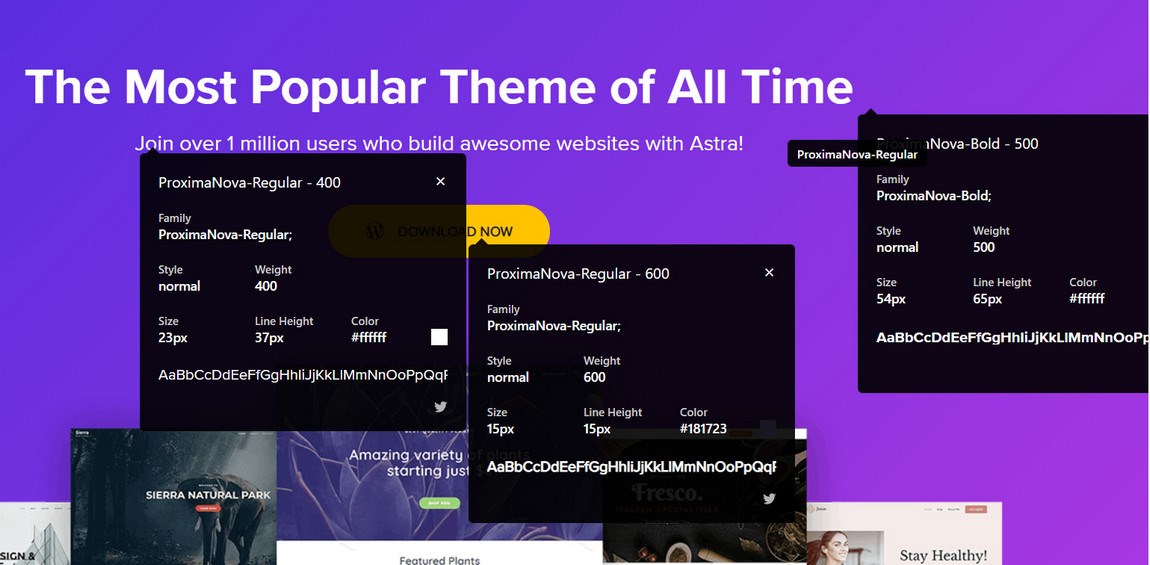
WhatFont is a very useful Chrome extension for developers who need to identify fonts used on web pages. It’s fast, effective and identifies individual fonts within a page in seconds. It also identifies the family, size, weight and colour. All within a small popup window in the browser.
WhatFont is ideal for web developers who like to collect examples of great pages they might want to emulate in the future. It’s small, doesn’t use many resources and well worth using. It hasn’t been updated in a while but still works perfectly.
1,000,000+ users
Rating: 3.5/5 for usabilityGet Started with WhatFont
3. Fonts Ninja
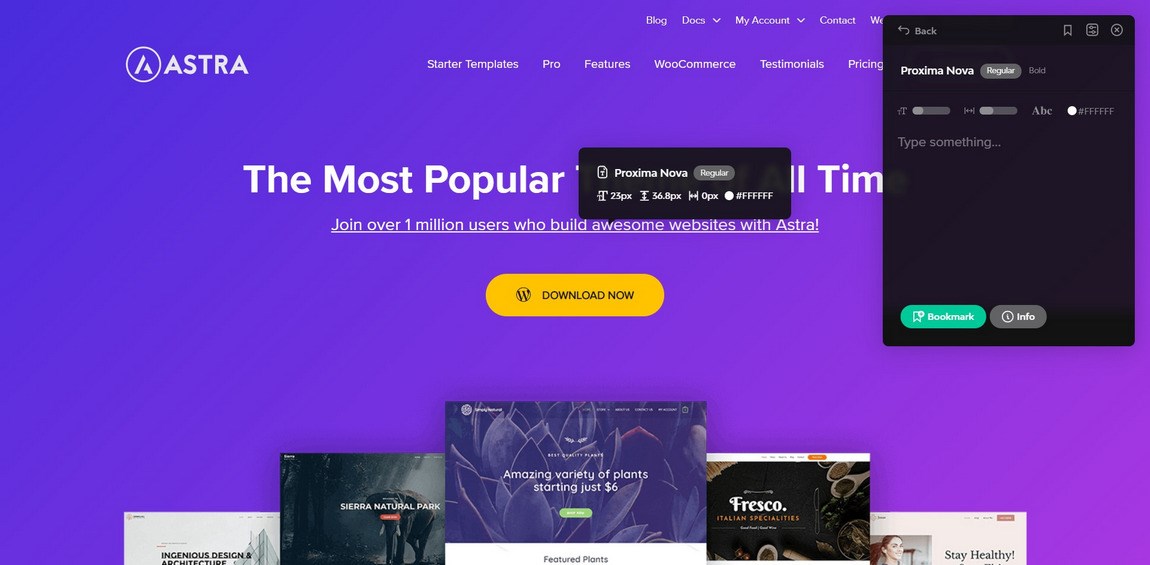
Fonts Ninja works in a similar way to WhatFont to identify fonts within a web page. It’s a useful alternative if WhatFont isn’t working out for you for any reason. It works in much the same but has a smaller interface. Otherwise, the two extensions look and feel very similar.
Install the extension and you should see a small green ninja icon in your toolbar. Open a web page in Chrome, select the icon and hover over a font you want to identify. You should see a page overview popup and an individual popup over the highlighted font. Simple but very effective.
300,000+ users
Rating: 3.5/5 for usabilityGet Started with Fonts Ninja
4. ColorPick Eyedropper
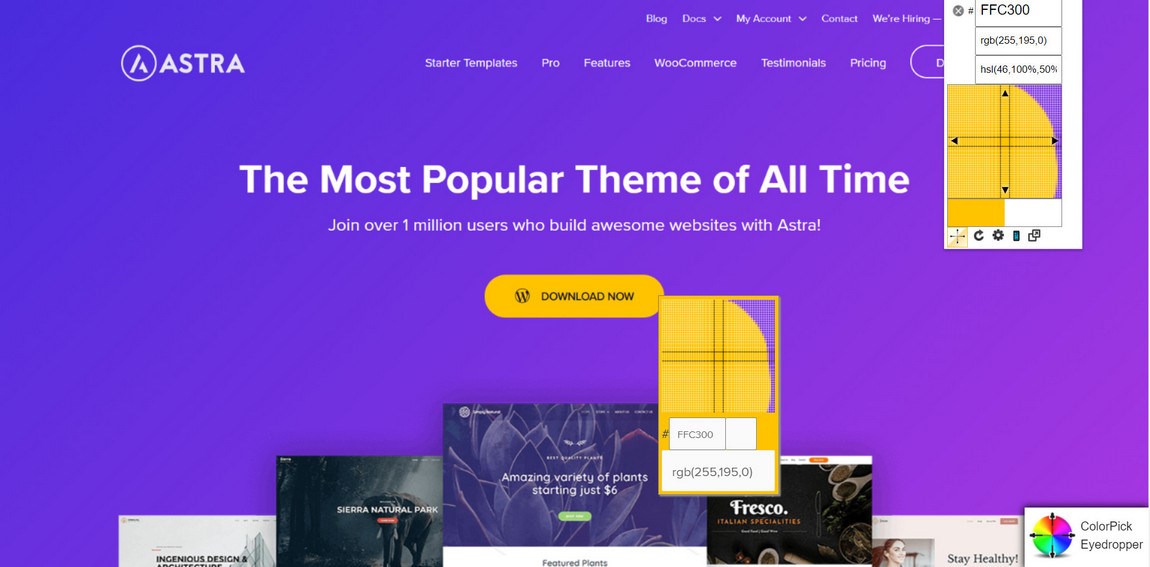
ColorPick Eyedropper is a very neat zoomed selector for web pages. It’s a useful Chrome developer extension because it can quickly identify any colour on any web page and zooms in so you can even select a border 1px wide. While you may not use it every day, it’s an excellent tool to keep on hand.
Once you install ColorPick Eyedropper, you simply select the colour wheel icon to activate it. Your cursor will change to a crosshair, highlight the section you want to identify and you should see the RGB values and the hex appear on the right of the screen.
1,000,000+ users
Rating: 3.5/5 for usability, zero for UX designGet Started with ColorPick Eyedropper
5. Window Resizer
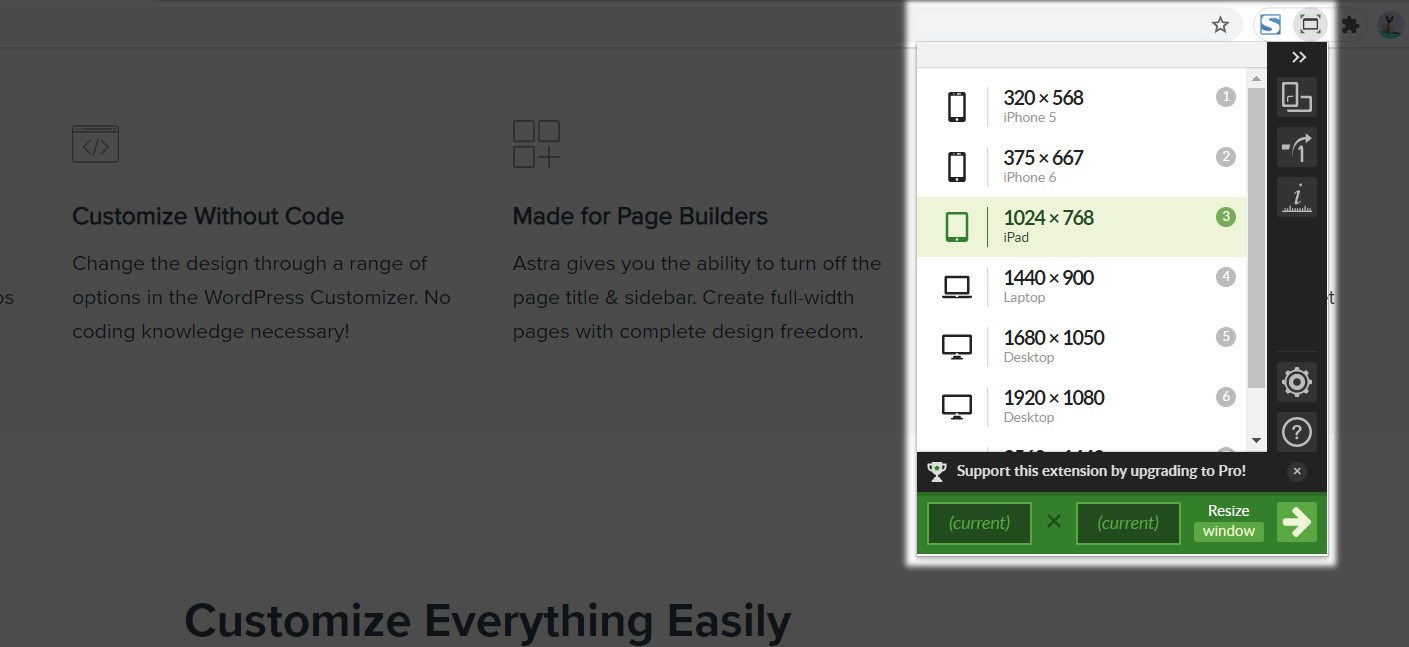
Window Resizer is an incredibly useful Chrome extension for web developers. It’s simple but very effective, especially when working with responsive designs or apps. It installs into Chrome and will resize any screen you’re working on to a range of popular screen sizes.
Most common sizes are covered, mobile, tablet, desktop and the emulation seems very accurate. The guys here use Window Resizer a lot and rate it highly. That’s good enough for us!
600,000+ users
Rating: 4.5/5 for usability and simplicityGet Started with Window Resizer
6. BrowserStack
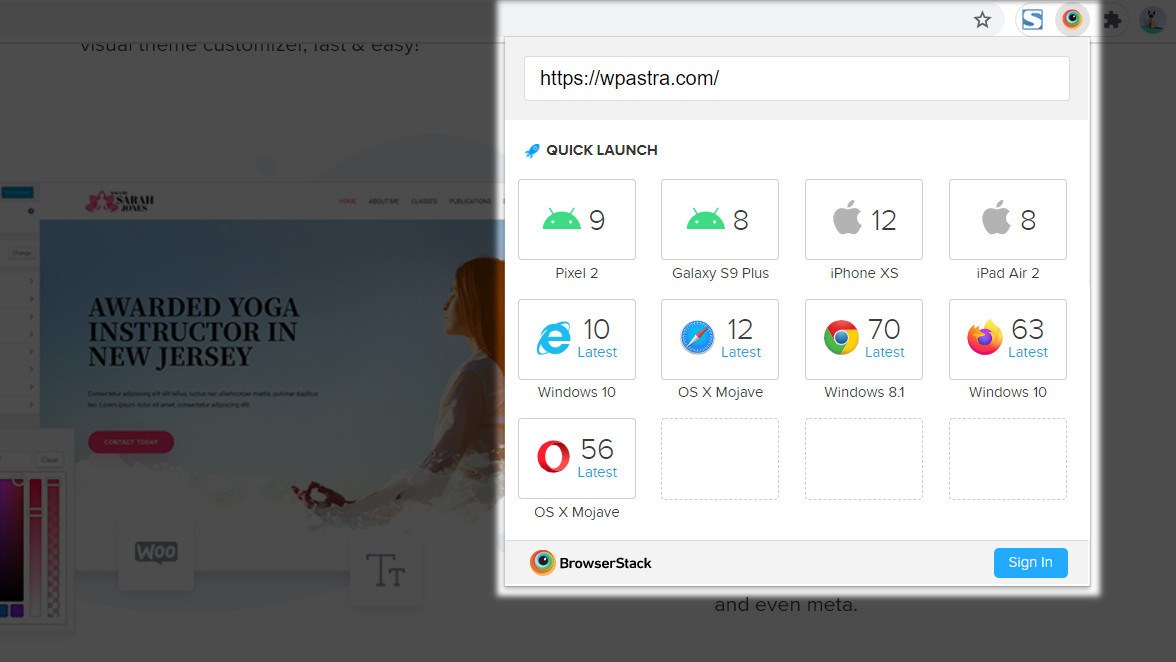
BrowserStack is another exceptionally useful Chrome extension for web developers. Like Window Resizer, this extension allows you to test your work for responsiveness. Rather than different screen sizes, this extension lets you test with different browsers.
Install the extension, open your page in Chrome, select BrowserStack and select a device option from the tab. The page will then be rendered using an emulation of a browser on that device. Simply but very effective. You do need a BrowserStack account for it to work properly though.
100,000+ users
Rating: 3/5 usability is high, the requirement for an account is a definite mark against it.Get Started with BrowserStack
7. CSS Viewer
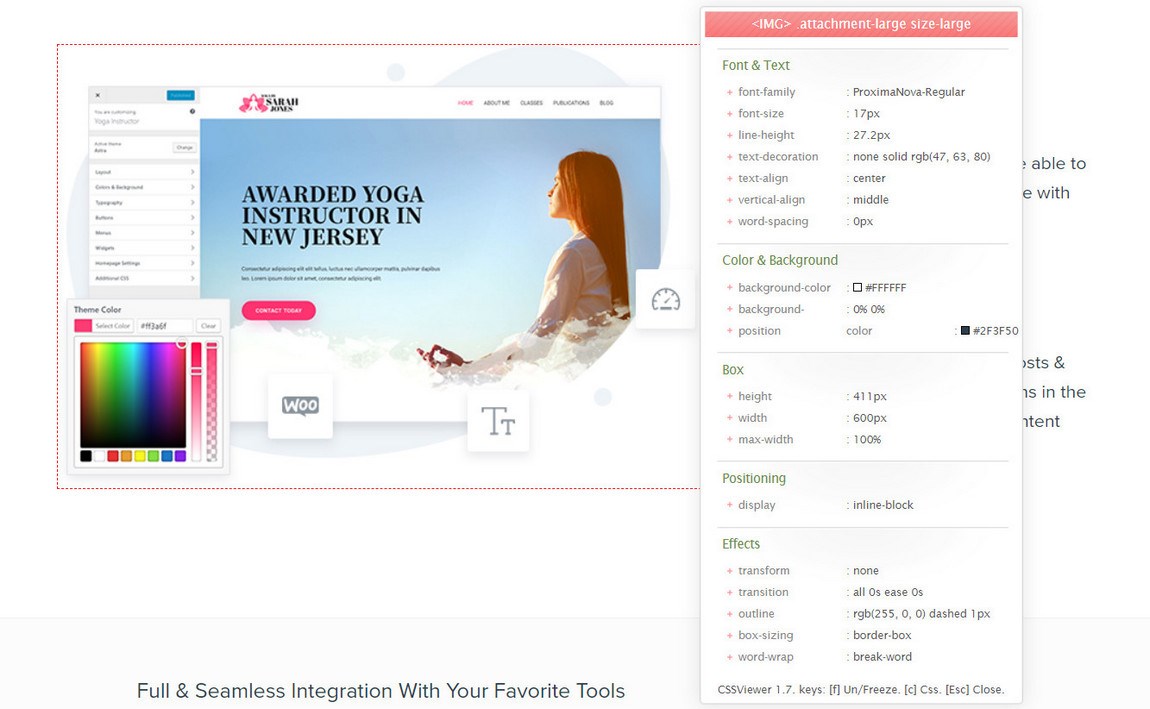
CSS Viewer is another simple but very effective Chrome extension for web developers. As its name implies, this addon shows you the CSS properties of a given page wherever you hover your mouse. A small popup window appears showing you the CSS data that makes up the element you’re pointing at.
This is a very smart extension that makes short work of identifying key CSS properties anywhere you point your mouse.
100,000+ users
Rating: 4/5 for simplicity and ease of useGet Started with CSS Viewer
8. Lorem Ipsum Generator
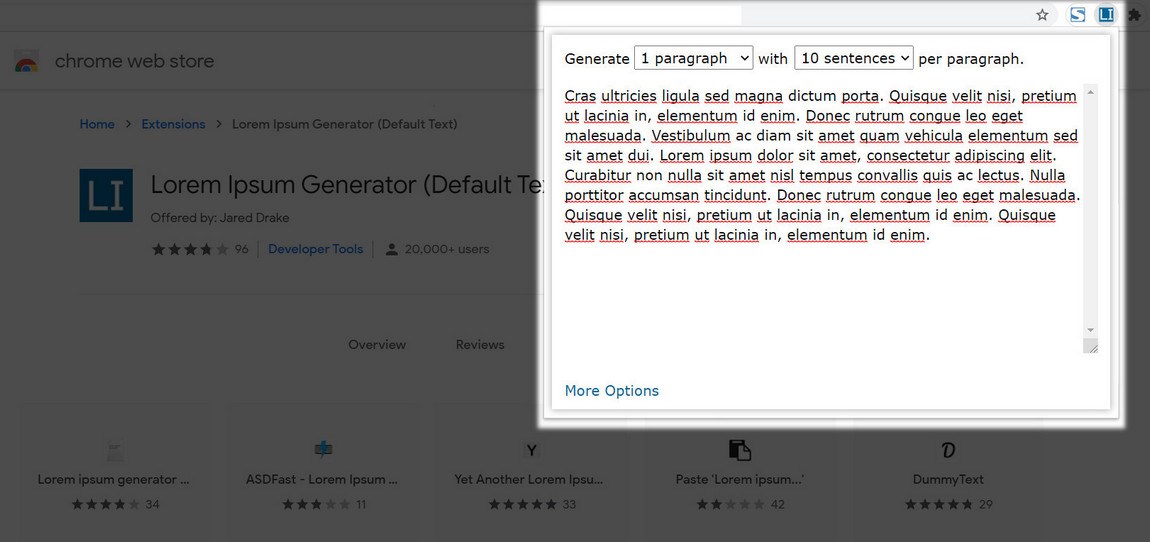
Lorem Ipsum Generator is one of the best Chrome extensions full stop. It does what its name suggests it does. It generates filler text for demo websites and does it well.
Simply install the extension, select it within a page, tell it how much Lorem Ipsum copy you want to generate and copy it from the window. Paste it into your page and you’re done.
20,000+ users
Rating 4/5 for ease of useGet Started with Lorem Ipsum Generator
9. Corporate Ipsum
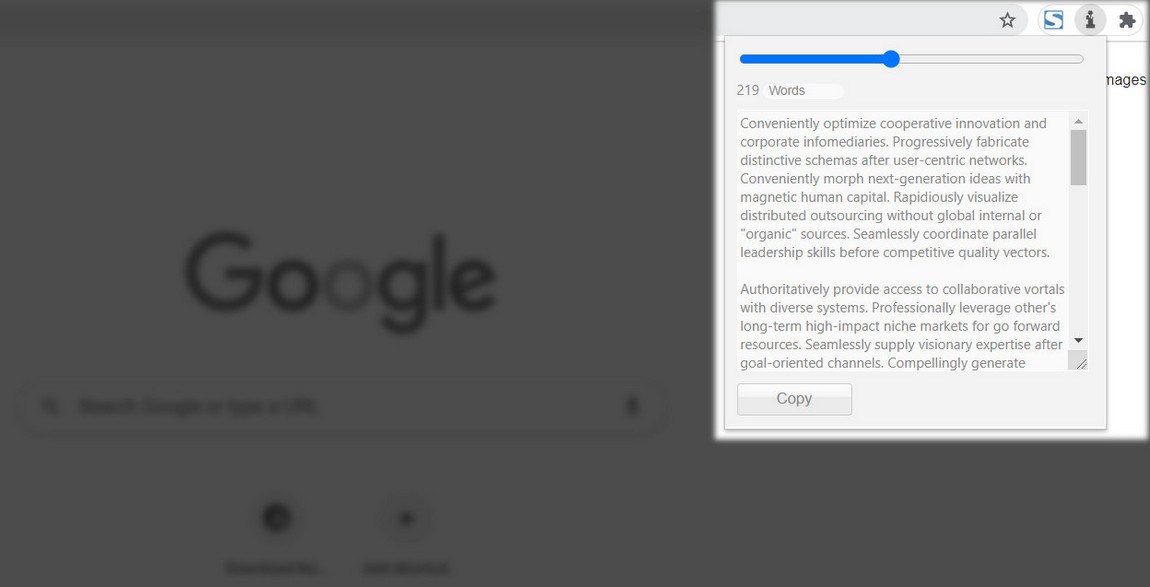
Corporate Ipsum is a popular alternative to the Lorem Ipsum Generator. If your client is more picky about placeholder text or you want to add to the feel of a business website, this is where you come. This Chrome developer extension generates lorem ipsum but with a corporate twist.
It works much like the Lorem Ipsum Generator too. Install the extension, open your page, select the icon and tell it how much copy to generate. Copy and page it into place and move onto the next. It’s a fast, simple way to generate more business-oriented placeholder text.
10,000+ users
Rating 4/5 for ease of use and for filling a specific needGet Started with Corporate Ipsum
10. Ghostery
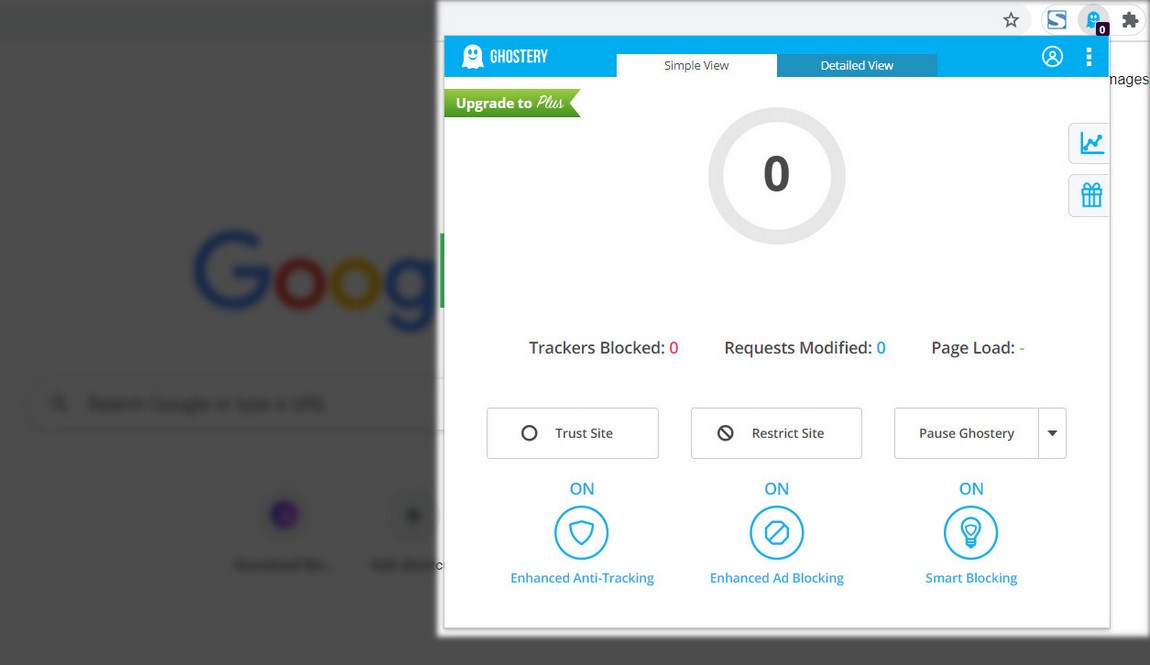
Chrome is a great browser for many things but privacy is not among them. Ghostery aims to help with that. It’s a privacy extension designed to block intrusive ads, stop tracking, prevent data collection and block all those page elements that slow you down.
While Ghostery doesn’t provide any useful tools for web development, it keeps your browsing experience clean and makes everything faster. Every Chrome user should install Ghostery!
2,000,000+ users
best chrome extensions for productivity
Clockify — for tracking time
Time tracking and productivity chrome extension
🔹 What is Clockify?
Clockify is a time-tracking app that allows you to accurately track your activity across apps and the web with a single click at the start of the day. To make matters even easier, the extension further simplifies the process.
There’s no need to open the Clockify app or go to the website — simply start the timer at the extensions bar and get started with your day.
🔹 Why use Clockify?
Aside from tracking time, Clockify lets you:
Organize time entries,
Input descriptions,
Sort time entries by projects/tasks,
Analyze your day, and
Export the results in PDF.
Furthermore, Clockify’s basic plan is absolutely free for an unlimited number of users, but you can get access to extra features for a relatively low monthly price if you upgrade to advanced plans.
🔹 Clockify’s highlight feature:
If you’re struggling with staying productive, you can use the Pomodoro timer to set intervals for working/studying and taking breaks. Also, you can eradicate laziness by activating features such as idle detection or alerts for specific tasks.
💡 Clockify Pro Tip
If you want to learn how to enhance your productivity even further, take a look at our student and freelance productivity guides:
Student productivity guide
Freelance productivity guide
25 ways to increase productivity
Google Keep — for note-keeping
Best Chrome extension screenshot: Google Keep
🔹 What is Google Keep?
Google Keep is an excellent Chrome extension for keeping all your data neatly organized. Its primary function is to help you take notes and create to-do lists, but you can also save images and pages and then add notes to them.
Moreover, you can even take notes by making voice memos that are later transcribed.
🔹 Why use Google Keep?
If you often keep a large number of notes and you’re constantly shifting between tasks, Google Keep’s color-coding system will surely be of help to you — find what you need at any time.
Furthermore, all your data can be synchronized across devices, if you have the app installed.
🔹 Google Keep’s highlight feature:
The extension lets you set up location-based reminders for your notes and lists. Say you have to do some on-location research for a travel app — just make a list of all the details you should keep an eye on, and set a location-based reminder so that Google Keep pulls up your list as soon as you get to the location.
Grammarly — for grammar and spell-checking
Grammarly
🔹 What is Grammarly?
Every student in the modern era has either heard about or used Grammarly at some point. It is a software that possesses the ultimate grammar knowledge, combined with:
Spell-checking capabilities,
Advanced suggestions,
Clarity corrections, and
Style adjustments.
The extension follows you on most sites that have text fields and it’ll start running as soon as you start typing.
🔹 Why use Grammarly?
Grammarly is an excellent accessory for everyone — students, teachers, reporters, and even office workers. It can significantly cut your typing time, affect your overall writing performance, and leave you worry-free when you have to send an important email.
🔹 Grammarly’s highlight feature:
If you’re writing an important text and you need it to be absolutely perfect, Grammarly has a “Plagiarism” section that cross-references your text to thousands of other web pages to find identical sentences or phrases. It’s a handy feature for reporters, writers, and, of course, students.
💡 Clockify Pro Tip
If you have that one important exam coming up and you know there’s no way you can 100% prepare for it, you should try some of the best Chrome extensions for students. They won’t pass the exam for you, but they’ll surely help you make a step toward that goal.
Todoist — for task management
Best Chrome extension screenshot: Todoist
🔹 What is Todoist?
The Todoist Chrome extension is a simple, but useful task manager. It allows you to keep track of your projects and manage all your tasks by organizing and delegating them directly from your Chrome.
With Todoist, you’ll never again worry about missing deadlines — add due dates, set up reminders, and build productive habits with Todoist’s recurring-date option.
🔹 Why use Todoist?
To fully utilize every second of your time, you can color-code your projects, create sub-groups and sub-projects, and really micromanage your daily workload.
Moreover, you can use the extension to collaborate with other people — prioritize projects and delegate tasks to your co-workers in an easy and straightforward way.
🔹 Todoist’s highlight feature:
If you’re battling with tons of emails on a daily basis, you can integrate Todoist into your personal or work account.
Then, you can forward emails directly into Todoist and label them as “tasks” or “comments”, which can further be accessed through the extension. This is a clean way to centralize your workspace and fully utilize Todoist’s features in a simple way.
AdBlock — for blocking ads
AdBlock
🔹 What is AdBlock?
If your daily assignments require you to do a bit of online research, you know how frustrating it can be to find what you’re looking for, only to be ambushed by a bunch of ads and sponsored videos.
That’s where AdBlock comes to the rescue.
The name speaks for itself — this extension runs in the background and blocks out all the annoying ads and pop-ups that welcome you when you visit websites such as YouTube or Facebook. It’ll do it automatically and you don’t have to click anything — just let it do its job.
🔹 Why use AdBlock?
Aside from helping you focus on your work, AdBlock will also keep you safe by recognizing and blocking out malware and malicious pages.
🔹 AdBlock’s highlight feature:
AdBlock lets you substitute blocked pages with pictures of your choosing. Moreover, you can customize your experience with AdBlock by choosing some beautiful themes.
Conclusion
Let us know your thoughts in the comment section below.
Check out other publications to gain access to more digital resources if you are just starting out with Flux Resource.
Also contact us today to optimize your business(s)/Brand(s) for Search Engines