
“Best Code Editors For Mac”
Code editors are essential tools for every developer. Whether you code as a hobby or you’re a professional software developer, a good code editor will make your life easier.
Most people prefer to work with their native operating system, which means that if you have a Mac, you’ll probably want the best code editor for Mac.
In this article, we’ll take a look at some of the best code editors for Mac and how they compare to one another.
Best Code Editor For Mac

When you’re coding, you’re writing various text that can be executed by different language compilers. And what makes this text fun and easy to write are the editors that we use.
Different editors have different features. But they have a common goal: making writing code easier – easier to compose, debug, and read.
In this article, we’ll look at five code editors that can improve development on your Mac device.
1. Sublime Text
Sublime Text is a lightweight editor with many features for improving your code-writing experience. Here are some of its features:
Multiple view panes
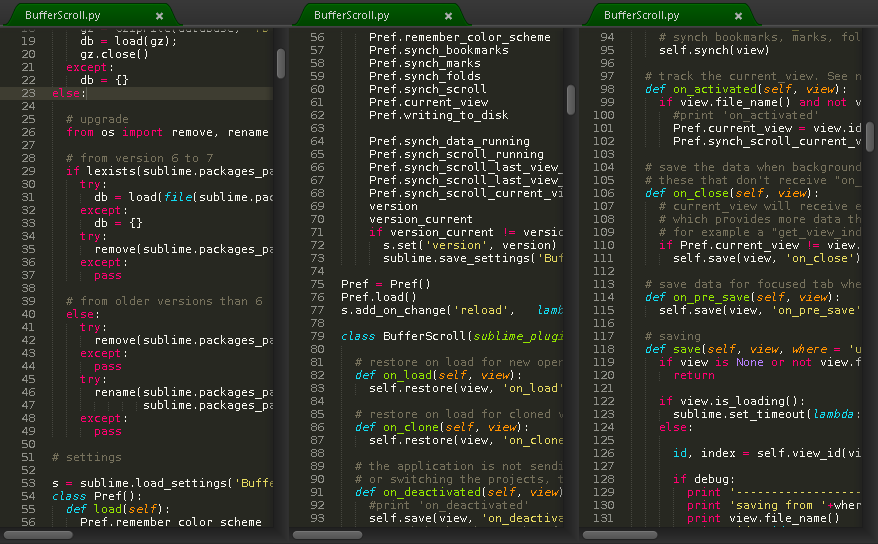
Sublime Text offers multiple view panes for writing code. This way, you can view multiple files at once.
What’s more fun is you can open the same file in two panes. This feature can be helpful when you’re writing code in a file with long lines of code, as you’ll be able to scroll to the top in one pane and then write in the bottom of the other.
Side-by-side view for Type Definitions
Instead of just viewing type definitions in a small popup or opening the definition file that overrides the current view, Sublime Text provides a side-by-side view of a definition file for the types in the current file.
Multiple Selections
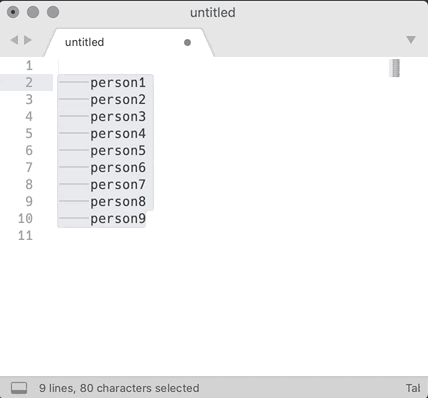
There are two forms of multi-selections: multi-selecting the same characters or different characters.
Same character selection
Say you want to rename a literal (variable, function, and so on) in multiple places. Sublime Text allows you to highlight the literal, and using Ctrl/Cmd D you can select other occurrences of that literal and edit, replace, or do what you want.
Different characters selection
Maybe some literals are spelled differently, but you want to highlight them together. Sublime allows you to use your mouse to highlight many things at once and operate on them as you choose.
2. VSCode
The VSCode editor offers syntax light, IntelliSense features (autocompletes, code hinting, and more), custom configurations, and room for different plugins. VSCode also allows multiple selections and multiple view panes.
Here are more features of VSCode:
Code Debugging
With VSCode, you do not need to debug on your browser or other tools.
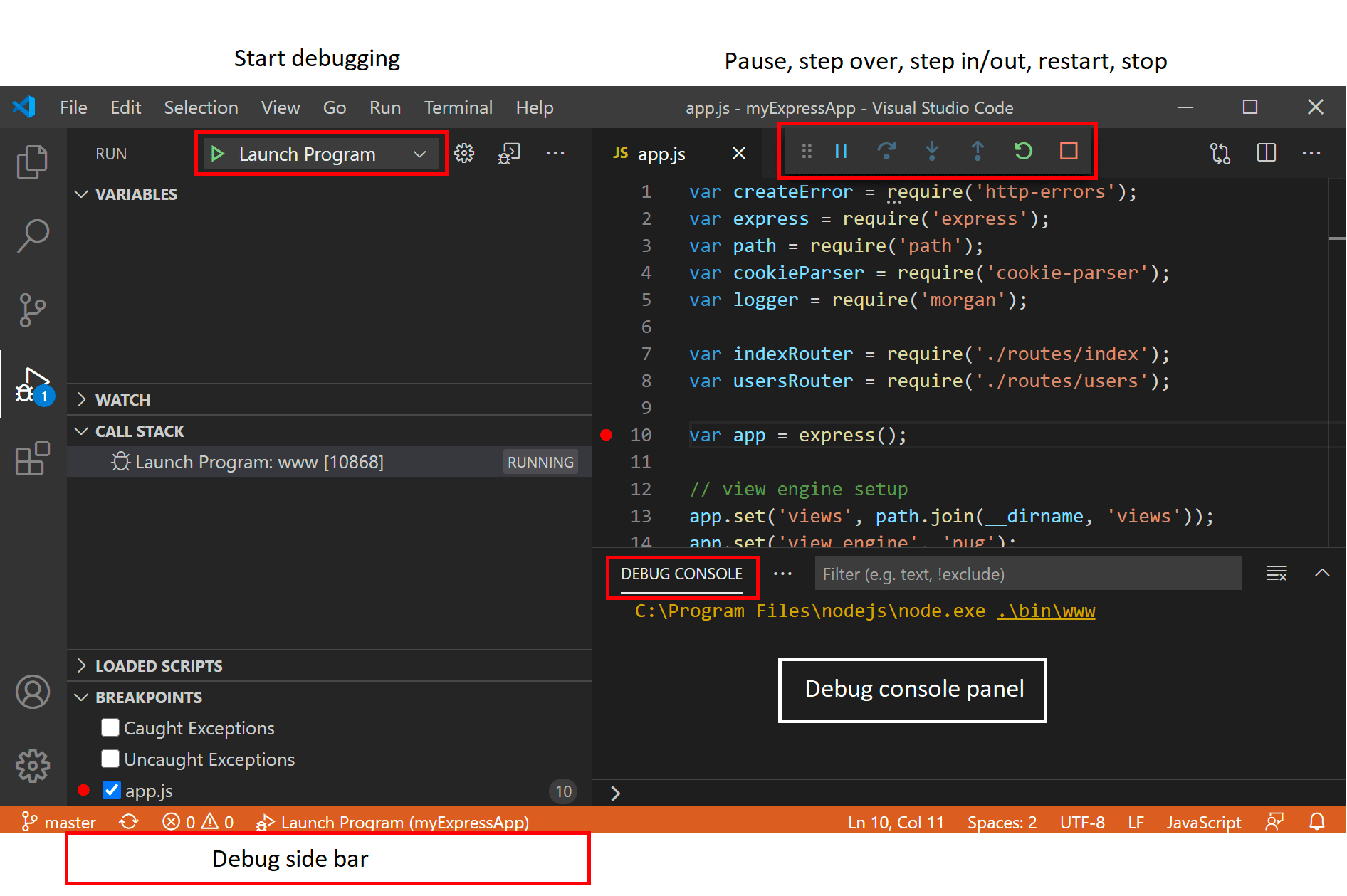
VSCode allows you to debug right from your editor using breakpoints, the call stack, and even an interactive console.
Many extensions for different things
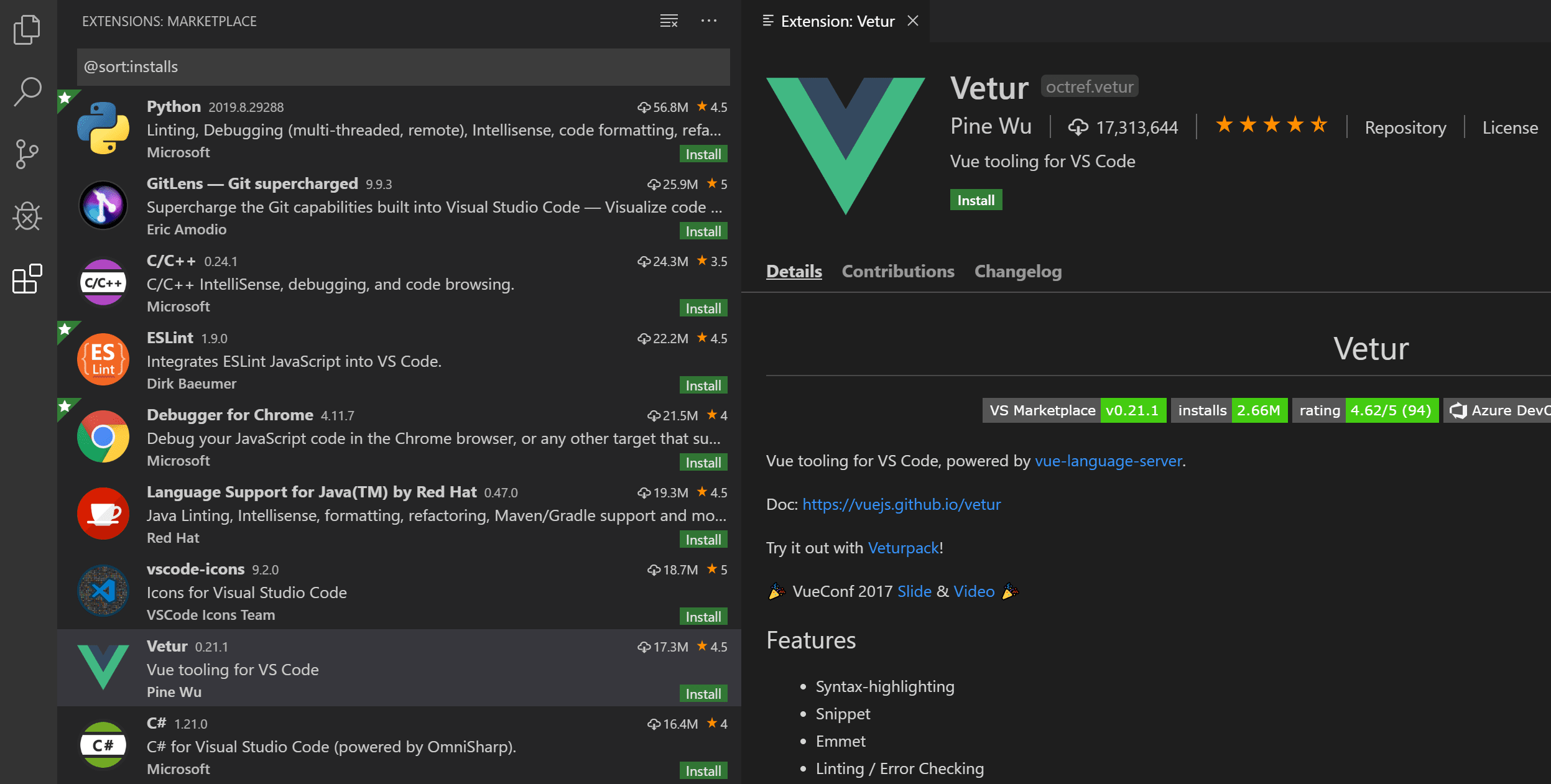
VSCode has a large marketplace for different languages, frameworks, and even your editor. You have extensions that beautify your editor’s appearance and experience and tools that help with autocompletion when writing code.
Built-in Terminal
With VSCode, you have a a built-in shell terminal where you can execute commands without leaving your editor to go to a different terminal app.
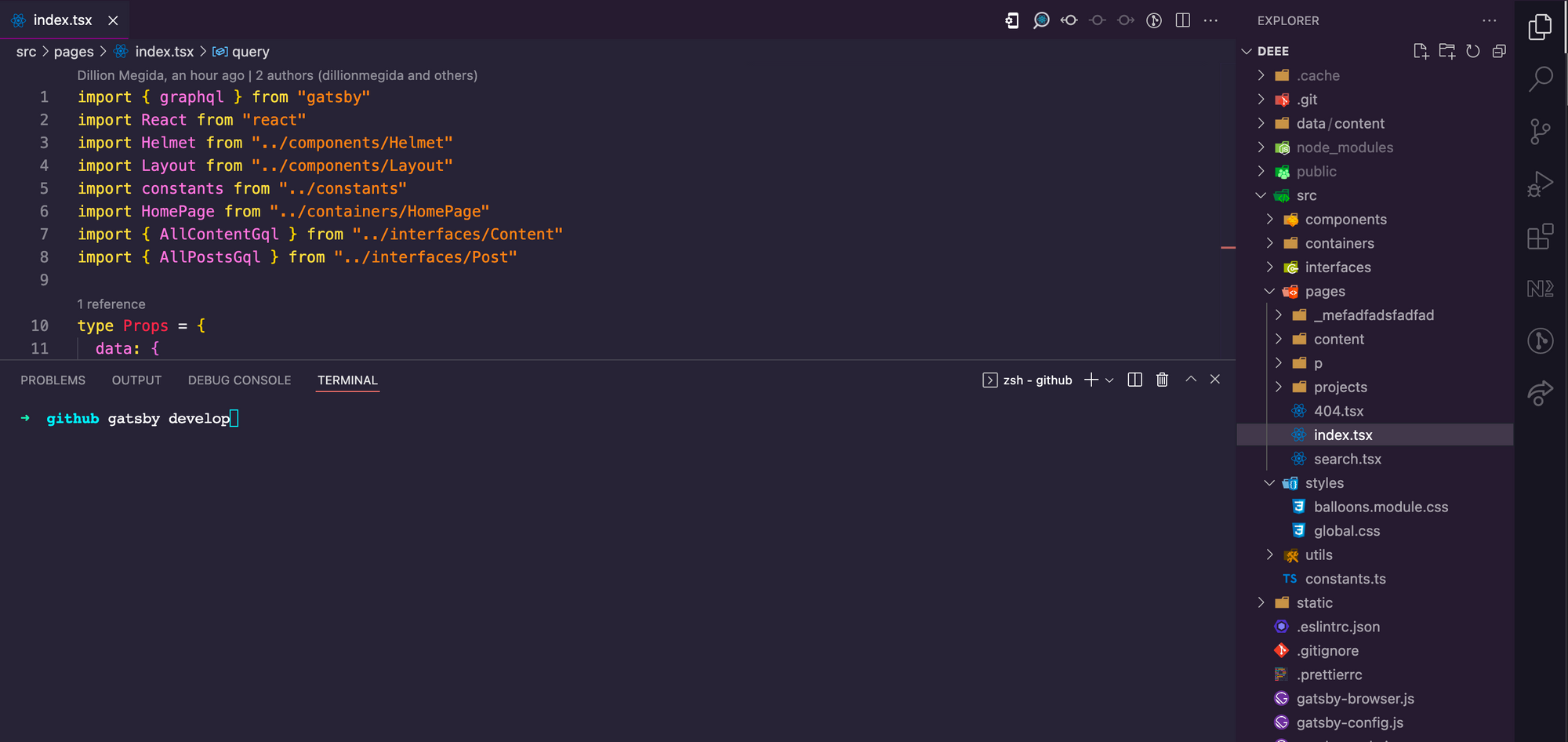
A small screen may make your editing view small and a bit inconvenient, but with a large monitor, for example, the view is just okay.
VSCode also has multiple view panes, character selection, and multiple character replacements.
3. Atom
Atom is a highly customizable code editor. This is why the team calls it a “hackable text editor”. From the appearance and colors on the editor to the key combinations for commands and many other things, you can customize Atom as much as you wish and make it very personalized.
Here are some features:
Real-time Code Collaboration
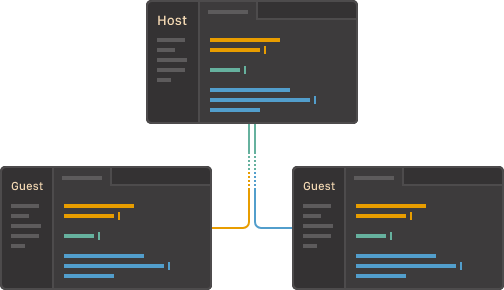
Atom has a Teletyping feature that allows multiple people to work on a codebase in real-time. This feature improves collaboration in a team workspace on projects. For VSCode, you’ll usually need an extension for this.
Git Integration
With Atom, you never have to go to your terminal for your Git operations.
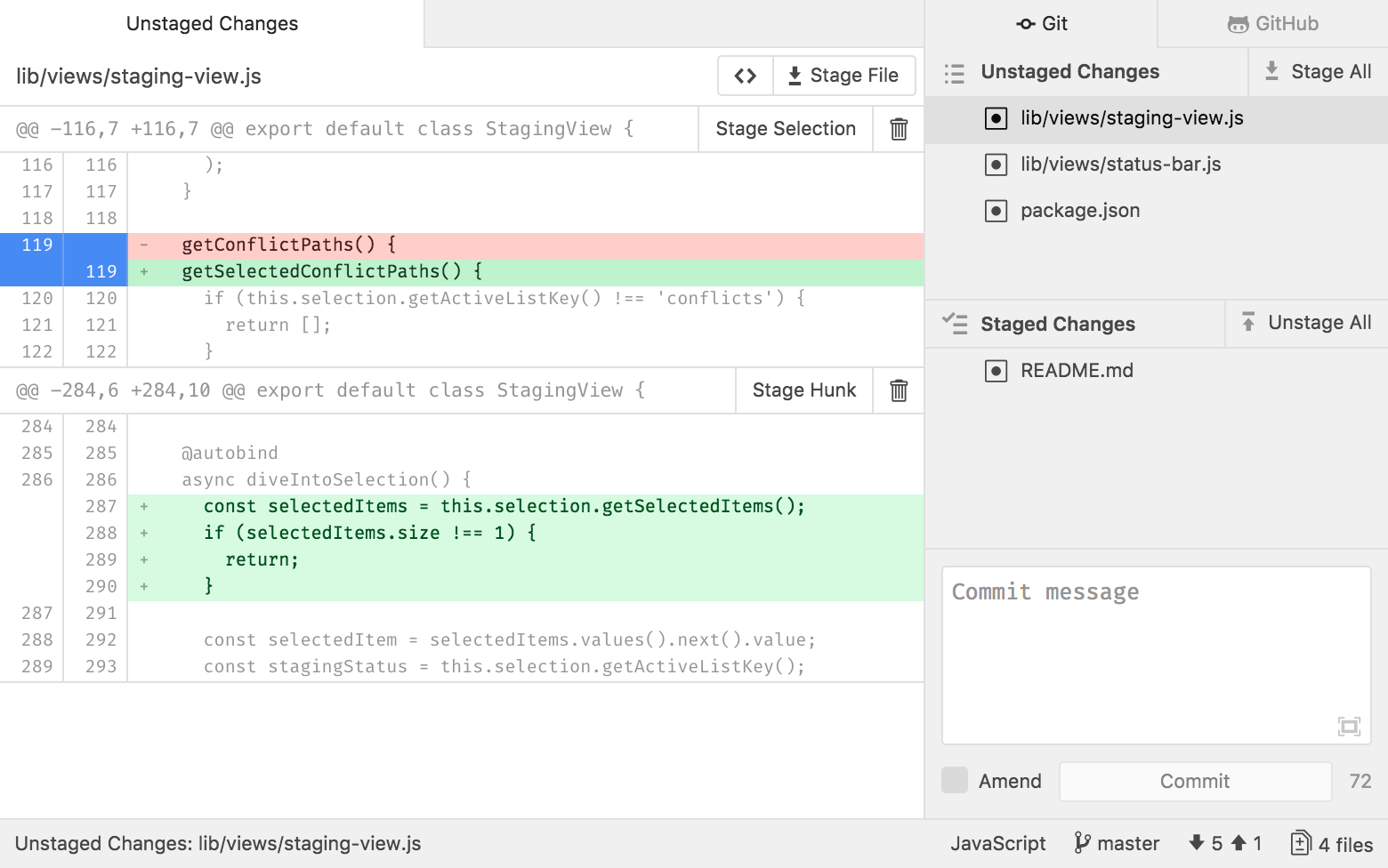
Git actions are integrated into Atom using the GitHub package, and this creates a smooth version control experience while you write code.
Smart Autocompletion
With many languages and syntaxes integrated into Atom, you also get a nice auto-completion feature while writing code.
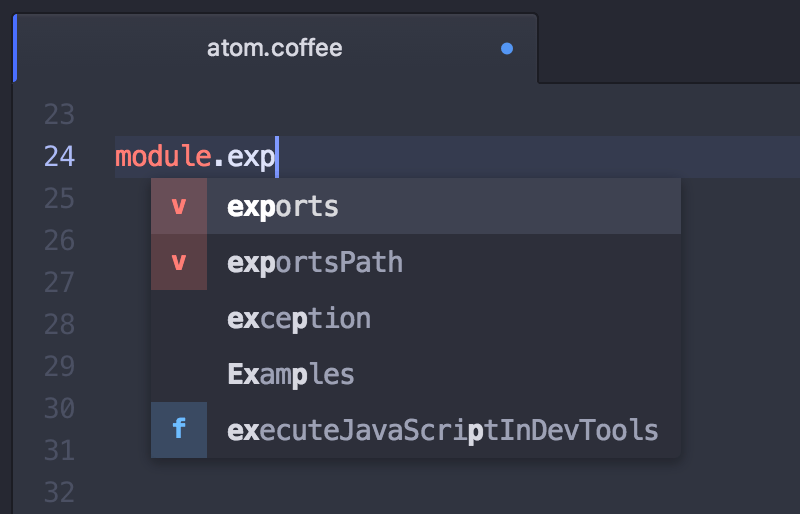
You don’t have to type out those long method and variable names anymore. Atom’s smart enough to help you avoid that 😉.
In Atom, you also have search and replace features, view panes, and more.
4. WebStorm
WebStorm calls itself “The Smartest JavaScript IDE”. It takes a lot of confidence to call itself that, and WebStorm actually delivers. WebStorm makes writing JavaScript and its related technologies not just convenient but more enjoyable.
Some features include:
Built-in developer tools
WebStorm takes the name “development editor” quite literally. From running scripts to breakpoints and general debugging, WebStorm provides developer tools that allow you to write, execute and debug your code.
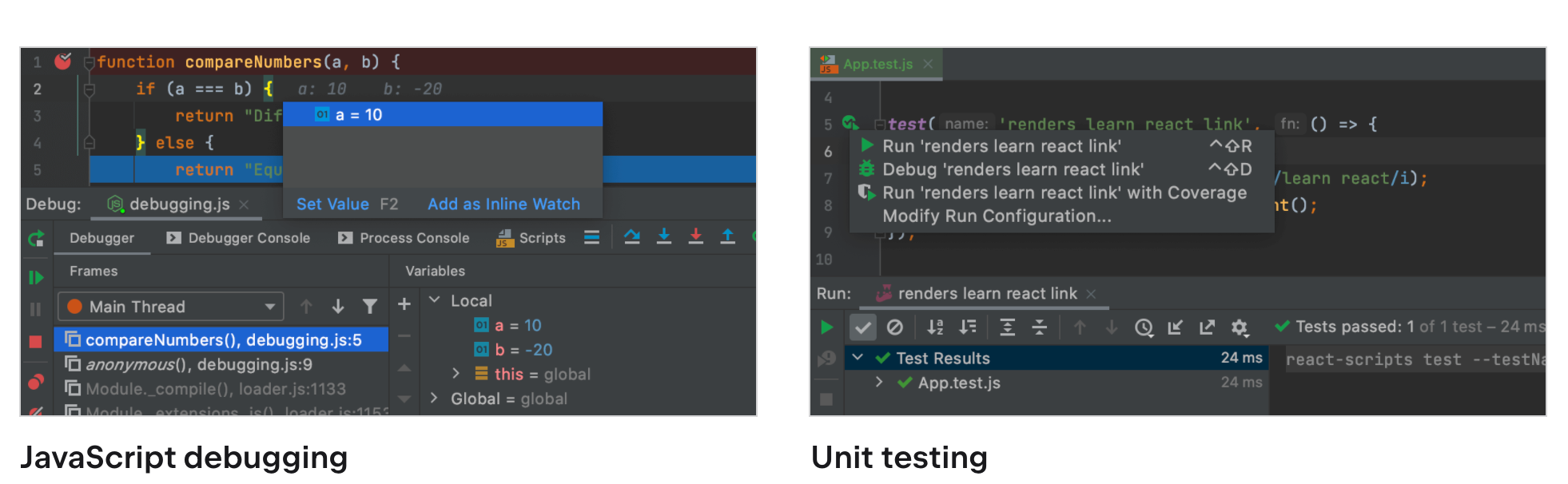
Smart features
This editor allows you to move files between folders seamlessly. It also helps you refactor your code and suggest fixes for errors.
And the most brilliant feature I love about it is that you can easily rename a specific variable across your application. Say you have a variable you’ve imported in many files – you can easily rename that variable from one of the files.
Fast search and navigation
Another fantastic feature of WebStorm, which people generally praise it for, is the fast file or folder search and navigation.
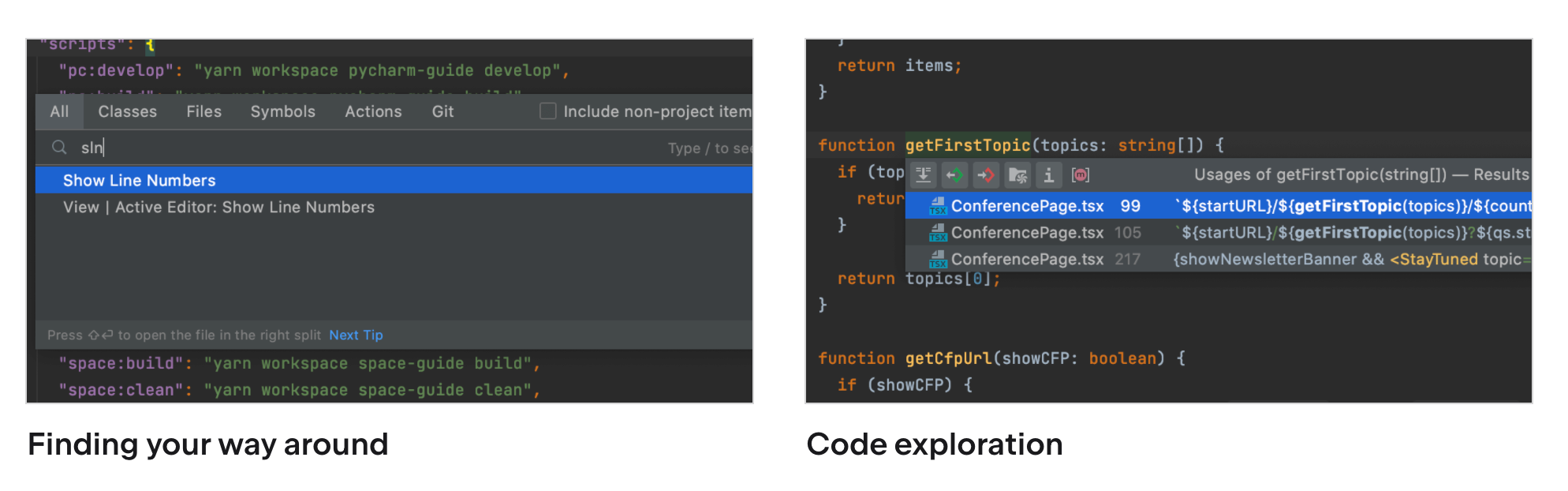
From searching file names, class names, function names within files, and special selectors, you can easily find a file you’re looking for.
There’s also collaboration, view panes, search and replace in WebStorm.
5. Vim
And there’s Vim. It’s worth noting that Vim is not for everyone, as it arguably has a steep learning curve – but Vim has many features that make it worth trying out. I have a friend who’s never letting go of Vim and keeps advocating that people are missing out.
Here are some features:
High Customizability
I mentioned earlier that Atom is highly customizable, but I don’t think it’s as flexible as Vim.
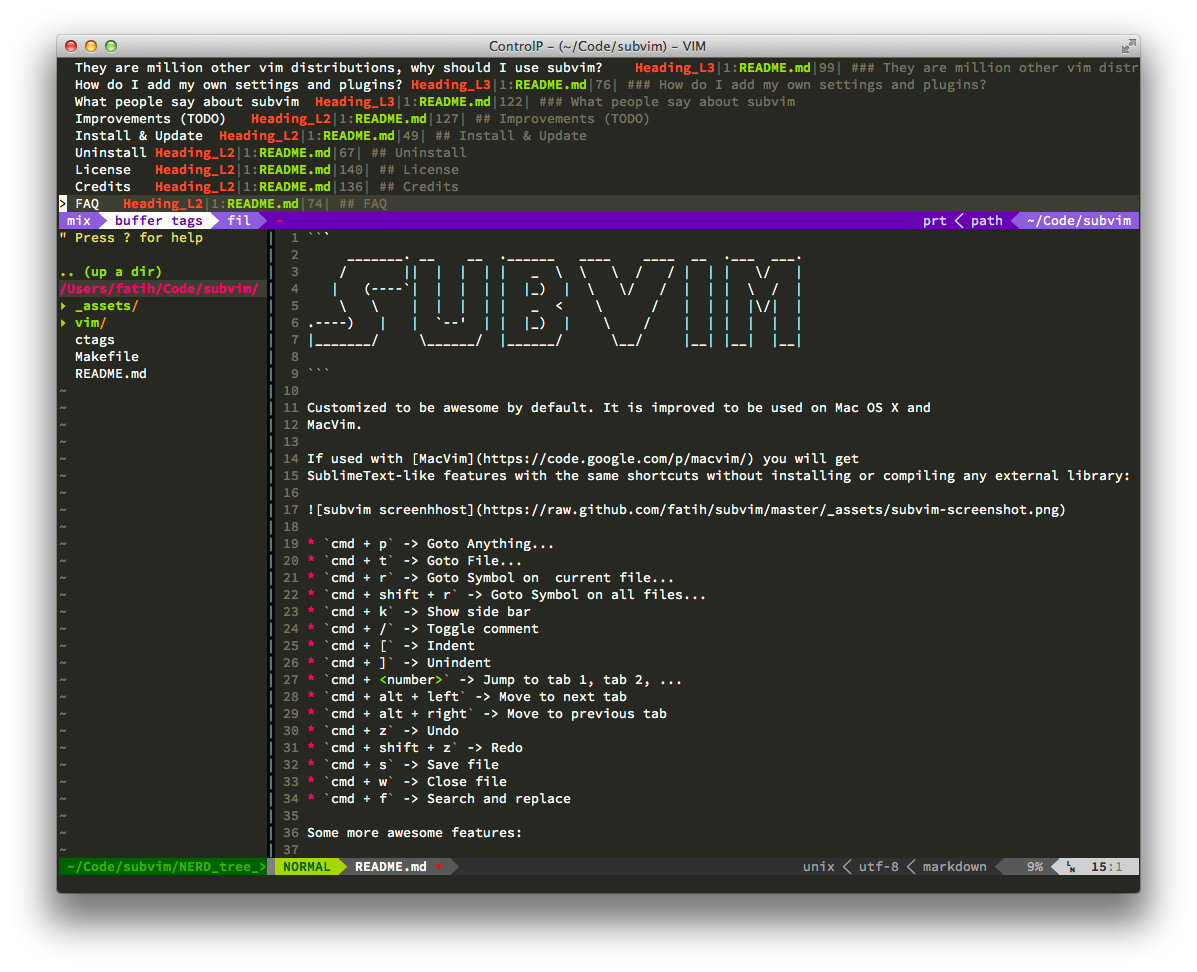
Down to the low-level commands and feel of the editor, you can configure many things that makes using another editor very strange for you. You can also create scripts that automate things for you.
Support for Many Languages and File Formats
Vim has support for many languages and files of different kinds. It also integrates with many tools.
Powerful search feature
With powerful selectors and regex, you can do multi-level file searches and replacements. With Vim’s scripts, you can also get plugins that take the search features to another level.
Agreed, it’s not very easy to learn. But it’s pretty powerful and consumes less memory, surprisingly. It also has an extensive script system that gives you much power while writing code.
best code editor for mac free
1. Brackets
This is a free text editor macOS 10.14 that is open source and maintained by Adobe Systems — one of the major companies in the industry. One of the outstanding features of Brackets is its beautiful interface. Its unique Extract offering lets you grab font, gradients measurements, and so on from a PSD file into a CSS that is clean and ready for use on the web.

Pros
- It comes with extension support which contains a huge and growing library.
- Brackets have inline editors and previews.
Cons
- It is slow
- Brackets still do not have certain elementary text editor commands
- Its updater is problematic
Free Download Brackets
2. TextWrangler
Developed by Bare Bones, TextWrangler is another best text editor on macOS 10.14. This tool can be regarded as a lightweight version of BBEdit, also designed by Bare Bones. It has all the features needed by hardcore developers to carry out operations in specific columns in a CSV, or in a server admin for scriptwriting.
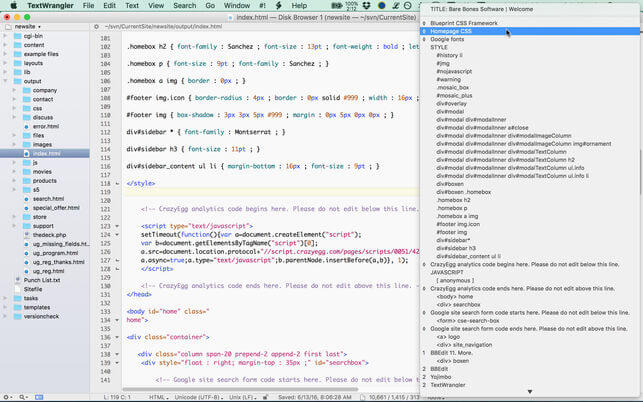
Pros
- It offers basic text editing as well as manipulations.
- TextWrangler is a free yet ideal alternative to BBEdit.
- It has an inbuilt FTP or STFP browser.
- It is robust and fast to start up.
Cons
- It isn’t maintained any longer.
Free Download TextWrangler
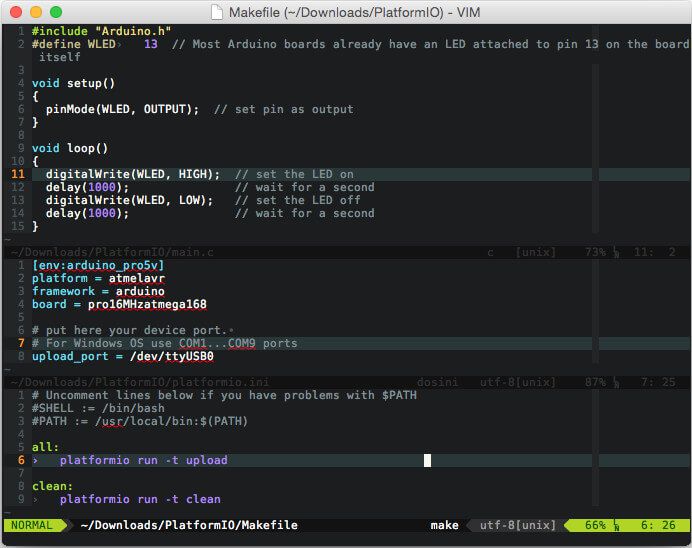
3. Vim
This software is a command line-based text editor for macOS 10.14. One of the most renowned text editors on the market, Vim does not have a steep learning curve. It features a stack of documentation that assists a user in learning how to use the app conveniently. Vim is designed with a quick reference, help documents, along a tutorial that runs for 30 minutes to get you acquainted with it.
Pros
- It has capabilities and features for command-based text editing.
- It is easy to use
Cons
- Vim requires great effort to customize.
- It offers poor support for external tooling.
Free Download Vim
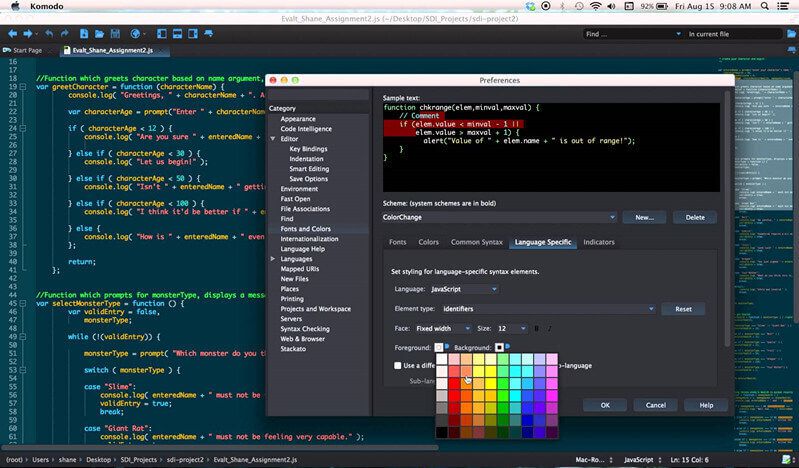
4. Komodo Edit
It is an open-source text editor on macOS 10.14 that is free and offers a powerful user interface. Komodo Edit is a fantastic tool for writing code and carrying out other operations. The software provides many useful tools, which help you edit, like the capacity of tracking changes, multiple sections, autocomplete, and skin and icon sets.
Pros
- It is an extremely professional and comprehensive tool.
- It has inbuilt FTP.
- Free and open-source, Komodo Edit supports a limited Vim mode.
Cons
- It isn’t very lightweight.
- It includes project files to project code.
Free Download Komodo Edit
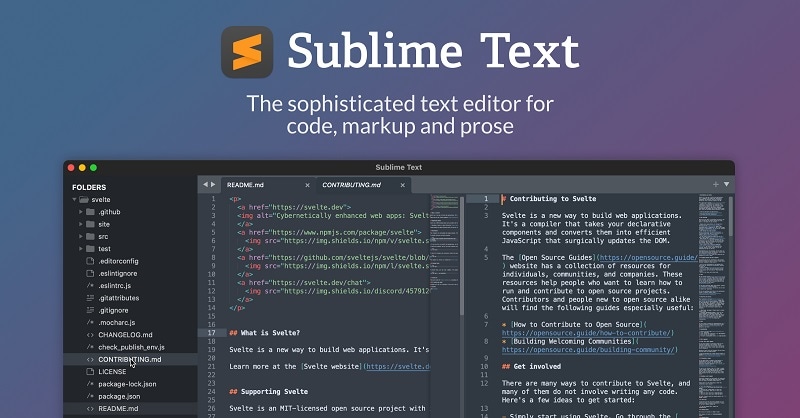
5. Sublime Text
Though this app is a commercial text editor to create text file macOS 10.14, it has an evaluation version that can be used for an unlimited period; this makes it free in reality. Sublime Text features a Python Application Programming Interface and allows multiple languages. Furthermore, the software’s capabilities can be enhanced with the aid of plugins, which are often developed by communities and offered via free software licenses.
Pros
- Sublime Text comes with an easy-to-use interface.
- There are 22 different themes you can select from.
- It has a distraction-free mode, consisting of placing only the text on your screen.
Cons
- It does not allow the printing of files.
- Sublime Text 10.14 has inadequate language support.
- It takes time to load large files on Windows.
Conclusion
Let us know your thoughts in the comment section below.
Check out other publications to gain access to more digital resources if you are just starting out with Flux Resource.
Also contact us today to optimize your business(s)/Brand(s) for Search Engines