
If you’re anything like us, you’ve got an endless list of to-dos, ideas, and inspirations running through your head all day. Some of those ideas are so good you just don’t want to lose them!
Fortunately, we’ve found a way to keep those ideas from escaping by using Google Keep. Now we can write down our thoughts and “pin” them to the top of our Google Keep lists so they’re always in front of us—whether we’re working on other tasks or having one of those days where we just need a break.
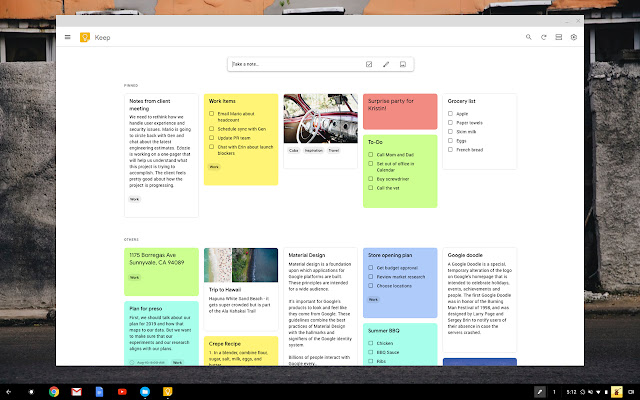
Table of Contents
Chrome Extension For Google Keep
If you use Google Keep on the web and on your mobile device, then why not also in your browser?
Chrome and Firefox have extensions for the popular note-keeping application that give you fast access. With a click, you can save a website, open your notes, or make Google Keep more useful with these great tools.
For Google Chrome Users
Google Chrome has a nice selection of Google Keep extensions depending on your needs. From saving a quick note to opening a new tab to adjusting your actual Google Keep page, you have several options.
1. Google Keep Chrome Extension
Google’s official Google Keep Chrome Extension lets you save items with as little as a click. When you are visiting a website and click the button in your toolbar, a small box will appear. This contains the name of the website, a photo if available, and a direct link.
You can add text to the note and apply a label, or just leave it as-is, and it will be saved for you automatically.
It is also possible to create a new note directly from the extension without linking to the site you are looking at. Just right-click on the extension’s icon to get started.
Download: Google Keep Chrome Extension (Free)
2. Google Keep Encryptor
Google Keep is a great way to save important notes, but it is not the most secure medium in the world. There is no way to password-protect your notes on either the web or the mobile apps, meaning anyone can see what you have written if they have access to your machine or device.
And while we would never suggest keeping hyper-sensitive information on Google Keep (such as bank details, PIN codes, 2FA codes, and so on), this extension will at least provide some privacy for your notes. For example, it is a great solution if you want to keep a list of gift ideas away from your partner or kids.
Text in the encrypted notes will be encrypted as ciphertext with Stanford JavaScript Crypto Library.
Warning: You will need the password to unlock your notes. If you forget it, the notes will be lost forever.
Download: Google Keep Encryptor (Free)
3. TabIt G Keep
If you want access to the fully-fledged version of Google Keep without needing to leave the page you are looking at and navigate to a separate tab, check out TabIt G Keep. It provides access to Google Keep via the extension shortcut. When clicked, the full version of Keep will pop up in a floating window.
If you like the way TabIt G Keep works, have a look at some of the other extensions from the same developer. There are versions available for Google Calendar, Telegram, Wolfram Alpha, and more.
Download: TabIt- G Keep (Free)
4. Category Tabs for Google Keep
If you enjoy using the color-coding feature for your notes, then Category Tabs for Google Keep is the extension for you. After you install it and visit your Google Keep page on the web, you will see a bar across the top listing Google Keep’s note colors.
So, you can from a selection of colors and have all notes of that color filtered for you.
In addition, you will see the Google Keep navigation bar change to the color you choose. So, you will never lose your place. Then, select All to go back to all of your notes. This is super handy for quick access to color-coded Google Keep notes.
Download: Category Tab for Google Keep for Chrome | Firefox (Free)
5. Input Tab in Google Keep
This next extension is a basic tool, but might just be what you are looking for in Google Keep. Input Tab in Google Keep gives you the ability to use the Tab key to indent text within your notes.
If you do not want to use a list, but want an outline type of format, this extension lets you do it easily. Just hit Enter and then Tab to indent as far in as you like for each line.
Markdown editing is also supported via the Input Tab in Google Keep extension. Remember, this extension is just one of many ways you can make better lists using Google Keep.
Download: Input Tab in Google Keep (Free)
6. Google Keep – Full-Screen Edit
Another simple yet convenient extension is Google Keep – Full-Screen Edit. This is perfect for those situations where you have a long note or one with several images.
Once you install it, any time you open a note on the Google Keep website, it will take over the entire browser window. When you finish your note, you still click Done in the bottom corner as you normally do.
Download: Google Keep – Full-Screen Edit (Free)
7. Google Keep Window Resizer
Keeping with the same theme as the previous extension, the Google Keep Window Resizer extension for Chrome offers a halfway house between the full-screen option and Google’s single-size approach.
Once you have installed the extension, you can manually resize note windows to the exact size you need. That’s great if you are the type of person who likes to work in side-by-side windows in your browser. Or, if you are working on a long note and need to be able to see more of the text on the screen at the same time.
Best of all, the extension remembers the window size between sessions. It will stay at the size you chose until you resize it again manually.
Download: Google Keep Window Resizer (Free)
For Mozilla Firefox Users
When it comes to Mozilla Firefox, you will find very limited add-ons compared to Google Chrome. While this is no surprise, you do still have a few extension options to access Google Keep quickly when using Firefox.
8. Open Google Keep in a New Tab
It doesn’t get much easier to open Google Keep in a new Firefox tab than this extension. It does exactly what its name says.
Click the Open Google Keep in a New Tab button in your Firefox toolbar and Google Keep opens in a new tab.
Download: Open Google Keep in a New Tab (Free)
9. Google Keep to Clipboard
If you need to copy one of your Google Keep notes and paste it into another spot, get the Google Keep To Clipboard extension for Firefox.
Once you install this add-on, head to Google Keep and select your note. Click the More (three-dot icon) button at the bottom, and you’ll see some extra options. You can copy the note to your clipboard as plain text, markdown, Zim markup, HTML, or CSV.
Select the format and then pop over to the place where you want the note to paste it in.
Download: Google Keep to Clipboard (Free)
10. Input Tab in Google Keep
This Firefox extension is a port of the Chrome extension of the same name that we discussed earlier. It lets you use the Tab key to indent content within a single note.
You can hit Tab as much as needed to indent the content as much as you need. The extension also adds functionality for writing in Markdown within your Google Keep notes.
Download: Input Tab in Google Keep (Free)
Keep On With Google Keep Extensions
When you find a note-capturing application that you love, it is essential that you can use it anywhere, anytime. You can use Google Keep on the web and your mobile device, but having handy browser extensions means you are covered no matter what.
best chrome extensions for google meet
The last decade has seen a massive uptick in demand for video conferencing and collaboration tools, and Google Meet has emerged as a popular contender.
The robust platform has become a primary choice for remote workers due to the wide array of valuable features that it offers. Thanks to extensions for Google Meet, you can further enhance your video calling experience.
Features of Google Meet
Google Meet has all the features you’d expect from a good video conferencing app. Let’s take a look at some of them below:
Cross-Platform Accessibility: Google Meet works on any device. You can join meetings from your desktop/laptop, Android, or iPhone/iPad.
Screen Sharing with Participants: You can present the entire screen or window of an application in meetings. It allows one to share documents or make a presentation for participants to collaborate.
Messaging with Participants: To make meetings more effective, Google Meet has an in-call messaging feature. Participants can message and share links, files, and more during a live call.
Controls for Meeting Hosts: Anyone in the call can pin a specific participant to their screen. And the organizer or meeting host can mute or remove other participants if there are any disturbances.
Google Meet Tips and Tricks: Get The Most Out of Google Meet
Thanks to video conferencing applications, now everyone can connect with their team members and discuss. The scenario gets even more hassle-free when everything becomes automated.
Remote Work Tips, Meeting Productivity, and a Lot More | Fireflies.ai Blog
Vibhanshu Dixit
15 Best Extensions for Google Meet to Enhance Your Meeting Experience
Since Google Meet is available directly in your browser, you can affix many Google Meet add-ons with a few clicks. These extensions can add new features to top the current ones or alter how the app behaves. Let’s have a look at them:
- Google Meet Enhancement Suite
enhancement studio extension for google meet comes packed with a dozens of features like dark mode, DND, and much more.
Google Meet Enhancement Suite is a one-stop solution to use Google Meet efficiently. The add-on comes with dozens of features and settings, which increase its functionality at par with Zoom.
These include automatically muting the microphone and turning off the video before joining a meeting or enabling captions.
You can also start and leave meetings quickly, mirror videos, remove all participants, toggle dark mode, and turn ON DND mode.
- Google Meet Push To Talk
This extension for Google meet is similar to a walkie-talkie where you press a button and speak, then release the key to mute yourself. You can even assign the function to a hotkey of your choice.
The Push-to-talk add-on makes it easy for users to mute and unmute during meetings without fiddling around too much.
- Google Meet Party Button
google meet party button extension for google meet adds a button that virtually shows confetti to celebrate an event
Celebrating with your remote team will become seamless with the Party button.
This extension for Google Meet adds an extra button to create an effect of confetti on the screen to celebrate an event, achievement, or someone’s birthday—a nice little touch for creating a more welcoming atmosphere in your organization.
- Call Timer for Meet
Does your meeting often run overtime? Do you lose track of time during video calls?
If yes, then Timer for Google Meet should be your go-to add-on. As labeled, the Google Meet Call Timer adds a timer to your meeting screen to track meeting duration.
When enabled, the timer shows up at the top right corner along with the participant’s tab, chat tabs, and clock.
You have the option to set a specific time a meeting starts. When a session concludes, you can see the total duration of the meeting.
- Dualless
duallless extensions for google meet is a perfect add on if you want another window without any extra monitor
With Dualless, you can split your browser windows into two parallel screens. It is excellent for anyone who wants to have multiple monitor functionality but doesn’t have another screen.
After you enable it, the browser window splits into two and offers an option to select a preferred aspect ratio (e.g., 3:7, 5:5, 7:3).
You can use the second window to make notes while you attend the meetings. But it may be counterproductive, as it can distract you from the actual conversation. However, there’s a way around it…
- Fireflies.ai
fireflies.ai extension for google meet automatically record and transcribes meeting and sent the transcript directly to you within minutes for further collaboration
Fireflies.ai is an AI meeting assistant that records, transcribes, and makes meetings easily searchable.
You can invite the AI assistant fred@fireflies.ai to your Google Calendar events or connect your calendar and have Fireflies auto-join as a participant.
When you use Google Meet in a browser, use the Fireflies Chrome Extension for Google Meeting to directly record and transcribe the meeting from the browser. After the meeting, the recording and the transcript will be saved to the Fireflies dashboard.
You can then share and collaborate on the transcript with your teammates. You can also turn on integrations to apps like Salesforce, Slack, and Dropbox to push your meetings there.
Here’s how it works:
- Google Meet Grid View
Meet has a limit on the active participants’ video display. But the Grid View extension for Google Meet adds a button to the top right bar to enable multiple grids of videos.
The view gives every participant (including the host) an equal-sized rectangular display. When conducting meetings via Google Meet or any other web conferencing tool, it is recommended to follow online meeting etiquettes.
This extension forcibly loads every participant’s video when grid view is enabled.
It includes various options to enhance your meetings, such as highlighting the current speaker and hiding participants without video.
- Meet Attendance
with meet attendance extension for google meet you can easily check who’s attending the call and how long they stay in the meeting
Google Meet lets you host up to 100 participants in a single call (for free users). That’s a huge number when you want to check who is attending the call.
Further, it’s not easy to call out participants’ names and then cross-check who was present during the session. The Meet Attendance add-on for Google Meet solves this problem by taking attendance during a call.
When you start a Meet call, enter a list of expected invitees, and the extension will automatically detect who joined the call and how long they stayed.
It records participants’ names, when they arrive, active status, duration of stay, and exports the data into a spreadsheet.
- Reactions for Google Meet
Google Meet allows the host to mute other participants when the speaker is talking. But if anyone wants to raise concerns, there’s no in-built feature for that the Meet interface.
That’s where the Reactions extension for Google Meet comes in.
Enable Reactions for Google Meet, and you can ‘raise your hand’ (figuratively) to signal the host that you want to speak. Further, you can also express other reactions ‘Clap,’ Thumbs Up,’ ‘Wow,’ that will show up on the meeting screen.
- Google Meet Breakout Rooms
Hosts use breakout rooms to bifurcate the primary meeting group into multiple subgroups. It’s helpful if different teams are on the same call discussing an ongoing project.
But native features of Google Meet don’t have breakout room options, unlike Zoom.
You can still use the feature with the help of the Google Meet Breakout Rooms extension. It is your one-click answer to enhance meeting productivity.
This extension for Google Meet allows you to seamlessly move across meeting rooms and overview them in tiled or tab format. You can add participants to specific rooms, close or end rooms, or remove all participants from a room.
An outstanding feature of this add-on is broadcasting a common message (audio and video) to every subgroup room simultaneously—which is an effective way to share a message with every attendee.
- Visual Effects for Google Meet
With the Visual Effects for Google Meet extension, you can add different effects in your backgrounds like Bubbles, Cube, Sunglasses, Screen Text, Freeze, Contrast, Inverse, Pixelate, and Green Screen. This extension falls in the category of appearance-centric Google Meet add-ons, helps hide a messy background, and adds visual appeal to the display. - React: Emoji, GIFs & Filters for Google Meet
react extension for google meet offers you to express yourself using emojis and stickers
Use emoji, GIFs, and video filters during Google Meet or Hangouts call with React add-on. This extension allows you to react to what participants are saying without interrupting the flow of conversation.
This lightens the mood of the meeting without causing any loud interruptions. It can also serve as a virtual icebreaker during meetings with new recruits.
- Visual Enhancements for Google Meet
Visual Enhancements extension is another add-on that toggles the layout of Google meet. As the name suggests, you can add more interactive elements to the Google Meet interface. You can access the following features right on your meeting’s page or from the extension’s toolbar:
View a participant’s video in picture-in-picture (PIP) mode.
Make the bottom bar transparent.
Control the bottom control bar to appear or hide the bottom bar.
- TurboMeet
TurboMeet is a competing alternative to Google Enhancement Suite. This Google Meet add-on lets you toggle Push-to-Talk for productive meetings, end meetings with hotkeys, enable auto-captions, and much more.
It comes loaded with features similar to the Enhancement Suite, with some additional standout features. One of them is the auto-join feature that bypasses the joining screen and automatically turns off audio and video before the meeting starts.
Evaluate your Feature Needs
Thanks to the robust integration capabilities of Google Meet, you can get extensions for everything. However, with so many Google Meet add-ons available in the Chrome store, choosing the best can be tricky.
As a thumb rule, don’t just install every extension that exists. Instead, jot down your requirements and go accordingly.
Conclusion
Let us know your thoughts in the comment section below.
Check out other publications to gain access to more digital resources if you are just starting out with Flux Resource.
Also contact us today to optimize your business(s)/Brand(s) for Search Engines