
Fire TV Cube is a device that combines Fire TV and Echo Dot. It has 16 GB of internal storage and comes with an Alexa voice remote. The device also connects to the internet through the HDMI port.
The first time you use your Fire TV Cube, you’ll need to connect it to a power outlet and then plug in the power cable. After that, you’ll be able to control your Fire TV using voice commands by saying “Alexa” followed by what you’d like her to do for you.
You can find out more about how to set up your Fire TV Cube here: [link].
In this article, we’re going to discuss some of the best apps for Fire TV Cube.
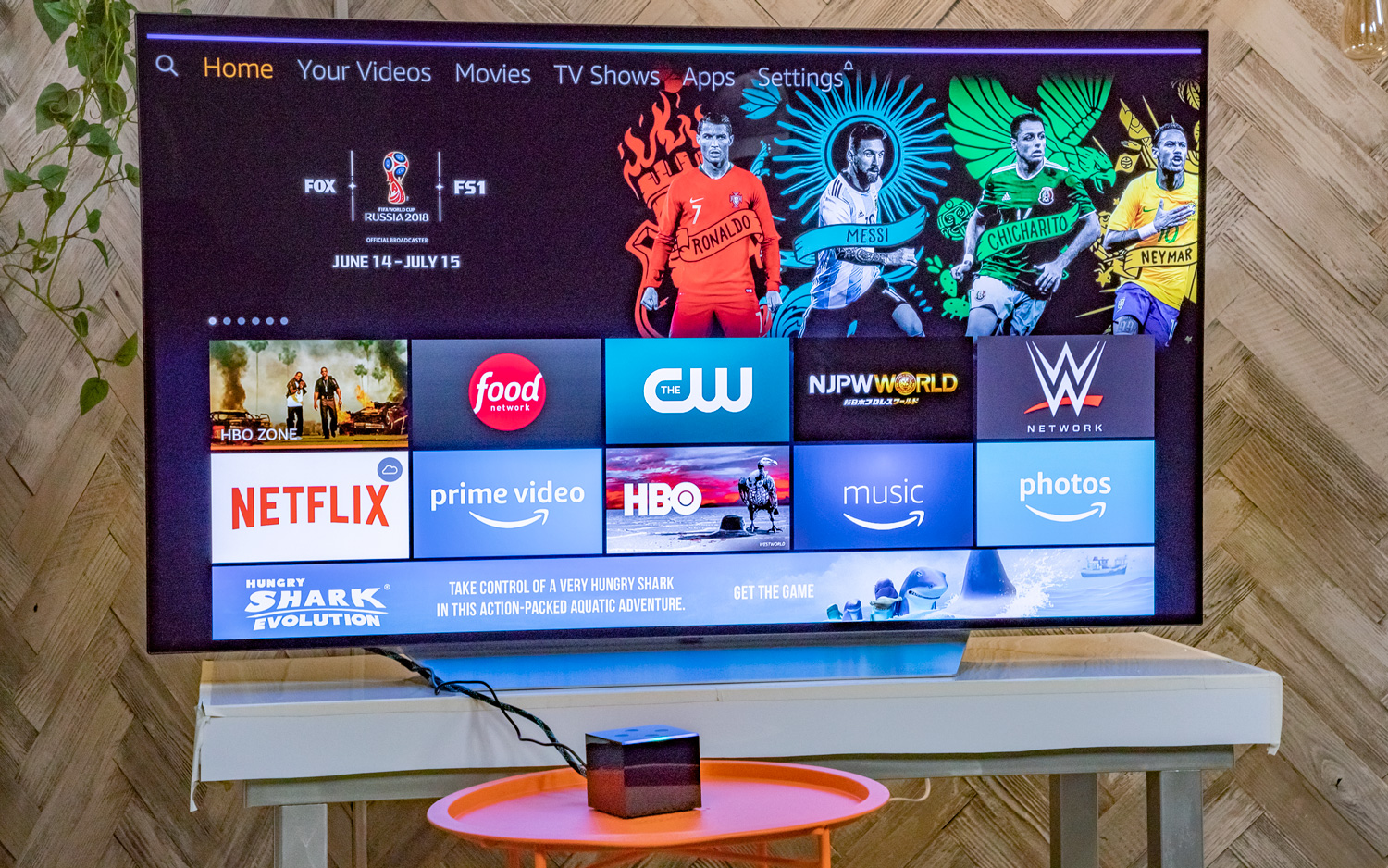
Best Apps For Fire Tv Cube
- Through the Amazon App Store
- Making use of the Search Function
- Voice Control (Alexa)
Let’s look into these below.
How to Browse and Download New Apps on Fire TV Cube, Using the Amazon App Store?
Here’s how to download new apps from the Amazon app store:
Make sure your internet connection is secured before you start.
Go to your Home Screen.
To access the top menu, Click on the Up button on the directional pad. Click the Right button continuously, until you get to Apps.
Here, you press the Down button to open the Apps tab.
At this point, a list of apps and games will appear. Select the app you desire, by pressing the central button on the directional pad.
Click Get to install. (The apps could be free or purchased). After installing, the app will be added to your home screen. Click on the app to launch it.
Now, let’s look at how to use the voice control feature to download apps.
How to Use the Search Function and the Voice Control (Alexa) to download Apps on a Fire TV Cube?
You can use the search function to search and install an app on For TV Cube, or you could use the voice control (Alexa), to find and install the app.
Here’s how to use the Search Function to find and download apps in a Fire TV Stick:
When you open your Home Screen, you will see a small search icon at the top-left corner Click on the icon to open the Search Function.
Using your remote, type in the name of the app that you wish to download.
Click on the central button on the directional pad to select the app.
Click on Get or Download to complete the installation.
After installation, click on open to start the app.
Now, let’s see how to do this with Alexa.
How to Install Apps on Fire TV Cube Using Alexa
One advantage the Amazon Fire TV Cube has over other devices, is the added voice control feature(Alexa). You can now use your Alexa Voice Remote to download apps for yourself.
This is how to download apps on Fire TV Cube using Alexa:
On your Alexa Voice Remote, click on the voice button.
Mention the name of the desired app.
When the app appears on screen, use the voice command to download it, by saying “Get”
Now you know how to install apps on your Fire TV Cube.
Conclusion
Amazon’s decision to improve on their already existing streaming devices by introducing their Fire TV Cube device, showcases their willingness to enhance the satisfaction of their customers.
What’s better is the fact that this Fire TV Cube allows the installation of apps, which are needed to maximize the entertainment experience of users, even though it puts them in a state of dilemma, from picking the right apps.
Hopefully, this article helps users to choose and install the best apps on their Fire TV Cube devices.
best apps for firestick
- ExpressVPN
A VPN (virtual private network) is a tool for those who have privacy concerns. In simple words, if you want to view content that is restricted in your country, you can change your server location and enjoy the restricted content without any risks. Moreover, Governments and ISPs worldwide track their users’ online activities, and the online content streamers are their top targets. If you don’t want to invite any legal trouble, your best bet is a good FireStick VPN. Express VPN has been consistently ranked as the best VPN for Fire Stick. It offers an easy-to-use app for Fire TV / Stick which can be installed within minutes.
amazon fire stick apps
You need not to be troubled about network speed as well because ExpressVPN has a built-in speed optimizer for enhancing network speed. Whenever you launch this application you will see a feature called Smart Location, which will show you the best server locations you can get maximum speed from.
ExpressVPN
ExpressVPN
Our Score 9.8
Visit Site
Best for
Streaming and privacy
Servers
3000+
Money-back guarantee
30 Days
Supported Apps
Windows Mac IOS Android Linux firetv
Works with
Kodi, Torrenting, Netflix, Amazon Prime Video, Hulu, BBC iPlayer, Sky, HBO
Special Deal
3 Months Free (annual plan)
VPN Servers in 94 Countries
Super fast speed – great for streaming
Strong no logging policy
Very secure 256-bit encryption
No Streaming restrictions
Unlimited Bandwidth
Network Lock (Killswitch)
Unblocks Netflix and BBC iPlayer
Safe for P2P and torrent use
Dedicated apps & easy set-up on all devices
5 simultaneous connections
Excellent 24/7 Live chat/email support
Bitcoin accepted
30-day money-back guarantee
Here’s how to install and connect ExpressVPN on your FireStick:
Step 1: Subscribe to ExpressVPN HERE. It comes with a 30-day money-back guarantee. Meaning, you can use it free for the first 30-days and if you are not satisfied with the performance (which is highly unlikely), you can ask for a full refund.
Step 2: Power on your Fire TV Stick and go to Find followed by Search option.
vpn for jailbroken firestick
Step 3: Now type Expressvpn in the search bar and select Express Vpn when it shows up in the search results.
install expressvpn
Step 4: Click Download to install the ExpressVPN app on Fire TV / Stick.
get vpn jailbroken firestick
Step 5: Open the app and enter the login credentials that you created while buying the ExpressVPN subscription. Click Sign in.
Conclusion
Let us know your thoughts in the comment section below.
Check out other publications to gain access to more digital resources if you are just starting out with Flux Resource.
Also contact us today to optimize your business(s)/Brand(s) for Search Engines