
This phone is full of features that make it stand out from the crowd, and we want to help you get the most out of your Samsung Galaxy Note 10 Plus.
On this page, we’ve listed out the best apps for your S Pen stylus. We’ll also be letting you know how to take advantage of these apps’ handy features!
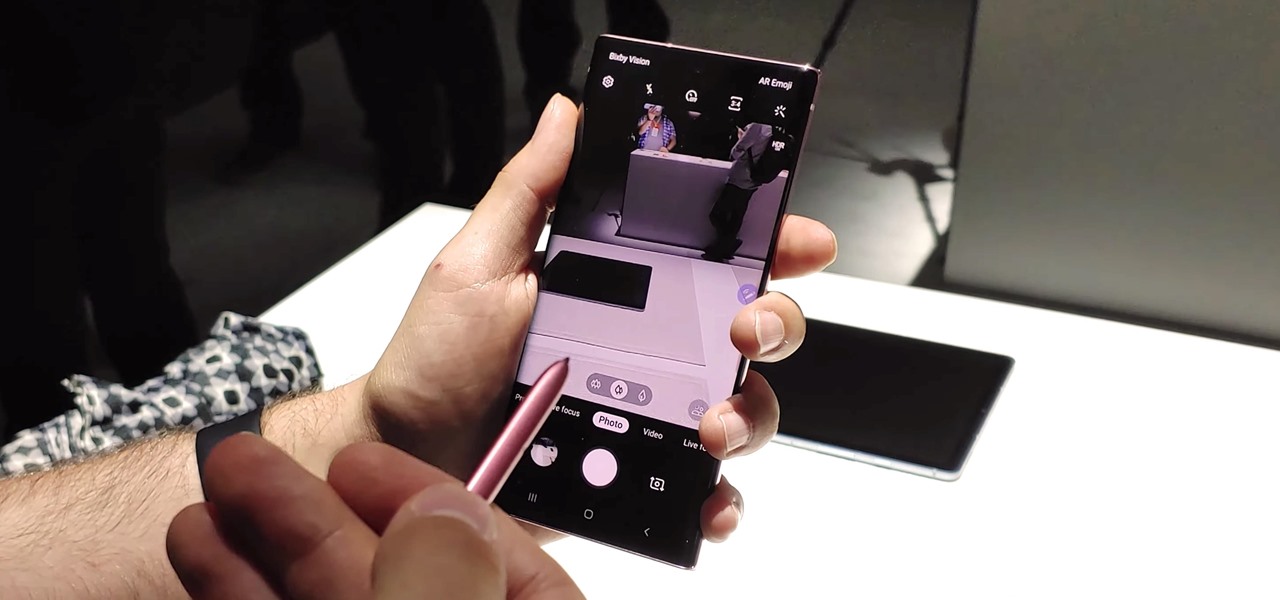
Table of Contents
Best Apps For Note 10 Plus S Pen
The Samsung Galaxy Note series of phones come with the unique S Pen. This is more powerful than a regular stylus. It is more precise, more accurate, and is crammed with tech that makes it smart, too.
There’s a handful of apps installed on the Note that work with the S Pen, but there’s plenty more you can download from the Play Store.
We’ve rounded up our pick of the ten best S Pen apps you can download today.
Sketchbook express
SketchBook Express
The S Pen, at its heart, is a drawing and writing tool, and some of the best apps are in this category.
SketchBook Express is a powerful and popular drawing app capable of handling quick doodles or professional quality artwork. The greater precision you get from the S Pen makes it a far more useful tool than a standard capacitve stylus.
The interface is easy to follow, and you can upload you finished masterworks to DeviantArt in a second.
Inkredible
INKredible — Handwriting Note
With its near six-inch display the Note 4 is almost at the point where it can be used in place of an old fashioned notepad and pen.
With INKredible this comes a step further. With its distraction-free interface—there’s no controls on screen most of the time—you are free to write and sketch away.
Everything you produce is converted into a vector graphic, which makes it easy to enlarge, and is able to be printed at the highest quality, should you find you need a paper copy of your notes after all.
S pen launcher
S Pen Launcher
S Pen Launcher is an app that automatically assigns functions to your S Pen.
Pul the stylus from its housing in the bottom corner of your Galaxy Note and S Pen Launcher will pop up a little window containing shortcuts to your favourite apps. Or, if you find you use the same app all the time, you can set that app to launch whenever you grab the pen.
Pop the S Pen back in its holder, and it’ll close down once again.
Scribble racer
Scribble Racer
There aren’t many games that make use of the S Pen specifically, but Scribble Racer is fun enough to keep kids (and a few adults) entertained on long car journeys.
This simple racing game requires you to hold the S Pen on the screen and guide it through the course as it scrolls down. With a attractive hand-drawn style, it’s fun and packed with charm.
There’s plenty of gameplay too, with several difficulty levels and dozens of achievements to unlock.
Gmd spen
GMD SPen Control ★ root
For more advanced users—your Note needs to be rooted—GMD is a highly configurable app that turns your S Pen into a handy app launcher.
The idea is simple. You can assign gestures to the S Pen that launch apps or perform tasks whenever you do them. These gestures may be things you draw onscreen—draw a circle to launch Google Maps, for example—or things associated with the pen itself, such as removing it from its housing or pressing a button.
For power users, SPen Control can completely overhaul your system, significantly reducing the number of screen taps and button presses you need to perform common tasks and launch your favourite apps.
Onenote
OneNote
Microsoft’s OneNote is one of the best note-taking apps for Android. It includes an excellent drawing feature that enables you to integrate sketches into your typed notes.
This is where the S Pen really excels, and helps you create professional looking documents directly on your phone.
Snapseed
Snapseed
Snapseed is one of the leading image editing apps for Android, and though it’s not an obvious one for the S Pen, it does benefit from the accuracy of the pen’s input.
Snapseed provides the full range of editing functions, and they can be used on entire images or specific parts of a shot. In the latter instance you pick the spot you want to edit and move the sliders to adjust things like colour and contrast.
With the S Pen you get greater precision over picking colours or specific areas of an image, giving you the kind of control you’d normally only get on a desktop.
Virtualtablet
VirtualTablet Lite
VirtualTablet is one of the more innovative uses of the S Pen. It turns you Galaxy Note into a wireless tablet for your PC.
You need to run a desktop app to make the connection with the phone, and it is available for both PC and Mac. Once you’re connected you can use your S Pen on the Note, and draw in apps like Photoshop on your desktop computer, just as you would with something like a professional-grade Wacom tablet.
It also doubles as a remote mouse, and can be very useful for controlling presentations on a bigger screen.
Myscript
MyScript Stylus
It’s still relatively early days for this app, which is still in beta, but MyScript Stylus could be a big app for the future.
It’s a handwriting recognition tool that allows you to write in (reasonably) natural handwriting and will convert it to printed text. Unlike older systems there’s no need to write one word at a time either, the app will recognise entire sentences.
With 63 languages supported MyScript Stylus is already a powerful addition to what the S Pen can do.
Photoshop touch
Adobe Photoshop Touch
The most expensive app on our list is fast becoming the standard for professional image editing on Android devices.
It contains so many of the features that you see on the desktop version of the program, while the ability to use S Pen during your edits only gives you more control over the work you are doing.
The app integrates seamlessly with the Adobe Creative Cloud, and supports layered PSD files from Photoshop CS6 or CS5.1.
Probably overkill for many users, but for pros this is still the default choice.
best handwriting app for android
Taking notes on Android devices will not only help you keep your notes organized but will also help you save a small bit of the planet Earth. But the problem is that the small keypad on an Android device can make it a challenge for you to keep notes. The fact that Android will automatically correct lots of words only makes things worse as all those notes you are quickly taking on your device become jumbled up.
Read: Take a Picture of Handwriting And Convert to Text – Android Apps
That’s where a handwriting apps for Android can come in handy. With the best handwriting app for Android needs, you can quickly take notes without worrying about annoy auto-correct issues. Besides, it might be faster and easier for you to take notes by hand with your Android.
This listing includes a number of attractive handwriting apps that will work wonders for your needs. Each application will give you the help you need for getting all your notes taken.
Note: Many of these apps are available for free, but some have features that require you to order a premium version.
Best Handwriting Apps For Android
- Google Lens
The first app on the list is Google lens. After the recent update, Google lens can now copy and paste handwritten notes to your computer. However, to get this working you will require both your smartphone as well a computer with Google Chrome installed. As of now, it doesn’t work as a standalone app.
To get started, install the Google lens app on your Android or Google app for iPhone. Also, logged in to the same Google account on your computer running Google Chrome. Once done, open the Google lens app on your smartphone and capture the handwritten text, highlight it on-screen, and select copy. Next, head over to your computer, open Chrome browser, and then go to any document in Google Docs, click Edit, and then Paste. You will see the handwritten text appear magically. And that’s it.
Copy and pasting with Google Lens. Source: Google
I tested it with a doctor’s prescription, and it wasn’t accurate, partly because you know Doctor’s handwriting. Next, I tested with my own handwriting, and I’ve to say, I was quite impressed.
Pros: Works on both Android and iOS, The accuracy is around 90% since the handwriting recognization seems to happen on Google server.
Cons: Requires active internet connection and a use of a computer.
Install Google lens (Android)
- Handwriting Memo “A Paper”
t, Handwriting Memo is a simple note-taking app that lets you input using your fingers or a stylus. The interesting feature of this app is the boundless drawing area, you can simply scroll through the app whenever you run out of writing space and the app creates more space right away.
The app is easy to use and offers a natural writing experience with three different pen types. You can also draw shapes like lines, rectangles, and circles to highlight during note-taking. The size of the tip can be adjusted by tapping the pen and adjusting the slider. You can save the notes in the app or share it with other social media as an image.
Pros: The app is fluid and offers an endless canvas which makes it easier to take notes. You can easily share the notes as an image.
Cons: The app only has a limited number of tools which limits the potential of the app. Also, the gestures to move around the page take a while to get used to.
The app is free on the Play Store and only has a few ads.
Install Handwriting Memo
- Squid
Squid is an attractive program formerly known as Papyrus that lets you create handwritten notes on many paper templates, but what makes it popular is that you can use Papyrus to fill out forms of all kinds. You can create markups on PDFs on your device as you fill in the blanks on any PDF form you have.
Read: Best PDF Editor Apps For Android
This also uses a press-sensitive setup for handling your handwriting. You can write with your stylus pen and then erase with your finger. The program identifies the pressure from either item and uses it to determine what will happen when you are trying to clear something off of your app. You can also adjust the colors of all the things you use, thus allowing you to distinguish between different items that you are posted on Squid.
best handwriting apps- Squid
Pros: Supports exporting notes into many file formats, lets you crop and edit images as you see fit, allows you to use an HDMI port, Chromecast or other items for presenting your notes on a larger screen (works best for tablets).
Cons: Pressure sensitivity might be too intense, tough to get fine print out in some cases.
The app is Free, although you would have to pay extra for some functions within the app.
Install Squid
- FiiWrite
FiiWrite is a free program that lets you not only write notes but also paint. You can use the palette tool with your stylus pen to adjust the color or thickness of what you are writing.
This is essentially a lighter version of the much larger FiiNote program. You can organize many items based on subject and date among other factors. Individual files can also be exported into PDFs and other picture formats. Each of these can be edited on your own as well. The thickness of your writing and the colors for what you are adding can be quickly adjusted to feature different styles that fit your requirements.
best hanswriting apps- fiiwrite
Pros: Works quickly, light in weight on your phone or tablet, offers many data saving and export options.
Cons: Does not work with a keyboard for tying added notes; you would have to install FiiNote separately to do that.
Install FiiWrite (free)
- INKredible
Look at INKredible next when looking for a handwriting app. This uses a basic design layout and adds a fine feature for adding both text-based notes but also pictures. You can upload pictures from your phone into INKredible or even take screenshots you just took and edit them with the program.
An automatic palm and wrist rejection feature is also included. This feature identifies the amount of pressure being laid onto a screen and then keeps you from adding unwanted pressure to whatever it is you are trying to write. This is a convenient setup for note-taking that offers a good layout for your use.
best hanswriting apps- inkredible
Pros: Simple layout, allows you to share files in many formats, lets you zoom in to find specific details or to add content into extremely small spots.
Cons: Design might look too plain for some, tough to go from text to images when adding content.
Install INKredible ( free/ Pro $5)
- LectureNotes
When looking for a paid app, you can use LectureNotes to get your content handled. This is designed with school usage in mind but it can work anywhere. This program lets you write or type notes quickly and allows you to organize your content into as many individual sections as you see fit. This also includes options for uploading many files from online and getting them added onto LectureNotes. It takes images and PDFs and lets you adjust them with your own markups as you see fit, thus giving you extra control over your notes.
best hanswriting apps- lecture notes
Pros: Does not require an online connection for use, lets you see many pages of notes at the same time on your device, gives you many options for pencils based on thickness.
Cons: Not recommended for use on smartphones, designed with professional needs in mind.
Each of these handwriting apps or your Android use can work well for the demands you have when producing a good document. Take a look at each option you can work with to see what is available and how you can get the most out of your note-taking demands.
Install Lecturenotes ($4.95)
- OneNote 2016
Ever since the launch of Microsoft’s surface line up, OneNote has dominated the handwriting app market.
Like most handwriting apps, you can your scribbles with your fingers, insert voice/ video recordings, embed clips from the web, etc. But the best part of OneNote is “Ink to text” which can convert the handwritten notes entered directly into OneNote to searchable text. OneNote also supports pressure sensitivity like Squid, however, we recommend to turn it OFF to make writing look better, and saves disk space.
best hanswriting apps- one note
Pros: Convert handwritten notes to standard text.
Cons: OneNote is a heavy app and takes quite some to fully load.
Cost: OneNote mobile app is free, the desktop version is available only with paid Office 2016 package
Install One Note
Wrapping up: Best Handwriting Apps for Android
I remember using the handwriting feature on the PDA devices in the early 2000s. Handwriting apps are a great way to save and organize all that you have jotted down in one place. Furthermore, I am sure that some people (like myself) have this nasty habit of doodling each and everything and then toss the paper into the bin. In a nutshell, if you are looking for a physical notepad alternative I would suggest you go for the paid version of the handwriting app of your choice.
Conclusion
Let us know your thoughts in the comment section below.
Check out other publications to gain access to more digital resources if you are just starting out with Flux Resource.
Also contact us today to optimize your business(s)/Brand(s) for Search Engines