
The Galaxy Note 20 and Note 20 Ultra are Samsung’s latest flagship devices, and they come with some of the best hardware available on an Android device. The phones are fast, have great displays, take incredible photos, and are packed with software features. But that’s just the beginning of what the devices can do.
The Galaxy Store is one of the best places to get apps for your Galaxy Note 20 or Note 20 Ultra. The store offers a wide range of apps that can help you get more out of your device by improving productivity, enhancing entertainment, or helping you to stay in touch with friends and family.
Here are some of the best apps for your Galaxy Note 20 or Note 20 Ultra:
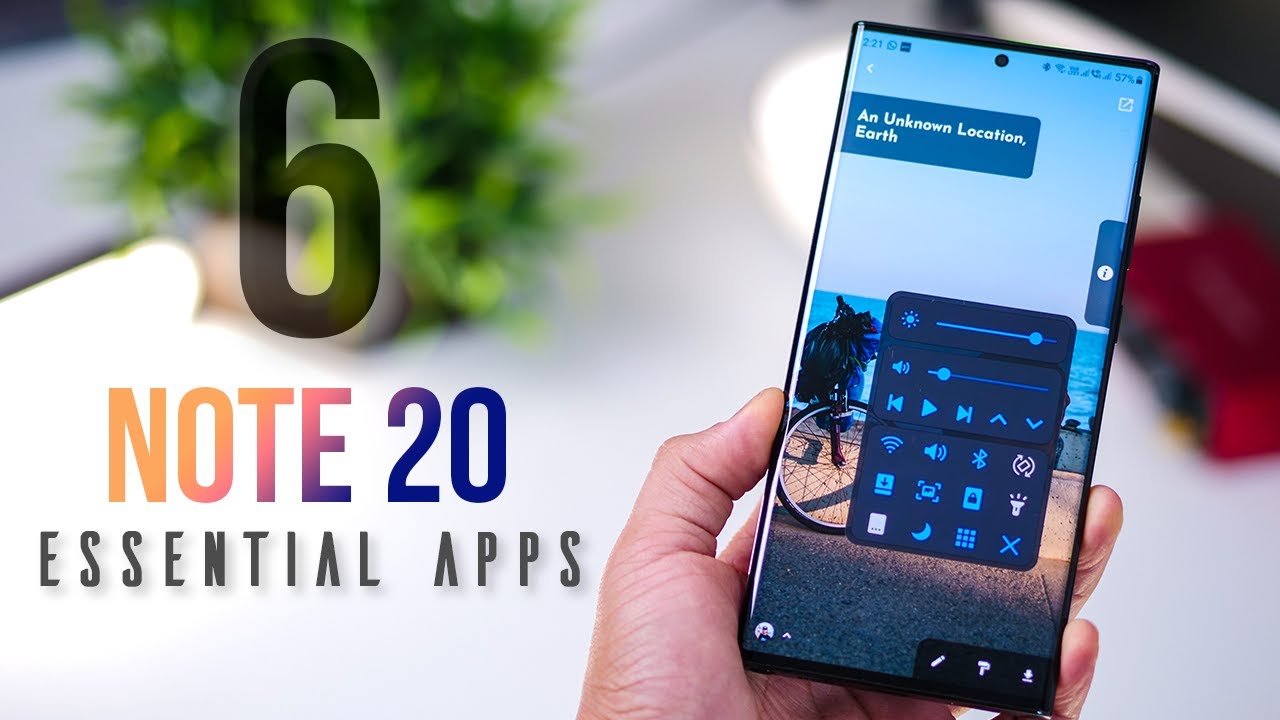
Best Apps For Note 20 Ultra
If you are reading this article right now on your Galaxy Note 20, you are using one of the most powerful smartphones on the market — but are you taking full advantage of it? The answer is likely no, but you can change this with a few apps.
The S Pen is the biggest differentiating factor between the Galaxy Note and Galaxy S series these days. But if you’re not an artist, you might not see much use in a stylus at first. But with the help of a few apps, you can find usage beyond just creating. And that’s not all. With all that power contained in the Galaxy Note 20, the preinstalled apps aren’t enough to get the most of your investment.
App 1Good Lock
Good Lock is a first-party Samsung app that lets you make major changes to parts of your phone’s operating system. It’s actually more like a suite, containing different apps that customize various features on your Note 20.
You can theme the Quick Setting menu, change the recent apps UI to a list, and so many more nifty little personalizations. It’s a must-have for any Galaxy user.
Galaxy Store Link: Good Lock (free)
App 2SoundAssistant
For those who want to customize the audio experience, you will need SoundAssistant. Created by Samsung, this app lets you adjust various aspects of the UI related to sound. This includes adjusting the number of presses on the volume rocker to reach maximum volume, making the volume menu vertical, and adding an equalizer to the volume panel.
Galaxy Store Link: SoundAssistant (free)
App 3Edge Touch (Note 20 Ultra)
Because curved edges are prone to accidental touches, another app you’ll want is EdgeTouch. This app lets you create zones along the side edges that will not register touches. For the Galaxy Note 20 Ultra, this a must-have app.
Galaxy Store Link: EdgeTouch (free)
App 4VLC for Android
The Galaxy Note 20 and Note 20 Ultra are among the few phones that can record in 8K. While the built-in video player can handle playback, it is pretty limited in features.
VLC for Android is a much better video player and one of the only third-party options that supports 8K. It can play nearly any video you throw at it and has native casting support if you want to watch it on the big screen as long as you have a Chromecast Ultra, NVIDIA Shield, or Cast-supported TV.
Play Store Link: VLC for Android (free)
App 5Tidal
Here’s something you probably didn’t know: your Galaxy Note 20 or Note 20 Ultra is capable of streaming ultra high quality (UHQ) audio with up to 32-bit sound. Not many streaming music services support such a high quality, so you might be missing out. This is where Tidal comes in, with audio quality that can max out your Note 20.
Play Store Link: Tidal (free)
App 6Any 120 Hz Game (Note 20 Ultra)
The Galaxy Note 20 Ultra has a 120 Hz display. When supported, every second, the screen displays 120 frames, making animations and transitions smoother. You can kind of get a sense of this when scrolling around, but only when you play a game do you feel the difference.
Even better, 120 Hz displays have been a thing in Android for quite some time, so there are already quite a few games that will render in full, glorious 120 fps. Mobile Mode Gaming has an extensive list of all supported games at the link below.
List of All Mobile Games That Supports 120 Hz Refresh Rate
App 7Adobe Fill & Sign
Nowadays, you don’t need a pen and paper to fill out official forms. From offer letters to leases, you can do it all digitally with the help of Adobe Fill & Sign. So stop printing forms out, signing them, then scanning them back into new PDFs — just do it all in one fell swoop.
Play Store Link: Adobe Fill & Sign (free)
App 8Samsung Voice Recorder
When taking notes, for most people, using your voice is faster. The Samsung Voice Recorder app can transcribe in real-time a memo up to ten minutes. It also has tons of features from configuring the audio quality to how the microphone records sound.
Play Store Link: Samsung Voice Recorder (free)
App 9Adobe Photoshop Express (& Lightroom)
Adobe is one of the leaders in content creation thanks to some of the best photo and video editors on the market. Their apps help fill the gap found on many phones, which have fantastic cameras but mediocre or limited built-in editing software.
Both Lightroom and Photoshop have mobile apps that are optimized for Samsung Galaxy smartphones, including the Galaxy Note 20. Depending on your skill and needs, download either or both to take your photos from average to extraordinary.
Galaxy Store Links: Lightroom (Easy) | Photoshop Express (Intermediate)
(1) Adobe Lightroom, (2) Adobe Photoshop Express
App 10Autodesk Sketchbook
Not everyone who buys the Galaxy Note 20 or Note 20 Ultra is purchasing it for the stylus, but it is a key tool to get things done. Artists who create paintings, sketches, or concepts get a level of precision with a fine-point stylus that wouldn’t be possible using fingertips.
For those who fall in that category or have any interest in trying, you’ll want Autodesk Sketchbook. The app gives you a virtual blank canvas to create works of art with over 50 different tips.
Play Store Link: Autodesk SketchBook (free)
App 11Google Handwriting Input
Besides drawing and signing things, the stylus is good for another major task: writing. With the Google Handwriting Input app, you can write out your responses instead of typing them, and the app will convert your handwriting into text instantly. It takes some practice, but once you get the hang of it, it can be faster than typing.
Play Store Link: Google Handwriting Input (free)
App 12Squid
Squid is a great third-party alternative to the stock Samsung Notes app. It supports different pressures, making lines larger the harder you press. It supports PDFs, lets you add handwritten notes and even signed documents, supports various paper types and sizes, and much more. Some features do require premium service, which is currently $10 a year.
Play Store Link: Squid (free)
Don’t Miss: Full Galaxy Note 20 & Note 20 Ultra Specifications — Price, Dates, Box Contents & More
Keep Your Connection Secure Without a Monthly Bill. Get a lifetime subscription to VPN Unlimited for all your devices with a one-time purchase from the new Gadget Hacks Shop, and watch Hulu or Netflix without regional restrictions, increase security when browsing on public networks, and more.
Buy Now (80% off) >
Other worthwhile deals to check out:
41% off a home Wi-Fi analyzer
98% off a learn to code bundle
98% off an accounting bootcamp
59% off the XSplit VCam video background editor
best games for note 20 ultra
Surely, you dropped all that cash on a Note20 Ultra for productivity purposes, especially with the excellent S Pen handy to scribble important notes and navigate through the blazingly fast OS with ease. But let’s be real: You also want to use that massive screen and bleeding-edge internal hardware to play video games.
Emerging streaming subscription services, like Microsoft’s xCloud, Amazon’s Luna and Google’s Stadia, are all making console-quality Android gaming over the network a breeze. However, we can’t forget about the more standard downloadable mobile experience, which is still viable and, in terms of visuals and design, continuing to push the boundaries of what is doable on a phone.
Some, but not all, of the games listed below are equipped to take advantage of the Note20 Ultra’s 120Hz refresh rate, which is truly a sight to behold. The ones that can’t partake in the high FPS goodness instead utilize the extra 12GB of RAM and beefy processor to run at the highest graphics settings. A fair tradeoff, I think.
Either way, playing mobile games on the Note20 Ultra is quite possibly the best way to experience the latest and most hardware-taxing Android titles. Presented here are five notable downloads that should, at the very least, help justify that steep $1300 Ultra price tag.
- Dead Trigger 2 (MADFINGER Games, 2013)
Okay, so we’re starting with the oldest game on this list, but it’s for good reason: Dead Trigger 2, like quite a few games on the Play Store, supports 120 FPS gameplay. Without a doubt, one of the Note20 Ultra’s selling points is its 120Hz display, and experiencing even an ancient (by industry standards) mobile title with that kind of speed and fluidity remains rather impressive.
MORE FOR YOU
‘Demon Slayer’ Season 2 Finally Has An Actual 2021 Release Date
Netflix’s ‘Squid Game’ Season 2 Not A Sure Thing, Says Director
‘Genshin Impact’ Still Refuses To Increase Anniversary Rewards, Despite Fan Outcry
Dead Trigger 2 CREDIT: MADFINGER GAMES
On the basic premise front, Dead Trigger 2 won’t exactly win any awards for originality; we’re talking basic zombie apocalypse stuff here, folks. And while the graphics are clean and functional, they’re definitely showing their age, even with how fast they perform. But with auto-firing that’s well-suited for touchscreen gameplay and undeniably slick controls, the free download is worth a spin just to see that glorious framerate in action on the Ultra’s hardware.
Exactly 7 Years From Today A Massive Asteroid Will Get Closer To Earth Than Some Of Our Satellites. Should NASA Visit It?
- Genshin Impact (miHoYo, 2020)
It seems like this free-to-play underdog gem, which has been widely compared to Nintendo’s Breath of the Wild, is one of 2020’s biggest industry surprises. While you can play it on just about anything, from PS4 to Windows to iOS, it’s difficult to think of a device that showcases Genshin Impact’s beautiful cell-shaded visuals like the Note20 Ultra with its pixel-dense 2X Infinity-O AMOLED.
Genshin Impact CREDIT: MIHOYO
I cranked the graphics settings up to all the highest markers, including pushing the visuals to 60 FPS, by which point the game considered itself ‘overclocked’. It’s not the 120 FPS I would have preferred, like you get with certain optimized titles like Dead Trigger 2.
But despite the nagging framerate limitation, everything ran flawlessly. Genshin Impact, with its gorgeous anime-inspired world, insane draw distances and striking character models, is truly a sight to behold on the Ultra, even without utilizing the phone’s 120Hz capabilities.
Now if only we could get proper controller support…
- Beach Buggy Racing 2 (Vector Unit, 2018)
I’ve been a big fan of Vector Unit’s games going all the way back to Hydro Thunder Hurricane on the Xbox 360. After resurrecting Hydro Thunder in 2010, they went on to create a whole bunch of fun, accessible mobile titles (Riptide GP, Shine Runner) which eventually made their way to PC and consoles.
One of those games was a little gem called Beach Buggy Racing, a kart racer that channeled the best of its obvious inspirations and took it a step further by making it all work brilliantly on smartphones. The sequel, which released a few years ago, improves on that solid formula and still works surprisingly well with touchscreen controls.
Beach Buggy Racing 2 CREDIT: VECTOR UNIT
The bright, colorful visuals and lively race tracks—complete with rampaging dragons and yetis—present beautifully on the Note20 Ultra’s AMOLED display. Even running on the highest detail setting, Beach Buggy Racing 2 performs blazingly fast on Samsung’s hardware, and makes for a nice cartoony showcase. Mario Kart fans will have a lot to love here.
Add the jangly guitar-based soundtrack blasting through the Note20 Ultra’s Dolby Atmos-capable speakers and you’ve got a nice little demonstration for what the phone can do. While it’s unclear what specific FPS Beach Buggy Racing 2 runs at, it’s certainly quick enough to appreciate. Vector Unit’s equally great Riptide Renegade, on the other hand, does indeed run at a confirmed 120 FPS via the Ultra’s 120Hz adaptive screen.
- Raziel: Dungeon Arena (Indrasoft, 2020)
Diablo-esque dungeon crawlers are a dime a dozen these days, especially on mobile platforms, but when they’re done well, I can’t help but take notice. Outfitted with some absolutely stunning cinematics and moody in-game visuals that look incredible on the Note20 Ultra’s 6.9 inch display, Raziel: Dungeon Arena is one to keep in heavy rotation on your new phone.
Sure, it’s arguably generic and somewhat derivative, possibly of other pop culture fantasy properties like Game of Thrones. But copycat or not, it’s downright gorgeous on the Note20 Ultra. Samsung’s hardware runs the game on its Ultimate setting without so much as a hitch, showing off expertly animated swaying grass, savage demons and dimly lit forests and docks.
Raziel: Dungeon Arena CREDIT: INDRASOFT
I couldn’t find any specific mention of exact framerates in the options menu, but in my experience, it did feel like Raziel was running (at the very least) at 60 FPS, maybe more. The developers have kept that particular setting pretty vague, so it’s hard to know for sure. Regardless, this is one smooth-operating ARPG.
Also, the sound design in this game is incredible. There’s a message during boot-up that says Raziel was created with headphones in mind, but even just playing thorough the Ultra’s Dolby Atmos and on-board speakers was noteworthy. Lots of distant bell tolls, howls and the like to keep you up at night.
- Sky: Children of the Light (Thatgamecompany, 2020)
If you’re even the slightest bit into artistic video games, it’s likely you’re at least peripherally aware of Thatgamecompany’s stellar track record: Flower, Flow and probably their best-known title, Journey. The latter might be the closest inspiration for their most recent release, quasi-social cryptic cloud adventure Sky: Children of the Light, which looks downright phenomenal on Samsung’s Note20 Ultra.
Sky: Children of Light CREDIT: THATGAMECOMPANY
Sky has several graphics settings to choose from, including a High Performance option that runs at a buttery smooth 60 FPS and a High Definition mode that dips FPS to a more humble 30, but in turn sharpens everything up quite nicely. On the Ultra, it’s difficult to choose between the two, because truthfully, both modes look amazing.
Seeing Sky run at 120 FPS would have been ideal, especially since the Ultra is more than capable, and maybe we’ll get lucky someday and Thatgamecompany will patch the setting in. Until that point, though, the game will still perform beautifully on Samsung’s hardware, regardless of chosen graphics settings, and is more than worth your time (and eyeballs).
Disclaimer: Samsung provided review product for coverage purposes.
Conclusion
Let us know your thoughts in the comment section below.
Check out other publications to gain access to more digital resources if you are just starting out with Flux Resource.
Also contact us today to optimize your business(s)/Brand(s) for Search Engines