
Windows 10 is an operating system that’s been designed to work across multiple devices, including laptops, tablets, desktop computers and smartphones. The best apps for Windows 10 are those that make life easier, or just provide a fun way to pass the time.
This list rounds up a number of the best Windows 10 apps available today. We’ve included a mix of popular apps everyone can use to less well-known apps you may not have realised were already on your PC.
Some of these apps ship with Windows 10 so you won’t need to download them from the Microsoft Store. But it’s still handy to know about all the options available – and even more so when some of these are free to download. To use any of these apps, you’ll need to open the Start menu and search for them by name.
Best Apps For Windows 10
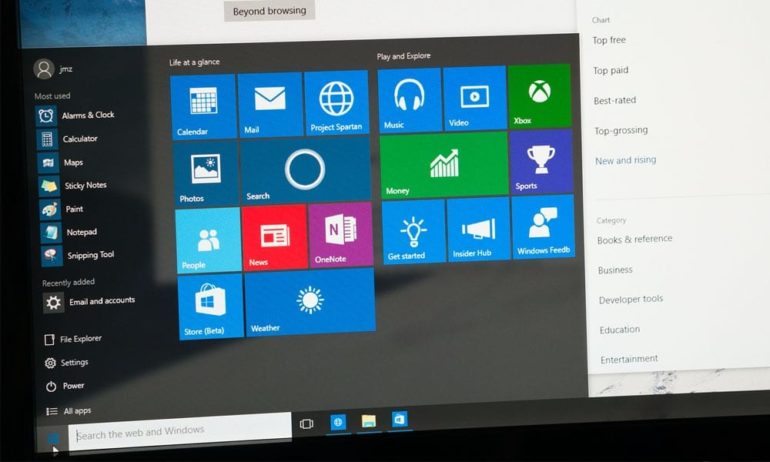
To say that there are lots of apps to choose from in Windows 10 is an understatement. In a 2018 statement, Microsoft said that there are over 35 million apps on the platform. The sheer number of apps makes it hard to know which ones are worth downloading. To make things easier for you, here is our list of the best free Windows 10 apps you can download, including the best apps to play videos, edit photos, web browsers,
When you go to download some of these apps, you will have the option to download the 32-bit or the 64-bit version. If you want to know which one you should download, check out our guide on the difference between 32-bit and 64-bit here.
Google Chrome: Best Web Browser for Windows 10
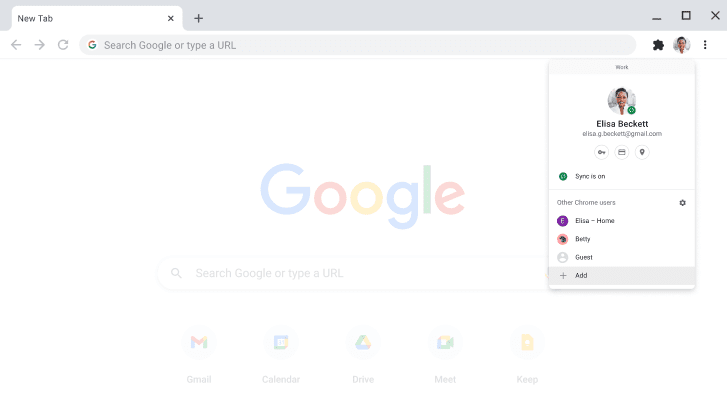
Google Chrome is the most popular web browser for Windows 10 today because of its simple and intuitive interface. It’s also one of the fastest browsers around, and it has tons of great features to protect your privacy online,
With Chrome, you can sync all your bookmarks, browsing history, saved passwords, extensions, and more on all your devices. All you have to do is sign in to Chrome from any computer, tablet, or phone, and you’ll have all the same data and settings on that device. It’s also easy to personalize Chrome with over 188,000 extensions, which is more than any other web browser.
If you want to personalize your Chrome browser, check out our list of the best Chrome extensions here.
Download: Google
VLC: Best Free Multimedia Player for Windows 10

VLC is one of the best Windows 10 apps for playing videos and other media because of its robust features. It’s a free and open-source multimedia player that can decode a wide range of video files, from MPEG to MKV files and everything in between. It can also play DVDs and CDs, and it even supports a number of streaming protocols.
VLC makes it easy for you to watch videos any way you want. For instance, you can watch parts of a video before the download is complete. If you get a video in a ZIP file, you can watch it without having to extract each file. Also, there are tons of extensions, skins, and hotkeys that make VLC one of the most customizable media players available.
Download: Microsoft
Foobar 2000: Best Free Music Player for Windows 10
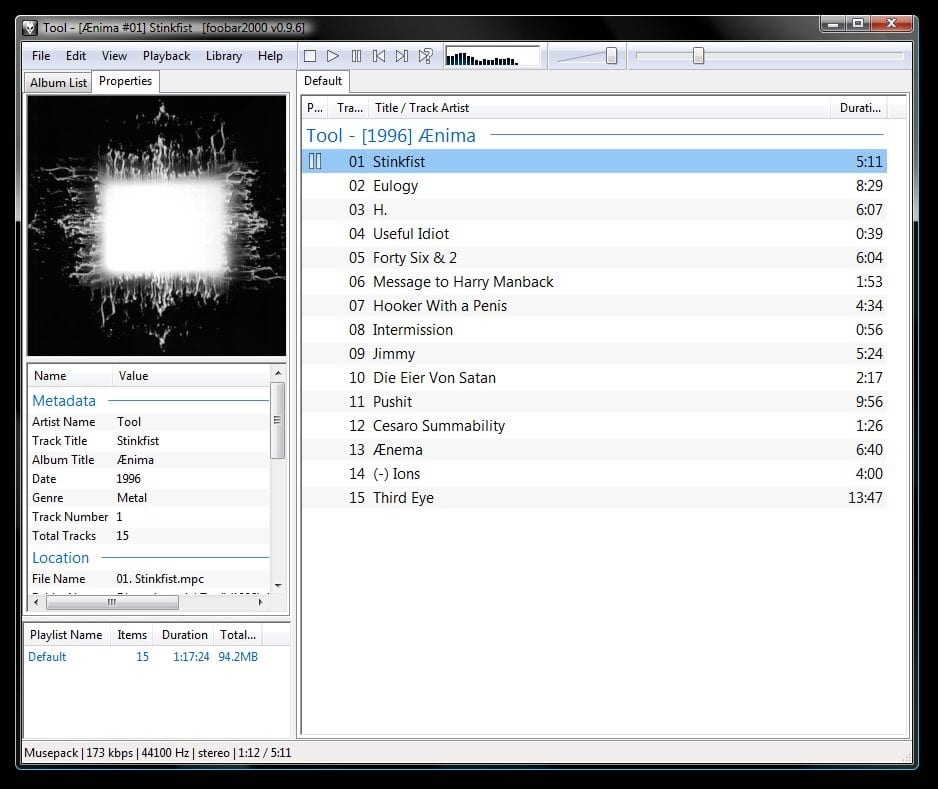
Another app that has stood the test of time is foobar2000. This free audio player for Windows lets you convert your CDs into MP3s and organize them into a library. Initially released in 2002, foobar2000 can play almost any audio file formats, from MP3s to FLAC files. Support for more formats is available from foobar’s Component Database.
Managing your music library is easy with foobar2000, as you can rename, copy, or remove files in batch mode. Audiophiles will also appreciate how the foobar equalizer has 17 bars instead of the usual five or 10. Foobar’s powerful music conversion and playback capabilities make it one of the best Windows 10 apps for music lovers.
Download: Microsoft
Malwarebytes: Best Free Anti-Malware App for Windows 10
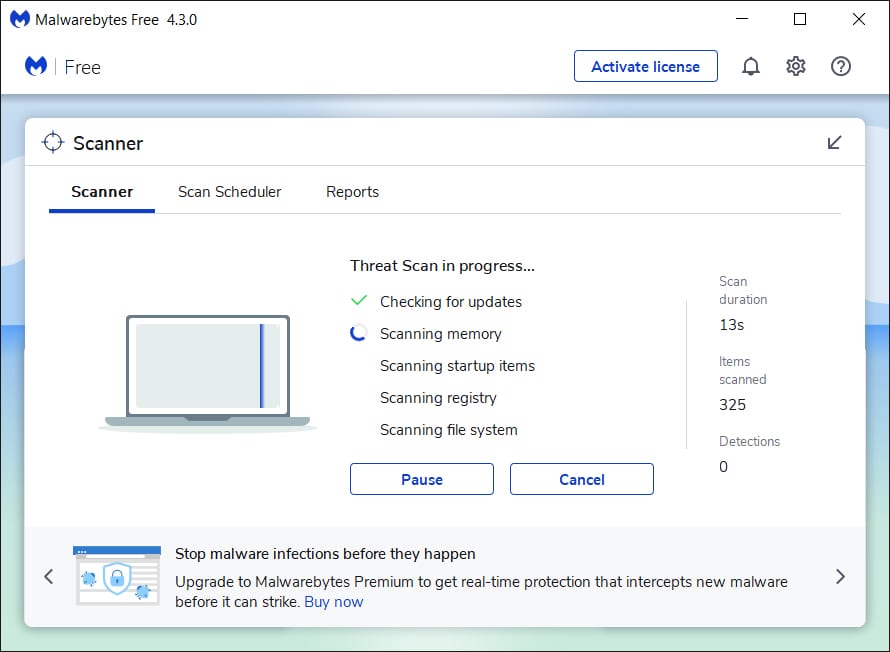
If you want to protect your privacy and security, you’re going to need to install Malwarebytes. This free Windows 10 app makes it easy to scan for any kind of malware (or malicious software) and remove it from your Windows 10 computer. In fact, Malwarebytes claims that its app finds threats on 39 percent of devices that already have an anti-virus installed.
If you want to be protected from threats in real-time, you will need a premium subscription, which normally costs $39.99 a year. The most expensive plan costs $59.99 a year, and it allows you to use Malwarebytes on up to five devices at once. The app also works with Mac computers and iOS and Android devices.
Download: Malwarebytes

LibreOffice: Best Free Alternative to Microsoft Word for Windows 10
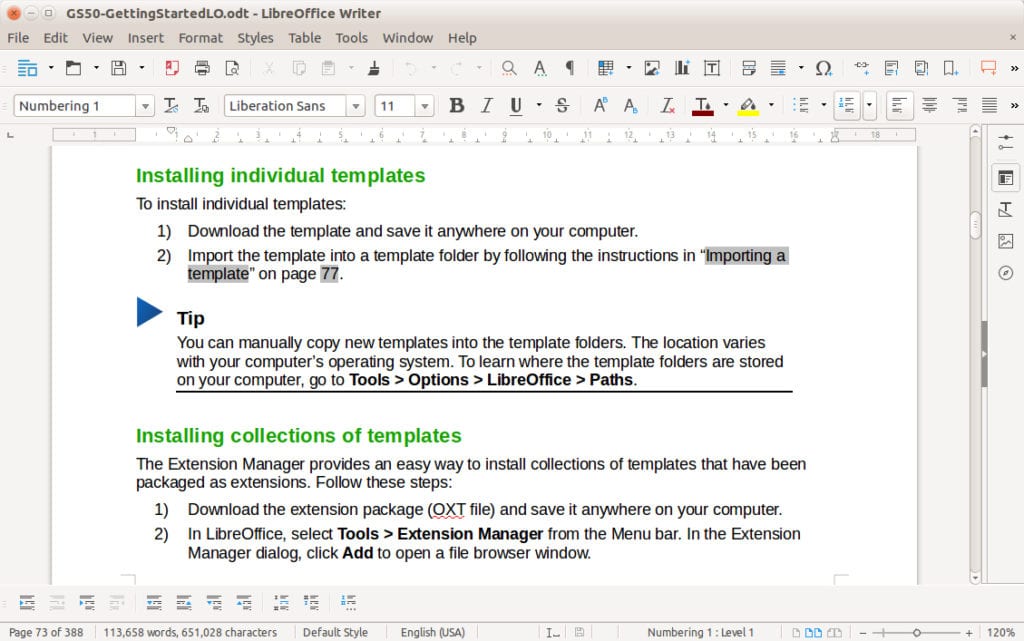
If you want a word processor app, but you don’t want to pay for Microsoft Office, LibreOffice is a great alternative. This free Windows 10 app comes with a powerful word processor that has all the same features you would find on Microsoft Word, and you can even save a document and open it with Microsoft Word.
The app also comes with alternatives to Excel, PowerPoint, and more.
It has Writer for word processing, Calc for working on spreadsheets, Impress for making presentations, Draw for editing vector graphics, Math for creating and editing mathematical formulas, and Base for managing databases.
If you really want to use Microsoft Word, check out our guide on how to get Microsoft Word for free.
Download: LibreOffice
Microsoft Sticky Notes: Best Notes App for Windows 10
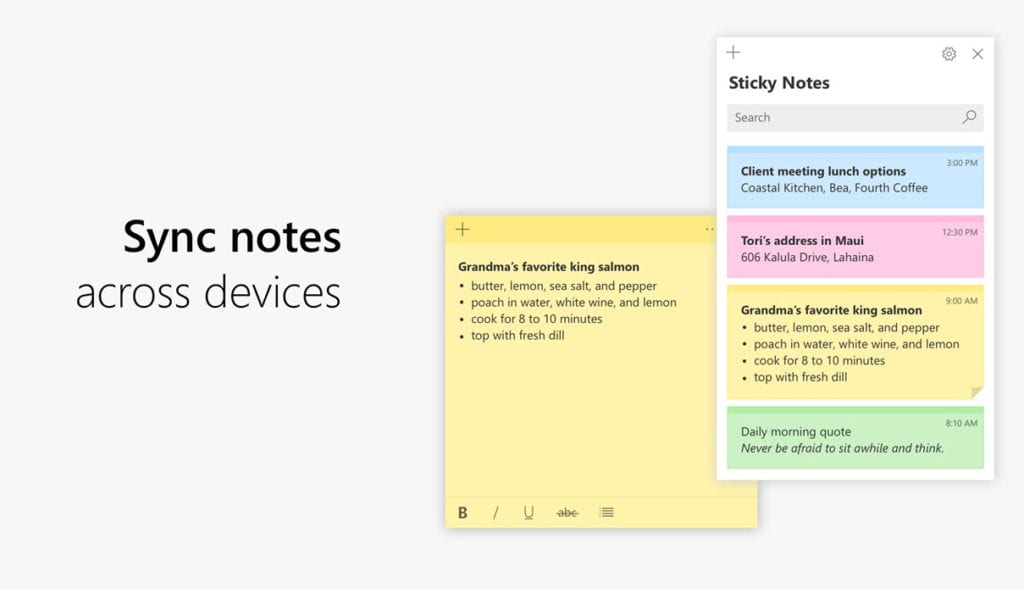
If you’re looking for a simple app that lets you take notes on your Windows 10 computer, Microsoft Sticky Notes is your best bet. Just like the traditional sticky notes, you can use this app to jot down notes and then “stick” them on your desktop.
On top of the old-school way to jot down notes, this free Windows 10 app also has other cool features. For example, you can attach photos to your notes, sync them across all your devices, and transform them into reminders for Cortana, Microsoft’s own virtual assistant. The app can also detect addresses or mobile numbers, so when you tap or click them, a corresponding app will open. For example, when you tap an address on the note, the Maps app will launch.
Download: Microsoft
Flipboard: Best News and Social Media Aggregator App
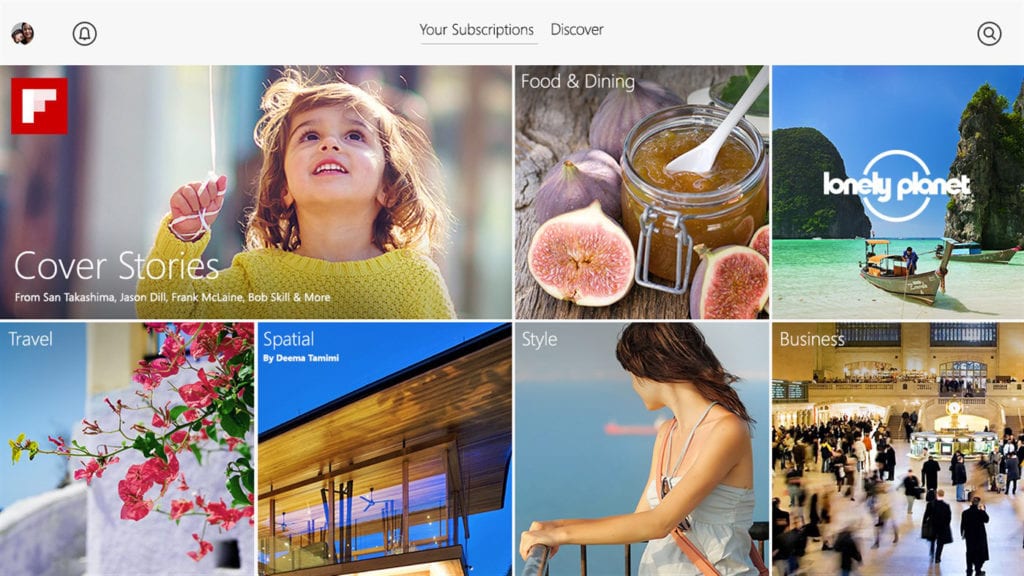
If you want one app that combines all your news and social media updates in one place, Flipboard is one of the Windows 10 apps you can download. This free app gathers everything that you deem important, and it aggregates them into a personal magazine. That means you won’t have to switch between apps and websites to catch up on the news or see what your friends are up to.
Flipboard is easy to use and customize. You can add any topic or source that interests you, and the app will allow you to flip through stories in a beautiful magazine format. And, to keep up to date on your online social life, you can connect your Twitter, Facebook, Instagram, and other social media accounts, too.
Download: Microsoft
Zoom: Best Video Conferencing Windows 10 App
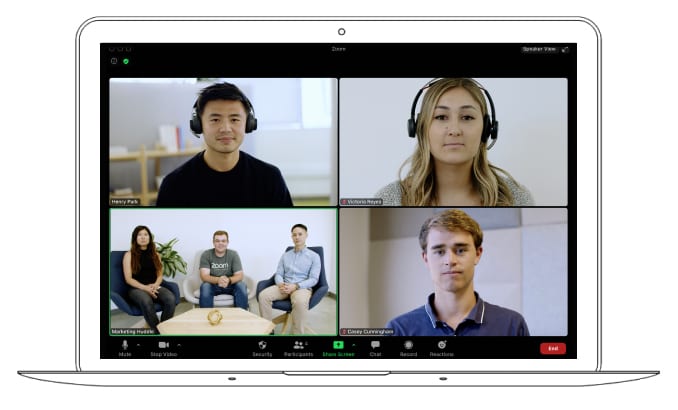
Zoom is one of the best Windows 10 apps for keeping in touch with family, co-workers, and friends. This free video conferencing app allows you to video chat with up to 100 people for up to 40 minutes at a time. If you don’t want to be limited by time constraints, you can also sign up for a paid plan, which comes with lots of other features for personal and business use.
Other features that make Zoom a good video conferencing app include screen sharing, meeting recording, and automatic transcription. The app also has plugins and is available as a browser extension. You can also customize add a virtual background on Zoom, so you can have a video chat from the Bahamas or from outer space.
Download: Zoom

Adobe Photoshop Express: Free Photo Editing Windows 10 App
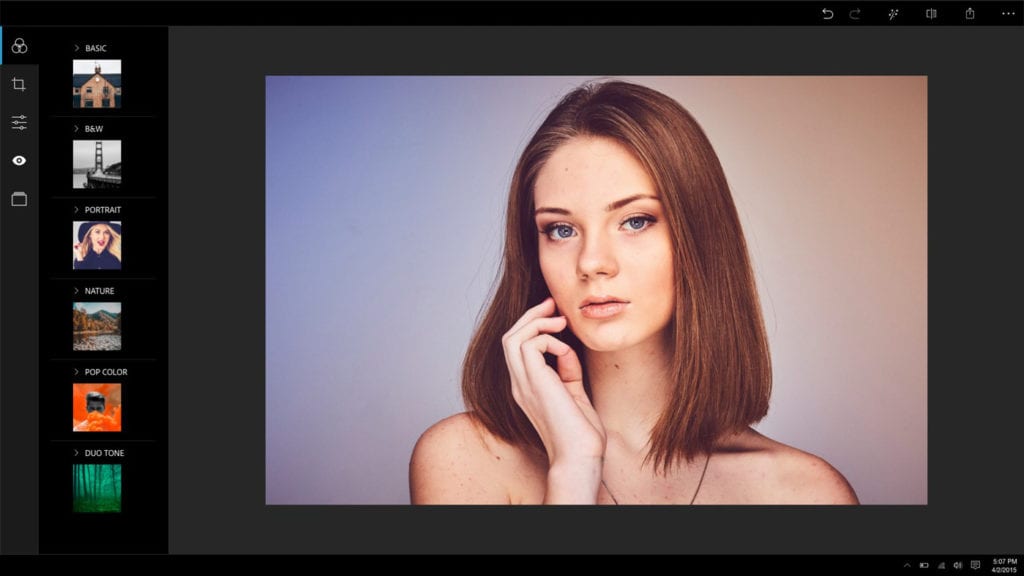
Adobe Photoshop Express is the best free photo editing app that you can download on your Windows 10 PC. With great features for giving your photos touch-ups, this app is easy to use and will be a great addition to your arsenal of Windows 10 essential apps.
With Photoshop Express, you can add filters to your photos, remove red eyes and blemishes, crop, adjust contrast and exposure, add borders or backgrounds, and more. You can also turn your photos into collages or assemblages for that extra artistic touch.
Download: Adobe
LastPass: Best Free Password Manager App for Windows 10
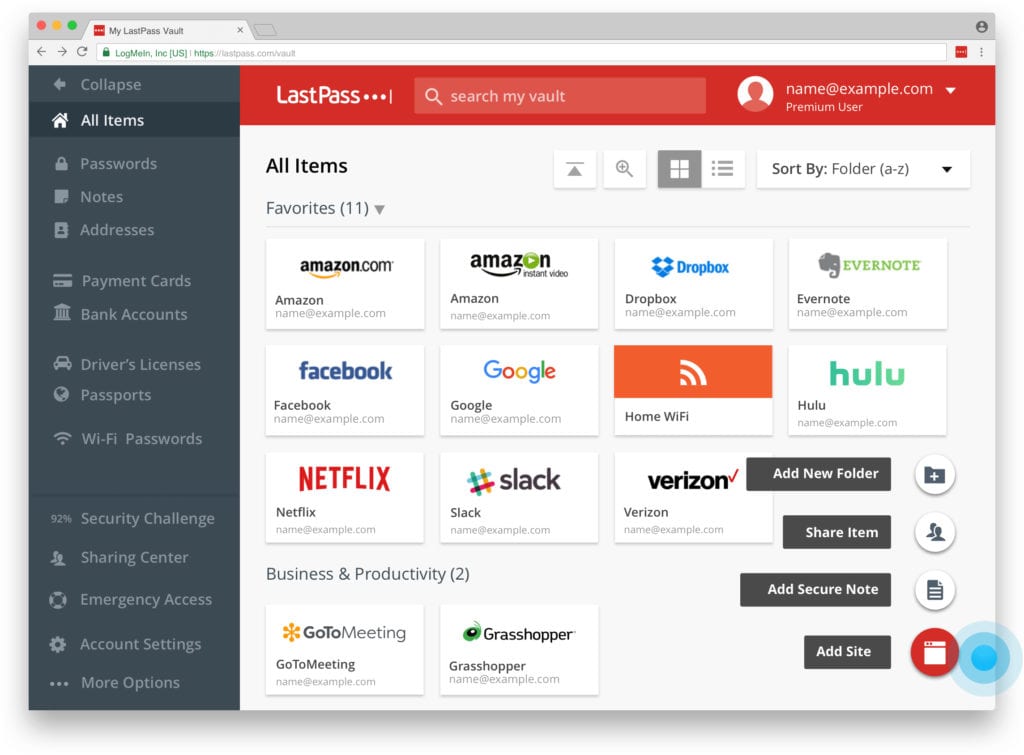
If you’re always forgetting your passwords, LastPass is one of the best apps you can get. This free Windows 10 app saves all your passwords in one place, so you only have to remember one password. This way, you can create a different password for all the sites you visit, which will prevent hackers from accessing all your information if they get happen to breach one site.
LastPass will also generate strong passwords for you, autofill your passwords, save your payment information, and more. This password manager also works for Mac computers and iOS and Android devices, so you can sync your passwords across all your devices.
Download: LastPass
Dropbox: Best File Hosting App for Windows 10
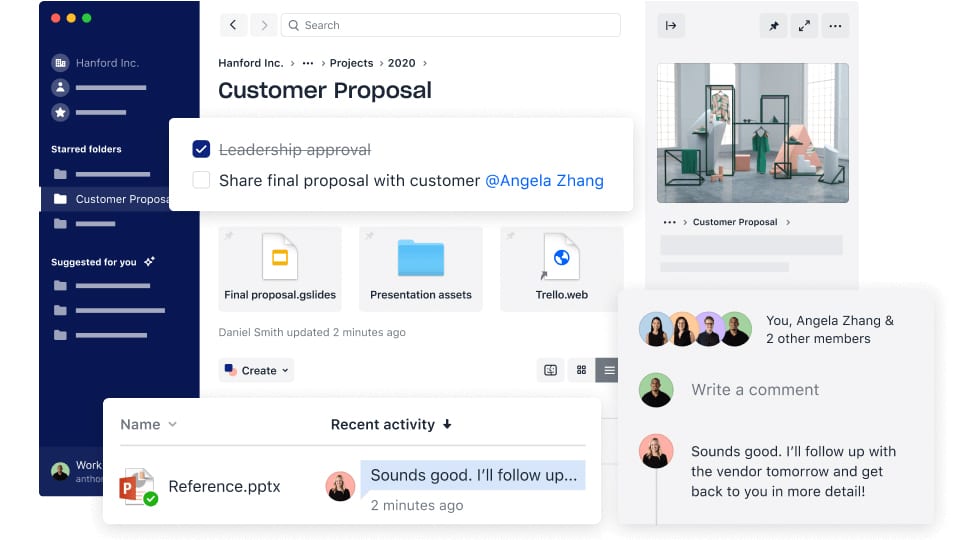
Dropbox is a free app that lets you store your files in the cloud, so you can access them from any other device. With Dropbox, you can back up any important photos, documents, and other files, so you can recover them in case something happens to your computer.
The Basic Dropbox subscription is free, but it only comes with 2 GB of storage space. You can also pay $10 a month for up to 2 TB of storage or $20 a month for unlimited storage. With a free Dropbox plan, you can create, share, and edit Microsoft Office documents and chat with other Dropbox users. Dropbox works with Windows 10 and Mac computers, iOS and Android devices, and even web browsers.
Download: Microsoft
Mozilla Thunderbird: Best Free Email App for Windows 10
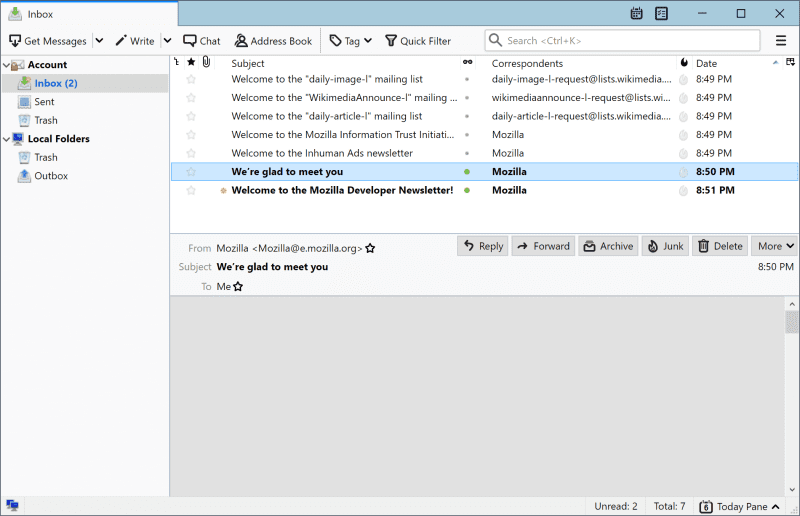
Instead of checking email with the built-in Windows 10 Mail app, you can try Mozilla Thunderbird. This free email app helps you manage multiple accounts. Its Smart Folders feature lets you consolidate your inbox, sent mail, and archives folder in one view.
If you’re looking for a particular email, you can use the Quick Filter Toolbar to sort messages by date, tags, or contacts. To protect your privacy, Thunderbird warns you about phishing attempts. In addition, it blocks emails that collect information about you when you open them.
Download: Thunderbird
7-Zip: Best App for Extracting or Compressing Archived Files
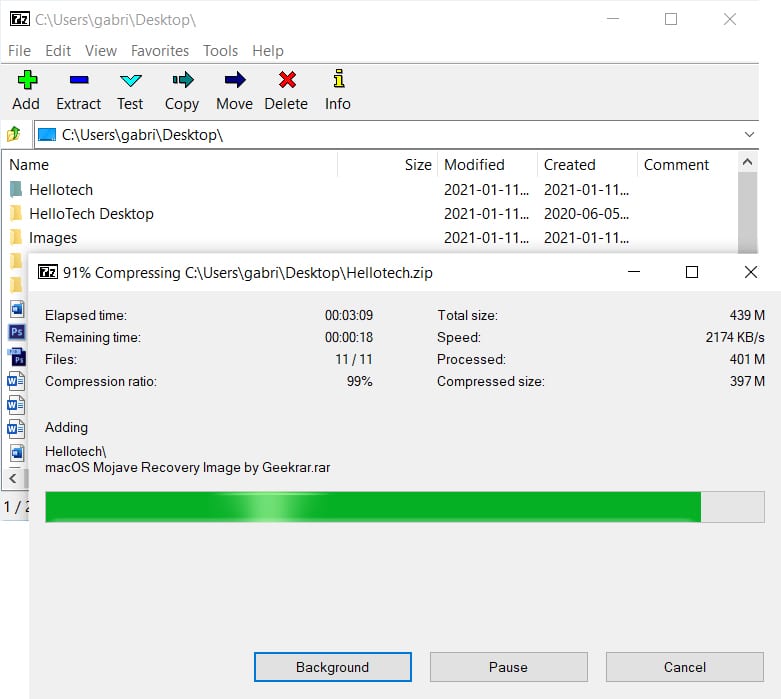
Have you ever received an email with an attachment you can’t open on your computer? If so, 7-ZIP is one of the best apps you can download. This free Windows 10 app makes it easy to extract almost any type of compressed files on your Windows 10 PC, including ZIP, RAR, ISO, TAR, and other files.
With 7-Zip, you can also compress files before sending them if they are too large to send in an email attachment. On top of compression and extraction, 7-Zip also lets users add password protection or to create files that self-extract.
If you want to know how to open a ZIP file without the app, check out our step-by-step guide here.
Download: 7-Zip

FlashbackExpress: Best Screen Recorder for Windows 10
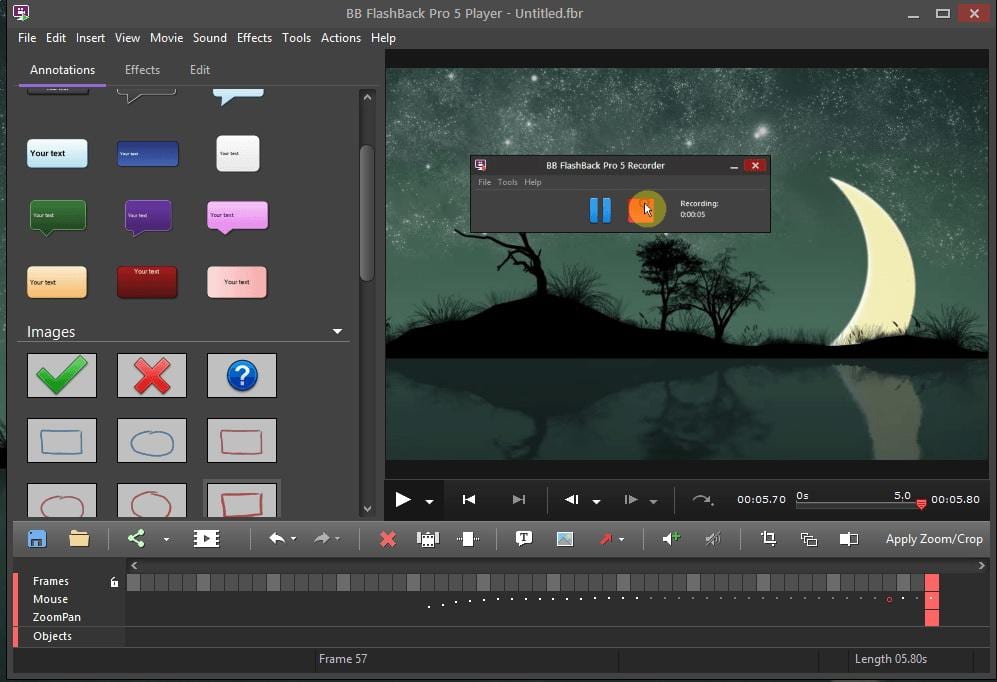
If you ever want to record your screen, FlashBack Express is one of the best Windows 10 apps you can get. This app lets you capture your screen or webcam, and even record audio. The free version gives you access to the screen recorder component only, while the paid version includes an editing suite.
The screen recorder lets you record a window, your entire screen, or just a specific area – with no time limits. In addition, you can set pre-determined start and stop times for screen recordings, even if you’re not in front of your computer. This is useful for webinars and online events. The finished product is a water-mark-free video that you can share on YouTube or download as an MP4, AVI, and WMV file.
Download: FlashBack
OneCalendar: Best Calendar App for Windows 10
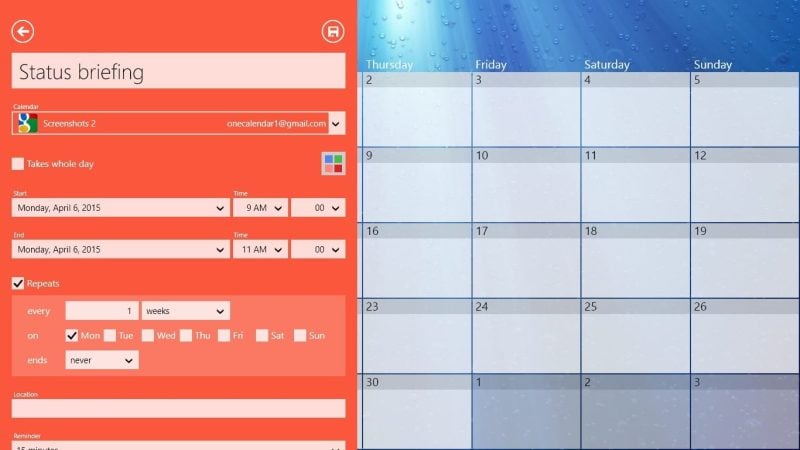
It can be time-consuming to switch back and forth between different calendars. But with OneCalendar, you can add up to nine online calendars from Google, Windows, Outlook, and more.
Aside from the usual daily, monthly, and yearly views, OneCalendar also has other useful features to make sure you won’t miss appointments. For instance, you can see upcoming engagements as large live tiles or on your lock screen. Plus, when your internet goes out, you can still check and manage appointments offline. The OneCalendar interface is fairly straightforward and customizable, making this one of the best Windows 10 calendar apps you can get.
Download: OneCalendar
PDFescape: Best PDF Editor for Windows 10
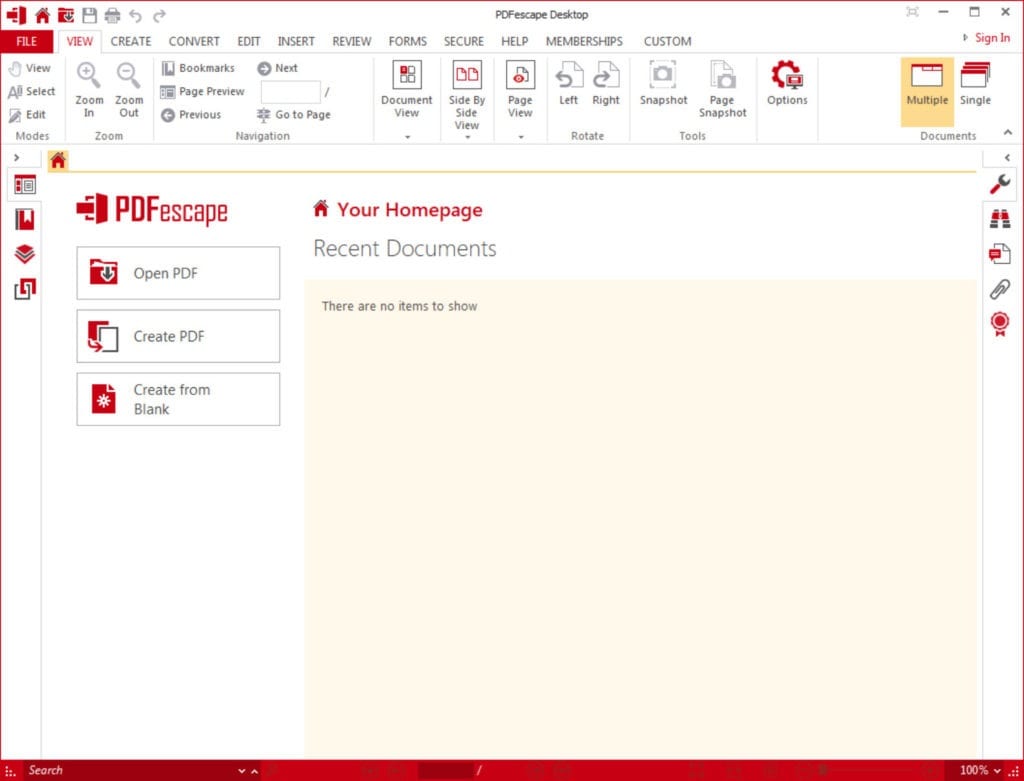
Using industry-leading PDF editor tools can be expensive. Fortunately, PDFescape offers a budget-friendly alternative. This freemium app has online and desktop versions with varying feature sets.
You can use the online version as long as the file size is less than 10 MB and less than 100 pages long. The Windows 10 desktop version lets you create PDF files from more than 300 file types and various sources, like your clipboard, scanner, or even a URL.
In contrast, the Premium version lets you edit text and images, merge PDF files, and convert PDFs to other formats. With the Ultimate plan, you get all Premium features plus encryption, redaction, and electronic signing.
You can get PDFescape Desktop for free. The Premium version costs $2.99 per month, while the Ultimate version is priced at $5.99 per month.
Download: PDFescape
best paid software for windows 10
must-have-windows-appsImage Credit: Syda Productions/Shutterstock
When you want to download a new desktop program, your first instinct is probably to look for a free option. And while that’s great in a lot of cases, there’s some software that’s worth paying for.
Let’s take a look at the best paid software for your Windows PC. We’ll focus on generally applicable apps that offer most users something worthwhile for their money.
- Backblaze
If there’s one kind of paid software that’s worth the cost, it’s a backup tool. Without a backup of your computer, years’ worth of photos, documents, and other data could disappear in an instant.
While Windows has a solid local backup option built-in, that doesn’t protect your backup drive from physical damage, such as a fire or theft. A cloud backup service like Backblaze is thus an essential part of your setup.
For a flat fee, you can back up as much data as you want from one computer. Backups run automatically and you can exclude certain folders if you like. It’s easy to restore one file or your entire backup when needed.
Backblaze offers a great “set and forget” backup solution for those who need data protection but don’t want to worry about setting it all up manually.
Download: Backblaze ($6/month or $60/year, free trial available)
- Groupy
Tabbed browsing is so convenient that you might wish other apps on your computer had the feature too. That’s where Groupy comes in—it’s a straightforward Windows utility that brings tab grouping to all apps.
Simply drag one app window on top of another to group them together. This lets you, for instance, keep tabs from multiple apps together when you’re using them to work on one task. You can save tab groups to easily reopen later, as well as setting Groupy to always group multiple instances of certain apps together.
If you love tabs, this is a few dollars well spent. It’s a great way to organize the dozens of app windows you have floating around—in particular, the tabs in File Explorer are much appreciated.
Download: Groupy ($4.99, free trial available)
- Microsoft 365
We’ve previously discussed how you might not need Microsoft Office, thanks to the wealth of free alternatives like LibreOffice and Office Online. And while that does hold true for many people, Microsoft 365 is worth paying for if you fall into the right use case.
Microsoft 365 Family costs $100 per year and includes full Office access for up to six people. As a bonus, it also includes 1TB of OneDrive storage per user, plus 60 minutes of Skype calling per month.
Considering that many cloud storage providers charge $10/month for 2TB of cloud storage, getting 1TB of cloud storage each for six people at $100/year is a great value. Plus, if everyone uses Office on at least one computer and their mobile device, you’re getting a lot for the money. This is especially the case when you consider that Microsoft 365 Personal is $70/year for just one person.
We’ve compared the value of Microsoft 365 and standalone Office 2019 if you’re interested in more info.
Buy: Microsoft 365 ($99.99/year for Family or $69.99/year for Personal)
- DisplayFusion
If you work with multiple monitors, you’ve probably noticed that Windows doesn’t do a whole lot to let you customize them. DisplayFusion adds a ton of functionality in this area, making it well worth the cost if you want to optimize your screen real estate.
Features include customization options like multiple wallpaper profiles, allowing you to create “mini monitors” on each display, dimming inactive monitors, and even scripting that lets you run actions based on triggers. While there’s a limited free version, the Pro licenses start at a one-time $29 purchase for a single computer.
Download: DisplayFusion (from $29, free trial available)
- A Paid VPN
We’ve spoken before about how a VPN is a great tool for enhancing your online privacy, accessing content from other regions, and browsing securely on open networks.
No matter which paid VPN you go for, having it installed on Windows is a worthwhile purchase. Check out our favorite VPN services and how to use a VPN with Windows 10 to find out more.
- Spotify
Why pay for individual song and album downloads when you can have it all with one subscription? Spotify charges $10 per month (less per person with the Family, Duo, or Student plans) for unlimited access to millions of songs.
READ MORE:
Which Spotify Subscription Is Best For You?
With Spotify Premium, you get high-quality music streams, the ability to save music offline on your device, and no ads. It’s a huge value if you listen to music all the time on your computer, so give it a look if you don’t already use another streaming service like Apple Music.
Plus, one Spotify subscription is good on all your devices—not just Windows.
Download: Spotify (Free, subscription available)
- Breevy
Chances are that you type the same snippets of text multiple times per day. How many times have you entered your home address, email address, or a canned email into a text field this week?
Text expansion is a huge productivity booster that’s worth the cost, and Breevy is a great choice for it. The app lets you set up shortcuts (such as “@@”) that let you expand to a larger block of text (like your email address). This saves you a ton of time—you won’t have to worry about repetitive blocks of text taking up your time anymore.
Breevy offers more than just text expansion, including thousands of autocorrect entries, folder organization for expansions, dynamic input, and much more. Give the trial a spin and you’ll wonder how you lived without it.
Download: Breevy ($34.95, free trial available)
- Malwarebytes Premium
For most people, Windows Defender does a good enough job of protecting your PC. But if you’re looking for extra layers of protection, then Malwarebytes Premium is a great second line of defense.
In addition to the trusted on-demand scanning of the free version, Malwarebytes Premium includes always-on shields, ransomware protection, scheduled scans, and more. If you want to pay for a security tool, this is one to consider. You can also opt for the five-device plan to protect additional computers.
See our overview of Malwarebytes Premium for info if you’re considering upgrading.
Download: Malwarebytes (Free, from $39.99/year for Premium)
- A Password Manager
We’ve talked before about how everyone should use a password manager to generate secure passwords and keep them safe. While some password managers are available for free, there are many paid password managers that are worth the few dollars per month.
For example, 1Password provides a smoother interface than some free options, like LastPass. It also has handy features like the Watchtower (which alerts you to password breaches) and Travel mode, which lets you remove some passwords from your device when crossing country borders.
Bitwarden’s great free option has everything you need, but for just $10/year, you can get some extra features like secure file storage and emergency access. You don’t have to pay for them, but a bit of cash on a premium password manager is well-spent. Plus, supporting these important services helps keep them running.
Have a look at our comparison of password managers to find the right one for you.
- Grammarly
While it’s one of the most expensive apps on the list, Grammarly is worthwhile for anyone who writes on their computer a lot. Whether you want to improve your papers for school or have a second set of eyes while you blog or work on a novel, it’s a huge help.
Grammarly has a free plan, but Premium unlocks much more writing help, including vocabulary options. If you’d benefit from stronger writing, give it a look.
Download: Grammarly (Free, from $11.66/month for Premium)
Conclusion
Let us know your thoughts in the comment section below.
Check out other publications to gain access to more digital resources if you are just starting out with Flux Resource.
Also contact us today to optimize your business(s)/Brand(s) for Search Engines