
If you are a YouTuber, you’ll love this list! We’ve handpicked the best apps for YouTubers Android and compiled them into a single list!
You can use these apps to edit your videos, customize your channel, add custom thumbnails and much more.
Table of Contents
Best Apps For Youtubers Android
With over 3 billion searches per month, YouTube is the world’s second-largest search engine, behind Google. A YouTube channel can be a source of many opportunities for content creators.
However, your channel is only as good as the amount of traffic, views, and subscribers it attracts. To succeed on YouTube, you need to produce high-quality and engaging content. And a good app can help.
There are many apps that can help grow your YouTube channel. Here are some of the best apps for learning about your channel and audience, other people’s channels, and increasing subscriber count.
1. TubeBuddy
TubeBuddy is a web browser extension and mobile app that automatically integrates with YouTube, allowing you to manage your channel on the go. You can use it to find low competition keywords and related keywords so you can create a video on the topic and rank higher on YouTube.
The extension works with Chrome, Firefox, and Safari and lets you track and compare your rankings to those of your competitors on YouTube and in Google searches.
The app allows you to test out the performance of your content. You can use it to test titles, descriptions, thumbnails, and tags and find out which ones work best for your channel.
This all-in-one tool has a scheduling feature that lets you determine when to upload videos. You can also set a schedule for removing a video from a playlist. You can even update videos in bulk. For example, you can use it to update all video descriptions simultaneously.
TubeBuddy offers a free plan and affordable paid options.
Download: TubeBuddy for Android | iOS (Free, subscription available)
2. vidIQ
vidIQ is often compared with TubeBuddy because of their similar channel management features. Its extension integrates with YouTube to deliver comprehensive insights and metrics for any YouTube video, just like TubeBuddy.
However, vidIQ’s AI-powered tool has quite a few unique features up its sleeve; it focuses more on analytics and stats. The app helps you manage comments, identify influencers, and compare your channel against other channels. The free Google Chrome extension lets you see the top keywords and tags used by competitor YouTube channels.
Its functionalities include channel analytics, SEO video score, and competitor research. The SEO video score measures search engine optimization and rates your videos based on their titles, descriptions, and other data.
With the app, you can see who’s watching your content, so you can create videos that appeal to those audiences. You can also see the like-to-dislike ratio for videos as well as the number of subscribers each commenter has.
This YouTube-certified tool offers a feature-rich free plan and several paid plans.
Download: vidIQ for Android | iOS (Free, subscription available)
3. YouTube Studio App
YouTube Studio is the official YouTube app from Google for creators. This free tool makes it easier and faster to manage your channel from anywhere.
YouTube Studio lets you see real-time views, respond to comments, monitor known issues, and even change your channel name and profile picture.
You can review and filter comments on your videos via the Comments tab. To manage channel playlists, go to the Playlists tab. You can also manage monetization settings directly from within the app.
The dashboard provides a quick overview of your videos, comments, and analytics on your channel. In the Analytics tab, you’ll get an overview of your channel performance metrics such as views, watch time, and revenue.
Download: YouTube Studio for Android | iOS (Free)
4. Canva
Canva is an easy-to-use tool for designing graphics. The app has a YouTube video editor filled with thousands of YouTube video templates such as customizable video templates, banner art, and thumbnail designs.
This tool allows you to create professional-looking designs within seconds, and you can collaborate with your team in real-time on any design, on any device, from any location.
With Canva’s free banner maker, you can create a professional-looking YouTube banner. You can also create non-watermarked YouTube thumbnails using the app’s drag-and-drop interface.
Canva boasts millions of stock videos, music, and animations, and has a library of GIFs, photos, stock videos, icons, and audio clips.
The beginner-friendly design tool supports several different types of effects and includes basic video editing tools. For example, you can enhance your videos with graphic animations and typography effects using tools like rotate, crop, and trim.
Canva also includes premade templates to ensure you get the correct dimensions every time as they are made to fit YouTube requirements. You can also upload existing brand assets into the editor, like your logo or an image you’d like to use, for free.
Download: Canva for Android | iOS (Free, in-app purchases available)
5. Intro Maker, Outro Maker
Intro Maker, Outro Maker lets you create an outstanding intro or outro for a YouTube video in less than five minutes. This lightweight app has a simple interface and a huge library of templates. You can customize the templates to create engaging intros and outros. You can also create intros and outros from scratch.
To create an intro, select a template, import a video and audio file, and let the app do the rest. You can also add a logo, animated text, 3D images, and other images to the intro.
Download: Intro Maker, Outro Maker for Android | iOS ( Free, in-app purchases available)
6. AZ Screen Recorder
AZ Screen Recorder is one of the most popular screen recorders for Android. If you’re an iPhone user, check out these third-party apps to screen record on your iPhone.
This screen recorder allows you to change settings like video recording resolution, bit rate, and frame rate and add a time-lapse effect. It supports microphone recording too!
You can also use the app to capture screenshots and edit images. There’s an option to pause and resume recordings, which is particularly useful for making tutorial videos.
The recorder comes with a video editor that lets you trim and merge videos as well as add subtitles. It also features a Livestream function that lets you stream your screen to YouTube.
Download: AZ Screen Recorder for Andoird (Free, in-app purchases available)
best editing app for youtubers
1. Shortcut
It is an excellent free video editing software that can work on Windows, OS X, and Linux. The shortcut has the same principle of work as its expensive analogs – you place video and audio fragments on the timeline and apply effects and captions. Then you can convert the result in a video file.
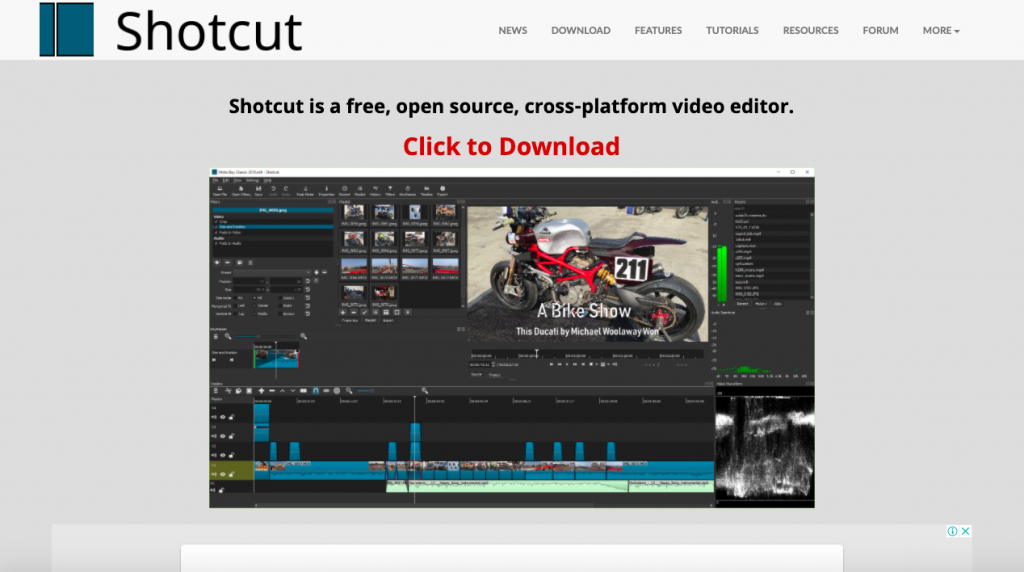
First, they designed this app for Linux users, and only after a few years of work decided to create versions for Mac and PC users. That’s why the Shortcut interface is a little bit strange. They have many intuitive features, such as dragging a file to import them into your project.
Pros:
- Customizable menu;
- A wide selection of modifying options and filters;
- Mobility of tasks, for example, return to any stage of editing;
- Automation of all work processes for user requests;
- Configuration on multiple monitors.
Cons:
2. Adobe Premiere Pro CC
It is a popular video editor, which can easily modify the video, adjust colors, and process audio. A unique set of features for video editing allows processing any type of multimedia content in the original format on desktop PCs and mobile devices.
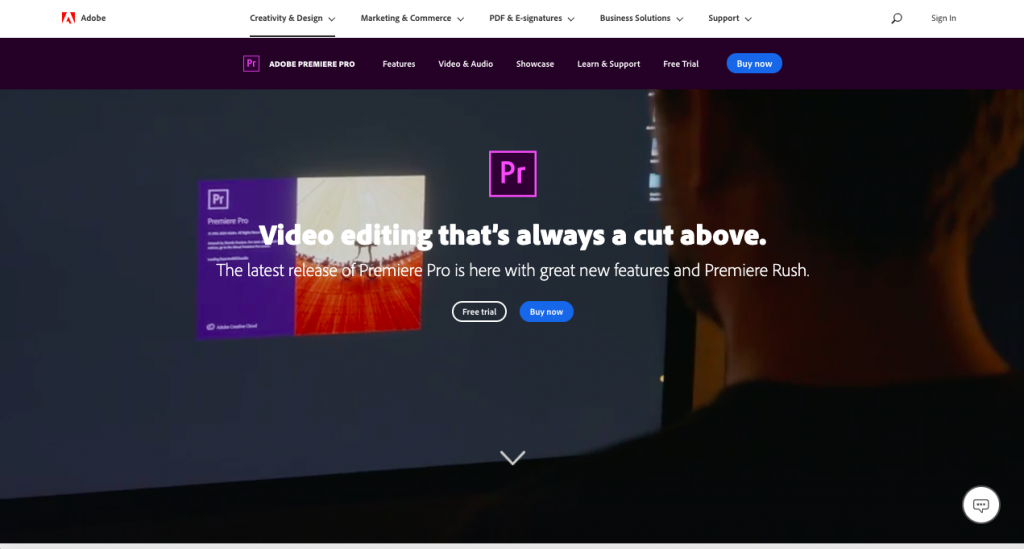
This software can be used for iOS, macOS, and Windows. You can subscribe just to Premiere Pro or get it as part of the Adobe package. They offer 360 VR and 4K support that makes it a professional tool to edit any kind of video. It’s the most complete tool in this list for both experts and newbies.
Pros:
- Plenty of customizable features, options, and plugins;
- Very convenient user interface;
- Ability to export a finished project in any of the existing formats;
- Integration with other Adobe products.
Cons:
3. Apple iMovie
If you are looking for elegance and simplicity, iMovie is the best choice for you. It is one of the most popular editors for Mac OS, iPhone, and iPad. It includes eight themes with music, transitions, and titles, ten video filters created by Apple, and a lot of different effects: image in the image, slow motion, split-screen, and fast forward.
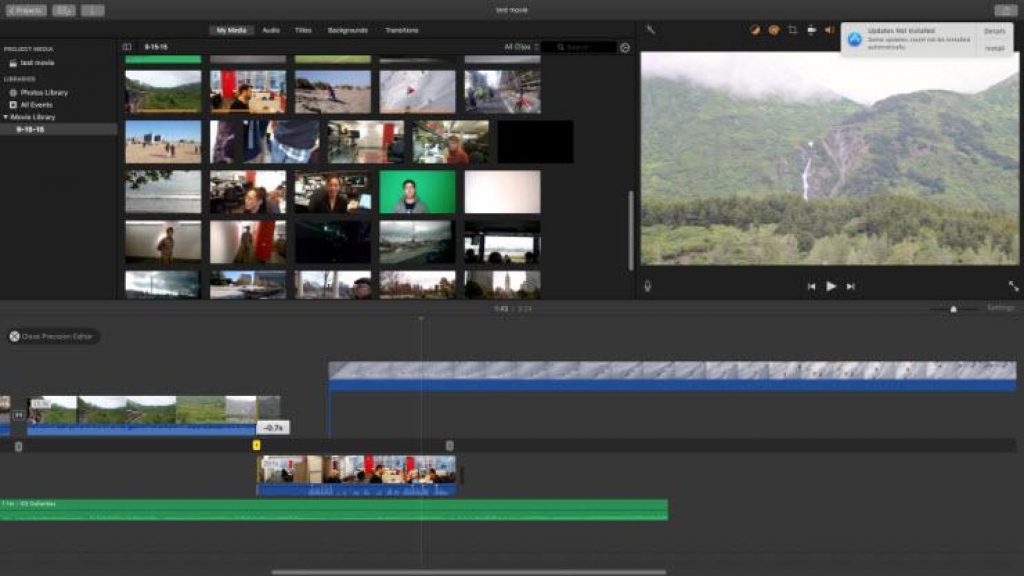
The application also has tools for creating soundtracks. One of the best features in iMovie is their ‘green screen’ That allows you to place your subject in any exotic location, let’s say Bali or Greenland.
Pros:
- User-friendly interface;
- A rich selection of tools for working with sound;
- Theater mode for sharing video with various devices from Apple;
- Support for working with 4K video.
Cons:
4. Lightworks
Lightworks is a free software option for video editing tools. The program works on Windows, Linux, and macOS. It is a perfect platform for camera operators, editors, sound engineers, bloggers. It can be used in advertising and for personal purposes, for creating home video archives and filling social networks.
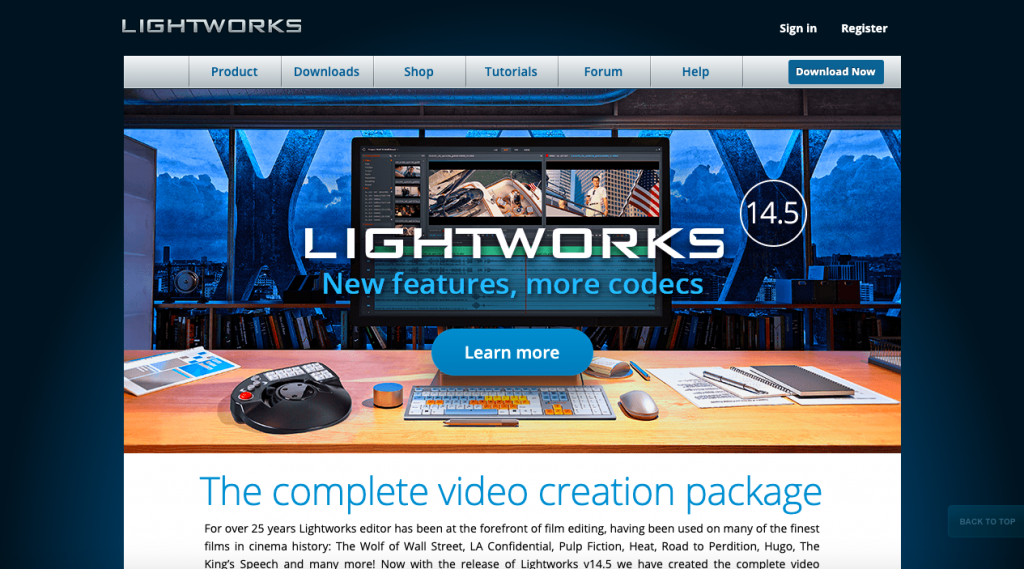
Lightworks is a perfect option for small or no-budget projects. You can import and render your footage on the background, drag editing windows around, and set custom keyboard shortcuts to simplify your working process.
Pros:
- Cross-platform feature;
- 3D video processing;
- Multichannel support;
- The ability to edit and crop the timeline.
Cons:
5. Final Cut Pro X
Apple developed this video editor for their Mac OS. The interface is very similar to iMovie. It has a vast selection of effects: video, audio, transitions, title effects, and it is possible to add additional ones. It integrates uploads to YouTube, Facebook, and Vimeo, as well as a wide range of video output formats.
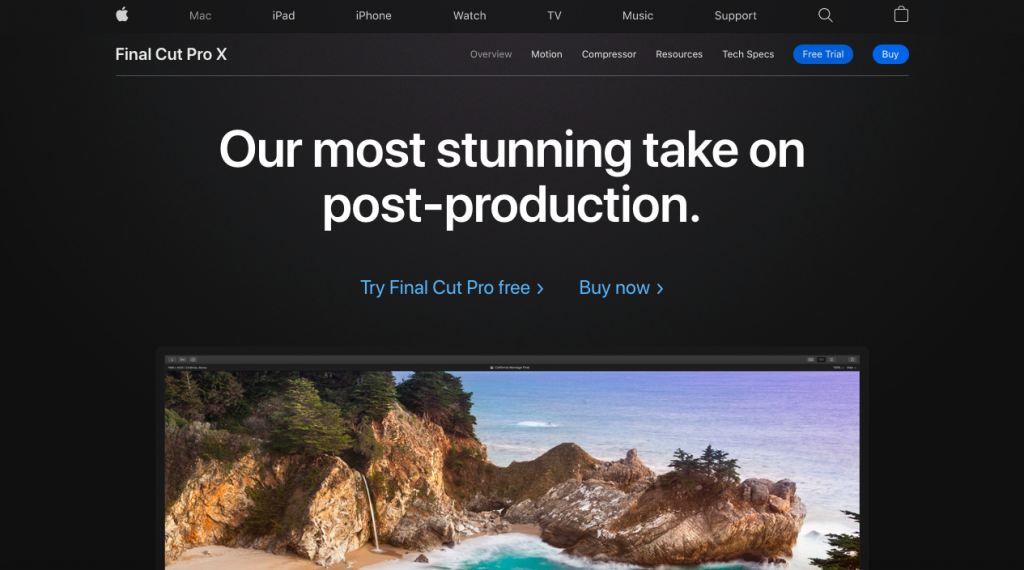
Final Cut Pro costs $300 that seems like a lot of money, but this software is packed with a lot of amazing features. You can add audio and title effect to your footage, use color-code for identification, group video, and another element so that you can move them together.
Pros:
- High resolution of output projects;
- The presence of libraries and the ability to create a keyboard collection;
- The ability to preview a particular effect without applying it to a file;
- Effects with scaling, without loss of image quality;
- Format flexibility;
Cons:
- It is costly
Conclusion
Let us know your thoughts in the comment section below.
Check out other publications to gain access to more digital resources if you are just starting out with Flux Resource.
Also contact us today to optimize your business(s)/Brand(s) for Search Engines