
Facebook pixel is a code placed on your website that tracks visitors to your website, allowing you to measure and optimize the effectiveness of your ads. By placing the tracking code on your website, Facebook Pixel tracks not only how many people view your advertisements, but also how many people are taken to the next step in their customer journey after viewing or clicking on an ad.
The Facebook Pixel can also be used for retargeting, which allows you to show ads to people who have already visited your website. Facebook Pixel gives you the ability to track conversions from Facebook Ads, optimize ads based on collected data, build targeted audiences for future ads, remarket to qualified leads—that is, site visitors who have already converted on a goal you’re optimizing for—and unlock additional Facebook advertising tools.
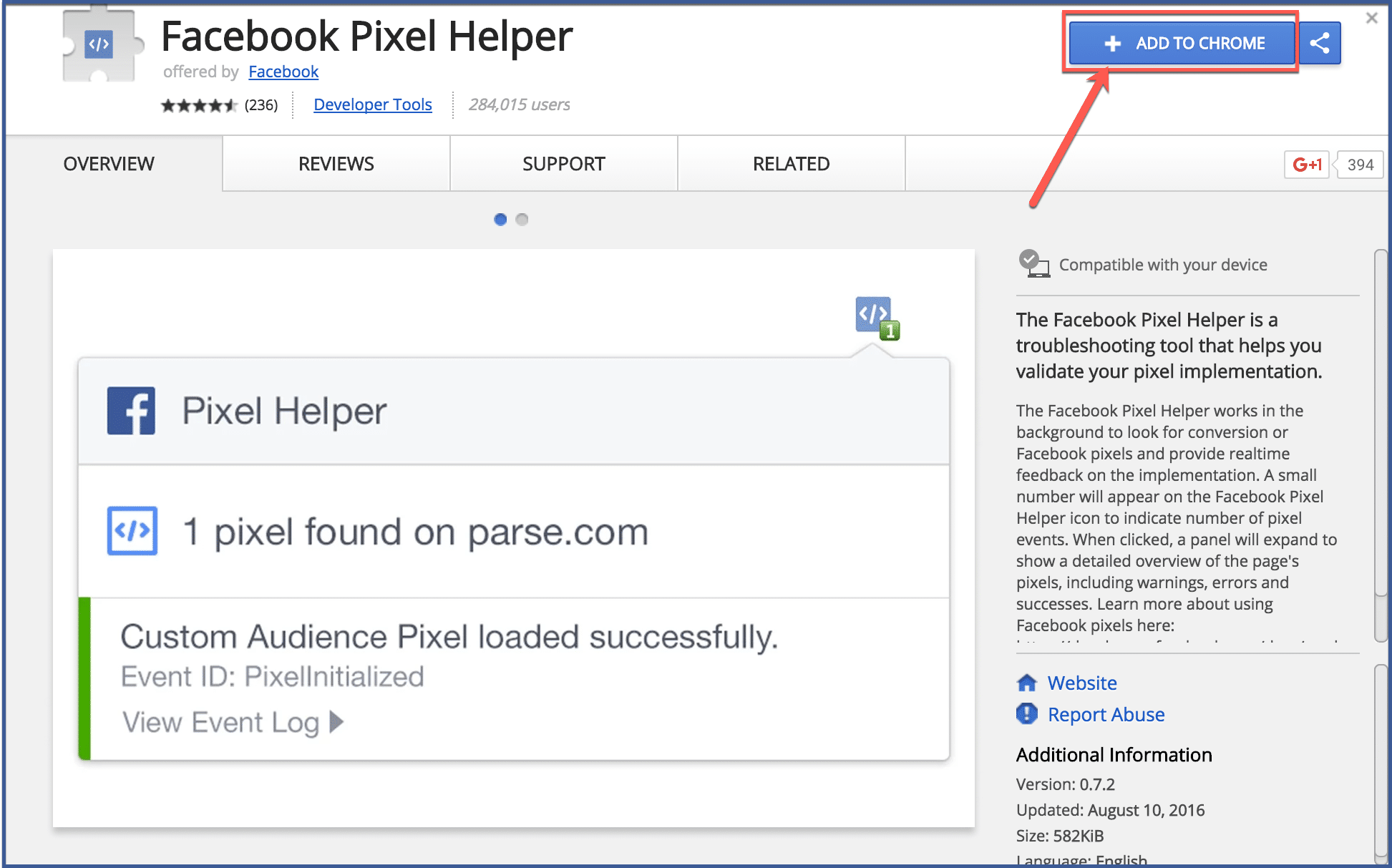
Table of Contents
Chrome Extension For Facebook Pixel
Facebook Pixel Helper is a valuable tool if you know how to use it. In this guide, we’ll go over all the need-to-know information for Facebook Pixel Helper, like what it is, how to use it, and how to figure out issues that may arise while using it.

But before we dive into the good stuff, let’s go over what exactly Facebook Pixel is. If you’re reading this, I assume you’re already familiar with it. But for those who aren’t, Facebook Pixel is essentially a piece of code that you add to your website. It collects data that helps you track your conversions from Facebook ads. It also allows marketers to measure how effective ads are, then optimize them to make sure they are being shown to the right people. Facebook Pixel helps companies figure out the best strategy for advertising based on how visitors to their website behave.
What is Facebook Pixel Helper?
So, we know what Facebook Pixel is. But what is the Facebook Pixel Helper? Well, it’s a free Chrome extension (sorry, Firefox) that makes sure the pixel on your website is working properly. Basically, it’s a troubleshooter that ensures your pixel is doing what it’s supposed to do on your website: track information from your visitors.
More than 1 million people currently use Facebook Pixel Helper. The extension is especially useful for small business owners that may not be tech-savvy. Facebook Pixel Helper is an easy tool that makes sure your pixel is embedded into your website properly. Use it to make sure the pixel works with your Facebook campaigns smoothly.
How do I install it?
Adding Facebook Pixel Helper to your toolbox is easy. Just follow the simple steps below:
1. Install Google Chrome
If you aren’t already using Google Chrome as your default web browser, it’s time for you to do so. The Facebook Pixel Helper is only available through the Chrome Extension store, so you’ll have to download Google Chrome before you move onto step 2. There are many benefits to using Google Chrome as your default browser, so don’t feel too bad for making the switch.
If you are already using Google Chrome as your default browser, make sure you’re using the most updated version.
2. Search for the Facebook Pixel Helper
There are two ways to find the extension. One is to simply type in “Facebook Pixel Helper extension” on Google and click on the first link.

The second way is to go directly to the Google Chrome Web store. Type “Facebook Pixel Helper” into the “Search the store” bar and it should be the first result. It’ll look like the picture below:

Okay, so maybe there are three ways. The third way is the easiest: click right here to go directly to the link to add it to your browser. Yup, we’ve made it that easy for you. ?
3. Install Facebook Pixel Helper
Now that you’ve found the extension, it’s time to install it. Click the “Add to Chrome” button on the Chrome extension store. This will cause a prompt to pop up that looks like the picture below:

You can go ahead and click “Add extension“. This will add Pixel Helper to your browser. Now it’s ready to use!
4. Use the Pixel Helper
Facebook Pixel Helper is represented by a little icon with “</>” on it. You should be able to locate it at the top, on the right side of your address bar. It looks like this:

Whenever you enter your website, or any website that uses Facebook Pixel, the little icon will turn blue. If there are no pixels detected on a website, it’ll remain grey.
How to Use the Facebook Pixel Helper
Now that we have the extension installed onto Google Chrome, it’s time to put it to use. As I mentioned before, this extension basically checks for pixel errors on your site. To use it, head over to your website and click on the Pixel Helper icon next to your address bar. A drop-down menu should appear. It will indicate the different pixels on your site.
The Facebook Pixel is set up to track three different kinds of events that happen as a result of Facebook ads or organic reach. These are Standard Events (e.g. Purchase, Add to Wishlist), Custom Events (anything that isn’t a standard event), and Custom Conversions. If there are issues with any of these, the Facebook Pixel Helper will let you know.
A green checkmark means the pixel is working properly on your site. If there is a problem, you’ll see a yellow or red icon. You will also be given a brief description of the issue.
Troubleshooting with the Facebook Pixel Helper
Here are 10 common problems that the Pixel Helper will locate, what they mean, and how to fix them.
1. No pixel found
This error will pop up when there is no code on your website for the Facebook Pixel. To fix this, you’ll have to go back into your site’s coding and check that the code for Facebook Pixel is embedded properly.
2. Pixel did not load
This error means that there is code resembling the Facebook Pixel on your site, but the HTTP was never made. This could mean the pixel coding on your site is wrong. To fix this, again, you will have to go into your site’s coding to make sure everything is correct.
In some cases, the error pops up because the pixel is linked to an action (e.g. clicking a button). Once the button is clicked, the error should disappear.
3. Not a Standard Event
This error will pop up when Pixel Helper finds an event that is not a Standard Event. For example, instead of an event being named “Purchase” (a Standard Event), it is named “Purchased”.
4. Invalid Pixel ID
The “Invalid Pixel ID” error occurs when the ID for the pixel does not match a known pixel ID in the Facebook system. You will need to verify your pixel ID in the Events Manager on Facebook.
5. Pixel Activated Multiple Times
This error means that identical pixels (same ID and event name) were sent multiple times to Facebook. As a rule, the same event should only appear once upon page loading. Events with different custom data parameters should be grouped into one single pixel event. To fix this error, you guessed it: check your coding! Make sure that you have only one pixel ID listed on your page.
6. Pixel Took Too Long to Load
This error will pop up when the pixel takes too long to activate. If your pixel code is located anywhere after the “</head>” tag in the HTML, this may be the cause of the problem. Facebook recommends placing the pixel code early on in the web page.
7. Missing Event Name
As the name of the error suggests, this means that an event on your page is missing an event name. Any event (Standard or Custom) and its coding has to include an event name or you will run into this problem. In the Pixel Helper drop-down menu, there should be an option to “See Affected URLs“. Click on this to see which pages need to be fixed.
8. You Have Opted Out of Tracking
This is a problem that occurs due to your Facebook settings. It means you’ve opted out of tracking from Facebook. This prevents pixel problems from being diagnosed by the extension. You’ll need to turn tracking back on in your Facebook Ads Preferences.
9. Pixel is Not Paired with a Product Catalog
In this case, the Pixel Helper is warning you that the pixel is not linked to a product catalog. To fix this, you’ll need to pair the two in the Business Manager on Facebook or through Product Catalog Preference API.
10. Pixel Advanced Matching
This error indicates that the value for the advanced matching parameter is invalid or formatted incorrectly. To fix it, make sure values are formatted correctly and replaced accordingly before passing on to the pixel.
Uninstalling Facebook Pixel Helper
If you no longer find the extension useful, you can get rid of Pixel Helper by visiting your extensions page. You can do this by locating the little puzzle piece icon next to your address bar, clicking on it, and clicking on “Manage Extensions“. Or, you can type “chrome://extensions” into your address bar. This will pull up the page that allows you to manage all your extensions.
best pixel for facebook post
Thinking about changing your Facebook cover photo this year?
Hoping to add a sweet new profile pic?
Well… SIZE MATTERS!
In fact, most images on Facebook (from your cover photo to your ad images) need to comply with the official dimensions if you really want them to pop and get more Likes on Facebook!
But keeping up with the official Facebook dimensions can be tough — since they’re constantly changing!
Nothing’s worse than creating an awesome image, uploading it to Facebook, and finding out the dimensions are wrong.
And with so many people using Facebook on their phones, your images need to be AMAZING if you want engagement.
Thankfully, Dustin Stout is here to help. His awesome new Facebook Image Sizes and Dimensions Cheat Sheet (shown below) is spot on!
So be sure to bookmark this page so you always have the most accurate image dimensions handy when your Facebook page, profile, group or posts need a makeover.
Get more Likes on Facebook
Facebook Post Dimensions & Image Sizes: Cheat Sheet 2022
We’ll go through the details below.
But first let me give you a quick summary of all recommended image dimensions on Facebook.
Recommended Facebook Image Dimensions
Facebook Profile images:
Profile Photo: 2048 x 2048 pixels; ratio 1:1
Cover Photo: 2037 x 754 pixels; ratio 2.7:1
Facebook Page images:
Profile Photo: 2048 x 2048 pixels; ratio 1:1
Cover Photo: 1958 x 745 pixels; ratio 2.63:1
Facebook Group images:
Profile Photo: N/A
Cover Photo: 1640 x 922 pixels; ratio 1.78:1
Facebook Event images:
Profile Photo: N/A
Cover Photo: 1000 x 524 pixels; ratio 1.91:1
Facebook Photo Posts images (in the News Feed):
All aspects: 2048 pixels (width)
Square: 2048 x 2048 pixels
Portrait: 2048 x 3072 pixels
Landscape: 2048 x 1149 pixels
Facebook Link Post images (in the News Feed):
Featured image: 1200 x 628 pixels
Facebook Page Ad images:
Link/Offer in Desktop News Feed: 1200 x 628 pixels
Link/Offer in Desktop Sidebar Ad: 254 x 133 pixels
Link/Offer on Mobile News Feed: 560 x 292 pixels
Image Posts: 2048 pixels wide
Image Posts (Mobile): Up to 626 x 840 pixels
Facebook Page Like Ad images:
Desktop: 1200 x 444 pixels
Sidebar: 254 x 94 pixels
Mobile: 560 x 208 pixels
Reminder: any image you use for a Facebook ad cannot be more than 20% text. Facebook strictly enforces this & may immediately deny your ad or stop it once it’s been reviewed.
Ok, that wraps up the summary!
Now let’s dive into the details. We’ll start with dimensions for visual elements on your Facebook profile and pages, then move on to images for Facebook groups, events, and so on.
Details: your Facebook Profile Photo
facebook-profile-2048x2048Your profile photo (a.k.a. “prof pic”) is by far the most important image you have on Facebook, both for your personal profile and your Facebook pages.
Your profile photo is displayed not only on your profile page, but also on your posts in the news feed, your comments on other posts, search results, and across Facebook wherever your profile or page is referenced or shown.
Your profile photo is the face of your brand on Facebook. So you should definitely put the effort in to making it look good!
The image is a square image, so the dimensions are easy. The question is how big or at what resolution you want to upload the image.
Dustin recommends going full size at 2048 x 2048 pixels.
Also, make sure the image works inside a circle, and that your eyes and smiling mouth are visible in the small version (168 x 168 pixels).
Details: your Facebook Profile Cover Photo
This image is the big landscape image at the top of your Facebook profile page.
Most people use this image to show off their personality by showing themselves doing something they’re passionate about.
Dustin recommends using the highest resolution with the dimensions 2037 x 754 pixels.
facebook-profile-cover-2037×754
Details: your Facebook Page Cover Photo
This cover photo serves the same purpose for your brand that it does for your personal profile page.
Use it to show off your brand’s personality, since your page’s profile pic is usually going to be a high-res version of your logo.
Make sure to use the highest resolution possible with dimensions 1958 x 745 pixels.
facebook-page-cover-1958×745
Details: your Facebook Group Cover Photo
This one is a little tricky to get just right. But it’s doable.
Basically you should upload a landscape image with dimensions 1640 x 922 pixels and then adjust the image vertically in the viewable area.
It takes a little finessing, but you’ll get it!
facebook-group-cover-1640×922
Details: your Facebook Event Cover Photo
Same function here as the cover photos above, but yes, another set of dimensions.
Go ahead and upload the largest resolution image possible with the dimensions 1000 x 524 pixels.
No need to adjust this one! But definitely test it to make sure it pops!
facebook-event-cover-1000×524
Details: your Facebook Image Posts (in News Feed)
These get pretty complicated once you start mixing square images with landscape and portrait images, and also publishing multi-photo posts.
To keep things simple, just try to publish your images in as high resolution as possible. Try to make sure the height or width of the image reaches 2048 pixels.
Do that and you should be good to go!
Details: your Facebook Link Posts (in News Feed)
For the featured images on your blog posts, you need one set of dimensions only.
If you’re an active blogger, memorize these dimensions and make sure all the featured images on your blog posts (and website pages) have them.
The ideal dimensions for link post featured images are 1200 x 628 pixels.
facebook-link-post-1200×628
Facebook Image Sizes & Dimensions Infographic
Ok, that will do it for all the details. Your brain is probably numb by now, or at least glazed like a donut.
Not to worry! Just bookmark this page and return to it anytime you need to check an image dimension.
Conclusion
Let us know your thoughts in the comment section below.
Check out other publications to gain access to more digital resources if you are just starting out with Flux Resource.
Also contact us today to optimize your business(s)/Brand(s) for Search Engines