
How to Create a WordPress Plugin for Beginners is a step-by-step guide which will teach you how to create a WordPress plugin. These plugins allow you to add extra functionality to WordPress sites.
Table of Contents
How To Create WordPress Plugin For Beginners
Every WordPress site needs a theme to pull content from the database and display that in a design. And theoretically you could run a site with just a theme and nothing else. But that site would be very limited without the addition of plugins.
Plugins add extra functionality to your WordPress site over and above what comes with WordPress core. Everything from a booking calendar or animated slider to a full-featured learning management system or online marketplace—you can add them all to your site with plugins.
In this guide, I’ll show you how to create your own WordPress plugin. I’ll show you how to use best practice in plugin development, how to get the code in your plugin to run, and how to structure your plugin’s code and files. I’ll also walk you through the process of creating your first plugin and answer some FAQs.
Free and Paid WordPress Plugins
If you want to add some specific features to your website, there are plenty of places you can buy or download plugins. The WordPress plugin directory includes thousands of free plugins that’ll help you create the site you need. But if you’re looking for more advanced features, a better user interface, or improved support, it’s worth buying premium plugins from authors on CodeCanyon.

But sometimes you might need to code your own plugin! This can be more efficient than using a third-party plugin, as you might only need a part of the code provided by those. It also means you can develop a plugin that meets your needs more precisely, or you can customise an existing plugin to adapt it for your site.
What Do You Need to Make a Plugin?
To build your own plugin and run it on your WordPress site, you’ll need:
- a code editor
- a development WordPress installation with a copy of your live site for testing
Don’t test your plugin on your live site until you know it works!
If you don’t already have a local WordPress installation, follow our guide to copying your site to a local install. Or if you can’t install WordPress locally, use a duplicate of your site on a testing installation on your server.
Types of WordPress Plugin
Plugins can carry out lots of tasks. What they all have in common is that they add extra functionality to your site. Types of WordPress plugin include:
- site maintenance plugins for things like security, performance, or backups
- marketing and sales plugins for things like SEO, social media, or eCommerce
- content plugins such as custom post types, widgets, shortcodes, forms, galleries, and video feeds
- API plugins that work with the WordPress REST API or pull in external content from services like Google Maps
- community plugins that add social networking features
… and lots more! For an idea of what plugins can do, check out the WordPress plugin directory and the CodeCanyon marketplace.

What Goes Into a Plugin?
Before you get started building your plugin, it’s worth knowing what goes into a plugin. Exactly what the plugin code will look like will depend on your plugin: some are small, with just one plugin file, while others are massive, with multiple include files, scripts, stylesheets, and template files. And there are plenty that fall somewhere in the middle.
The elements you’ll probably have in your plugin are:
- the main plugin file (this is essential)
- folders for different file types
- scripts
- stylesheets
- include files to organise the code
Let’s have a look at each of these.https://03c53a2b21e3ddf58a17166dc0c4efee.safeframe.googlesyndication.com/safeframe/1-0-38/html/container.htmlAdvertisement
The Main Plugin File
The main plugin file is essential. It will always be a PHP file, and it will always contain commented-out text that tells WordPress about your plugin.
Here’s an example, from the Akismet plugin:
| 010203040506070809101112131415161718192021222324252627 | <?php /** * @package Akismet */ /* Plugin Name: Akismet Anti-Spam Plugin URI: https://akismet.com/ Description: Used by millions, Akismet is quite possibly the best way in the world to <strong>protect your blog from spam</strong>. It keeps your site protected even while you sleep. To get started: activate the Akismet plugin and then go to your Akismet Settings page to set up your API key. Version: 4.1.7 Author: Automattic Author URI: https://automattic.com/wordpress-plugins/ License: GPLv2 or later Text Domain: akismet */ |
This tells WordPress what your plugin does, where to find out more about it, and who developed it. It also gives information about the version number and the text domain and path for internationalisation, as well as the license.
WordPress takes this information and uses it to populate the plugins screen in your site. Here’s how Akismet looks on that screen:

You can see that the information provided in the plugin file is used to populate this entry and provide links.
Other information about the plugin is contained in the README.txt file, which is used to populate the plugin’s page in the plugin directory:

The main plugin file will also contain the code that makes the plugin run. Sometimes that will be all the PHP for the plugin, but for larger plugins, there’ll be calls to include files containing extra code. This helps you organise your code and means you don’t have one long, disorganised file that’s difficult to work with. I’ll show you how to use include files later in this guide.
Folder Structure
While there are no hard and fast rules on how you organise the folders in your plugin, it makes sense to adopt the same structure that other plugin developers use. This will familiarise you with the way other plugins are built and mean that if you share your code in future, it will make sense to other people.
Folders in your plugin might include:
- css or styles for stylesheets
- scripts for JavaScript
- includes for include files
- templates for template files that your plugin outputs
- assets for media and other asset files
- i18n for internationalisation files
You might find you need to use more folders if your plugin is large or complex. For example, WooCommerce has folders for packages, sample data, and more. These in turn include subfolders for things like blocks and admin files.

Scripts and Stylesheets
If your plugin outputs content that needs styling, either in the front-end or in the admin screens, you may need stylesheets. And if your plugin will use scripts, you’ll need files for these.
It makes sense to keep these in their own folder, even if you only have one of each. You’ll need to enqueue these scripts and stylesheets using a dedicated function in your main plugin file. I’ll show you how to do this when we’re building the plugin.https://03c53a2b21e3ddf58a17166dc0c4efee.safeframe.googlesyndication.com/safeframe/1-0-38/html/container.htmlAdvertisement
Include Files
If your plugin needs organisation, you can do this by splitting your code into multiple files, called include files. You then put these files into their own folder and call them in your main plugin file using an include or require function.
This way, you can keep the bulk of your code in a well-organised file structure while your main plugin file remains lean and minimal.
If your plugin isn’t all that big, you don’t need to use include files: just add your code to the main plugin file. But you might find you need to organise this file and reorder functions within it as you add them, to maintain a logical structure.
These are the most common elements of a plugin. We’ve seen in the WooCommerce example that there can be many more. Or in smaller plugins there can be many fewer. But as you develop more plugins, you’ll find yourself using these elements more and more.
How to Run Your Plugin Code: Options
When you add code to your plugin, it won’t do anything until you activate it in some way. There are a few methods you can use to activate your code or pull in code from WordPress:
- functions
- action and filter hooks
- classes
Let’s take a look at each of these.
Functions
Functions are the building blocks of WordPress code. They’re the easiest way to get started writing your own plugins and the quickest to code. You’ll find plenty of them in your themes’ files too.
Each function will have its own name, followed by braces and the code inside those braces.
The code inside your plugin won’t run unless you call the function somehow. The simplest (but least flexible) way to do that is by directly calling the code in your theme or somewhere else in your plugin.
Here’s an example function:
| 12345 | tutsplus_myfunction { // code goes here } |
To directly call that function in your theme, you’d simply type tutsplus_myfunction() in the place in your theme template files where you want it to run. Or you might add it somewhere in your plugin… but you’d also need to activate the code that calls it!
There are a few limitations to this:
- If the function does something that isn’t just adding content somewhere in a theme template file, you can’t activate it this way.
- If you want to call the function in multiple places, you’ll have to call it again and again.
- It can be hard to keep track of all the places you’ve manually called a function.
It’s much better practice to call functions by attaching them to a hook.
Action and Filter Hooks
By attaching your function to a hook, you run its code whenever that hook is fired. There are two types of hook: action hooks and filter hooks.
Action hooks are empty. When WordPress comes to them, it does nothing unless a function has been hooked to that hook.
Filter hooks contain code that will run unless there is a function hooked to that hook. If there is a function, it’ll run the code in that function instead. This means you can add default code to your plugin but override it in another plugin, or you can write a function that overrides the default code that’s attached to a filter hook in WordPress itself.
Hooks are fired in three ways:
- By WordPress itself. The WordPress core code includes hundreds of hooks that fire at different times. Which one you hook your function to will depend on what your function does and when you want its code to run. You can find a list of WordPress hooks in the developer handbook.
- By your theme. Many themes include action and filter hooks that you can use to add extra content in key places in your website’s design. And all themes will include a
wp_headandwp_footerhook. Combine these with conditional tags, and you can run specific code on certain types of pages in your site. - By your plugin or other plugins. You might add an action hook to your plugin and then add functions in your include files that attach code to that hook. Or you might write a filter hook and then have a function that overrides its contents under certain circumstances. Alternatively, if you’re creating a plugin to complement another plugin, you can hook your functions to the existing hook in the third-party plugin. I’ve done this with WooCommerce, for example, to customise what’s output on product pages.
Some of this is more advanced, but with your first plugin, you’ll probably be hooking your functions to an action or filter hook output by WordPress itself, most likely an action hook.
Classes
Classes are a way of coding more complex features, such as widgets and customizer elements, that make use of the existing WordPress APIs.
When you write a class in your plugin, you’ll probably be extending an existing class that’s coded into WordPress. This way, you can make use of the code provided by the class and tweak it to make it your own. An example would be the customizer, where you might write a class including a color picker, making use of the color picker UI that’s provided in the existing class for the customizer.
Using classes is more advanced than functions, and it’s unlikely you’ll do it in your first plugin. To find out more, see our guide to classes in WordPress.
If you do write classes, you’ll still have to use actions or filters to get them to run.
Plugin Best Practices
Before you start coding your plugin, it helps to understand best practices for plugins so your code can be high quality right from the start.
These include:
- Write your code according to WordPress coding standards. If you want to submit your plugin to the plugin directory, you’ll have to do this.
- Use comments throughout your code so other people can work with it—and so you remember how your code works when you come back to it in the future.
- Name your functions, hooks, and classes using prefixes so they are unique to your plugin. You don’t want to give a function the same name as another function in a different plugin or in WordPress core.
- Organise your folders logically, and keep your code separated so other people can understand it and so you can add to it over time without it becoming a mess.
You might think that using best practice isn’t necessary because it’s just you working with the plugin. But your plugin might grow over time, you might let other people use it, or you might sell it. Or you might come back to it in two years and not be able to remember how the code is organised!
Creating Your First Plugin in 4 Steps
At last! You have a grounding in how plugins work, and it’s time to roll your sleeves up and create your first plugin. I’m going to take you through the process of creating a simple plugin that registers a custom post type.
This is a very common use of a plugin, and something you might then build on over time to add custom template files for your custom post type or other functionality.
I’ll show you the basic code for the plugin and give you an introduction to how you might add to it over time.
1. Create the Plugin Folder and File
Even if your plugin is starting out small with just one file, it’s good practice to give it its own folder. Start by creating a folder in your wp-content/plugins directory. Inside that, create a PHP file for your plugin.
Give them both a name that makes sense and includes a prefix. I’m calling my folder tutsplus-register-post-types and my file tutsplus-register-post-types.php.
Now open your plugin file and add the commented-out information at the top. You can take mine below and edit it to reflect the fact that this is your plugin, not mine.
| 010203040506070809101112131415161718192021 | <?php /* Plugin Name: Tuts+ Register Post Types Plugin URI: https://tutsplus.com/ Description: Plugin to accompany tutsplus guide to creating plugins, registers a post type. Version: 1.0 Author: Rachel McCollin Author URI: https://rachelmccollin.com/ License: GPLv2 or later Text Domain: tutsplus */ |
Now, if you save your file and go to the Plugins screen in your development site, you’ll see the plugin on the screen:

You can activate it if you want, but it won’t do anything yet because you haven’t added any code to it. Let’s do that.
2. Add Functions
Now it’s time to write the first function in our plugin. Start by making your plugin and adding the braces which will contain the code. Here’s mine:
| 01020304050607080910111213141516171819202122232425262728293031323334353637383940414243444546474849505152535455565758596061 | function tutsplus_register_post_type() { // movies $labels = array( 'name' => __( 'Movies' , 'tutsplus' ), 'singular_name' => __( 'Movie' , 'tutsplus' ), 'add_new' => __( 'New Movie' , 'tutsplus' ), 'add_new_item' => __( 'Add New Movie' , 'tutsplus' ), 'edit_item' => __( 'Edit Movie' , 'tutsplus' ), 'new_item' => __( 'New Movie' , 'tutsplus' ), 'view_item' => __( 'View Movie' , 'tutsplus' ), 'search_items' => __( 'Search Movies' , 'tutsplus' ), 'not_found' => __( 'No Movies Found' , 'tutsplus' ), 'not_found_in_trash' => __( 'No Movies found in Trash' , 'tutsplus' ), ); $args = array( 'labels' => $labels, 'has_archive' => true, 'public' => true, 'hierarchical' => false, 'supports' => array( 'title', 'editor', 'excerpt', 'custom-fields', 'thumbnail', 'page-attributes' ), 'rewrite' => array( 'slug' => 'movies' ), 'show_in_rest' => true ); } |
This includes all the labels and arguments for your post type and (crucially) the register_post_type() function which is provided by WordPress.
I’ve used movies as my post type here as I’m creating an imaginary movie review site. You might want to use something different.
Now, if you save your file and go back to your site, you’ll see that nothing has changed. That’s because you haven’t activated your code. The method we use to activate the function here is by hooking it to an action hook provided by WordPress, the init hook. When you use a function provided by WordPress (such as register_post_type), you’ll find that there’s a hook that you should use. You can find details in the WordPress handbook entry for registering custom post types.
So let’s add the hook. Under your code, and outside the braces, add this line:
| 1 | add_action( 'init', 'tutsplus_register_post_type' ); |
We use the add_action() function to hook our code to an action hook, with two parameters: the name of the action hook and the name of our function.
Now try saving your files and going back to your site. You’ll see that the custom post type has been added to your admin menu (assuming you’ve activated the plugin).

Nice!
Now let’s add an extra function, to register a custom taxonomy. Below the code you’ve written so far, add this:
| 010203040506070809101112131415161718192021222324252627282930 | function tutsplus_register_taxonomy() { // books $labels = array( 'name' => __( 'Genres' , 'tutsplus' ), 'singular_name' => __( 'Genre', 'tutsplus' ), 'search_items' => __( 'Search Genres' , 'tutsplus' ), 'all_items' => __( 'All Genres' , 'tutsplus' ), 'edit_item' => __( 'Edit Genre' , 'tutsplus' ), 'update_item' => __( 'Update Genres' , 'tutsplus' ), 'add_new_item' => __( 'Add New Genre' , 'tutsplus' ), 'new_item_name' => __( 'New Genre Name' , 'tutsplus' ), 'menu_name' => __( 'Genres' , 'tutsplus' ), ); $args = array( 'labels' => $labels, 'hierarchical' => true, 'sort' => true, 'args' => array( 'orderby' => 'term_order' ), 'rewrite' => array( 'slug' => 'genres' ), 'show_admin_column' => true, 'show_in_rest' => true ); register_taxonomy( 'tutsplus_genre', array( 'tutsplus_movie' ), $args); }add_action( 'init', 'tutsplus_register_taxonomy' ); |
Again, you might want to change the name of your custom taxonomy. Here, I’ve made the taxonomy apply to the post type I’ve just registered (the third parameter of the register_taxonomy function). If you gave your post type a different name, make sure to edit that bit.
Now save your file and take a look at your admin screens. When you hover over your post type in the admin menu, you’ll see the new taxonomy.

You now have a working plugin. Well done!
Let’s take a look at how you might add to it.
3. Enqueue Stylesheets and Scripts
If you need to use custom styling or scripts in your plugin, you could add them right into your plugin file—but that’s not best practice. Instead, you should create stylesheets and scripts as separate files in your plugin folder and enqueue those, using a function provided by WordPress.
Let’s imagine you want to add styling for your custom post type. You could add this to your theme, but you might want to add some specific styling to the plugin to make the post type stand out from other post types in any theme.
To do this, you create a new folder inside your plugin folder called css (or styles, it’s up to you). Inside that folder, create a stylesheet called style.css, or you can give it a more specific name for clarity. I’m going to call mine movies.css.
You then need to enqueue that file in your plugin so that it can be used by WordPress. Add this to your main plugin file, above the functions you already have. I like to add enqueuing and includes first in my plugin file so I can see what other files are being activated.
| 1234 | function tutsplus_movie_styles() { wp_enqueue_style( 'movies', plugin_dir_url( __FILE__ ) . ‘/css/movies.css’ ); }add_action( 'wp_enqueue_scripts', ‘tutsplus_movie_styles' ); |
If you save your file, you won’t see any difference in your admin screens—but if you’ve added posts of the custom post type and your stylesheet includes styling for them, you’ll now see that in the front-end of your site.
Note that the hook used for enqueuing both stylesheets and scripts is the same: they both use wp_enqueue_scripts. There isn’t a separate hook for styles.
Enqueuing scripts works in a very similar way. Follow these steps:
- Add a scripts or js folder to your plugin folder.
- Save your script files in that folder.
- Enqueue the script in the same way as the stylesheet above, replacing the
wp_enqueue_style()function withwp_enqueue_script().
4. Using Include Files
Another option as you develop your plugin is to create extra PHP files, known as include files. If you have a lot of these, you might create multiple folders for different types of include file, or you might just create one folder called includes.
There are a few functions you can use to include files, which you’ll find in our comprehensive guide to including and requiring files.
- CREATIVE CODINGHow to Include and Require Files and Templates in WordPressTom McFarlin
For example, in our custom post type plugin, we might create some code to vary the way the content of the page is output, using the the_content filter hook to amend the code being run each time the content is output on a product page.
Instead of adding this code to the main plugin file, you could add it to a separate file called movie-content.php and then write the code in that file for the way the content is output for movies.
To include this file in your plugin, you add a folder called includes to your plugin, and then inside that folder you add the content-movie.php file.
To include that file in your plugin, you add this code at the beginning for the main plugin file:
| 1 | include( plugin_dir_path( __FILE__ ) . ‘includes/movie-content.php' ); |
You don’t need to hook this to an action or filter hook—just use the include_once() function in your plugin file. That will then call the code from the include file as if it was in your main plugin file at that point.
How to Extend or Edit an Existing Plugin
Sometimes you might find a plugin in the plugin directory or from a plugin vendor that does most of what you need a plugin to do, but not quite all. Or you might be running a plugin and want to make some tweaks and customisations.
The fact that WordPress is open source makes this possible. You can take another plugin’s code and extend or edit it to make it work the way you want it to.
There are two ways to do this:
- Take an existing plugin and fork it—i.e. edit it so it works differently, is more reliable, or has extra features.
- Write your own plugin that extends the original plugin.
Taking an existing plugin and editing it is fairly straightforward: you make your own copy on a development site (never live!) and make edits to it as needed. Make sure you use version control to track your changes in case something goes wrong.
Extending a plugin by writing your own plugin is slightly more complicated, and won’t work with every plugin, but is a more robust way of doing things in my opinion.
Many of the most popular plugins will make extensive use of hooks and classes in their code. You can hook into action and filter hooks and extend classes to write your own code, which uses the existing plugin’s code as a base but then adds to or edits it.
For example, WooCommerce has so many functions, hooks, and classes that it has its own API and developer documentation. Each part of the WooCommerce system is powered by one or more of these functions, hooks, or classes. To make changes, you need to identify which code is driving the part of the system you want to change, and then write your own plugin which either attaches to the same hook(s) or extends the classes.
You’ll find you can create significant customisations to a plugin like WooCommerce in this way: I once used it to power a listings site that didn’t even include a checkout. I used hooks to remove all the elements I didn’t want and add new ones.
For some examples of how you can hook into WooCommerce and extend or edit it with your own plugin, see our guide to adding product descriptions to archive pages and to adding a product-based blog to your store. These examples just scratch the surface of what you can achieve, but they’ll give you an idea of how to start.
wordpress plugin template
What are we talking about when we speak of templates in the context of WordPress? The short version is that templates are files which tell WordPress how to display different types of content.
The slightly longer version: every time someone sends a request to view part of your website, the WordPress platform will figure out what content they want to see and how that specific part of your website should be rendered.
For the latter, WordPress will attempt to use the most appropriate template file found within your theme. Which one is decided on the basis of a set order, the WordPress template hierarchy. You can see what this looks like in the screenshot below or in this interactive version.

The template hierarchy is a list of template files WordPress is familiar with that are ranked to determine which file takes precedence over another.
You can think of it as a decision tree. When WordPress tries to decide how to display a given page, it works its way down the template hierarchy until it finds the first template file that fits the requested page. For example, if somebody attempted to access the address https://yoursite.com/category/news, WordPress would look for the correct template file in this order:
- category-{slug}.php: in this case category-news.php
- category-{id}.php>: if the category ID were 5, WordPress would try to find a file named category-5.php
- category.php
- archive.php
- index.php
At the bottom of the hierarchy is index.php. It will be used to display any content which does not have a more specific template file attached to its name. If a template file ranks higher in the hierarchy, WordPress will automatically use that file in order to display the content in question.
PAGE TEMPLATES AND THEIR USE #
For pages, the standard template is usually the aptly named page.php. Unless there is a more specific template file available (such as archive.php for an archive page), WordPress will use page.php to render the content of all pages on your website.
However, in many cases it might be necessary to change the design, look, feel or functionality of individual parts of your website. This is where page templates come into play. Customized page templates allow you to individualize any part of your WordPress site without affecting the rest of it.
You might have already seen this at work. For example, many WordPress themes today come with an option to change your page to full width, add a second sidebar or switch the sidebar’s location. If that is the case for yours, it was probably done through template files. There are several ways to accomplish this and we’ll go over them later.
First, however, a word of caution: since working with templates involves editing and changing files in your active theme, it’s always a good idea to go with a child theme when making these kinds of customizations. That way you don’t run the danger of having your changes overwritten when your parent theme gets updated.
How To Customize Any Page In WordPress #
There are three basic ways to use custom page templates in WordPress: adding conditional statements to an existing template; creating specific page templates which rank higher in the hierarchy; and directly assigning templates to specific pages. We will take a look at each of these in turn.
USING CONDITIONAL TAGS IN DEFAULT TEMPLATES #
An easy way to make page-specific changes is to add WordPress’s many conditional tags to a template already in use. As the name suggests, these tags are used to create functions which are only executed if a certain condition is met. In the context of page templates, this would be something along the line of “Only perform action X on page Y.”
Typically, you would add conditional tags to your theme’s page.php file (unless, of course, you want to customize a different part of your website). They enable you to make changes limited to the homepage, front page, blog page or any other page of your site.
Here are some frequently used conditional tags:
is_page(): to target a specific page. Can be used with the page’s ID, title, or URL/name.is_home(): applies to the home page.is_front_page(): targets the front page of your site as set under Settings → Readingis _category(): condition for a category page. Can use ID, title or URL/name likeis_page()tag.is_single(): for single posts or attachmentsis_archive(): conditions for archive pagesis_404(): applies only to 404 error pages
For example, when added to your page.php in place of the standard get_header(); tag, the following code will load a custom header file named header-shop.php when displaying the page https://yoursite.com/products
if ( is_page('products') ) {
  get_header( 'shop' );
} else {
  get_header();
}
Copy
A good use case for this would be if you have a shop on your site and you need to display a different header image or customized menu on the shop page. You could then add these customization in header-shop.php and it would show up in the appropriate place.
However, conditional tags are not limited to one page. You can make several statements in a row like so:
if ( is_page('products') ) {
  get_header( 'shop' );
} elseif ( is_page( 42 ) ) {
  get_header( 'about' );
} else {
  get_header();
}
Copy
In this second example, two conditions will change the behavior of different pages on your site. Besides loading the aforementioned shop-specific header file, it would now also load a header-about.php on a page with the ID of 42. For all other pages the standard header file applies.
CREATING PAGE-SPECIFIC FILES IN THE WORDPRESS HIERARCHY #
Conditional tags are a great way to introduce smaller changes to your page templates. Of course, you can also create larger customizations by using many conditional statements one after the other. I find this a very cumbersome solution, however, and would opt for designated template files instead.
One way to do this is to exploit the WordPress template hierarchy. As we have seen, the hierarchy will traverse a list of possible template files and choose the first one it can find that fits. For pages, the hierarchy looks like this:
- Custom page template
- page-{slug}.php
- page-{id}.php
- page.php
- index.php
In first place are custom page templates which have been directly assigned to a particular page. If one of those exists, WordPress will use it no matter which other template files are present. We will talk more about custom page templates in a bit.
After that, WordPress will look for a page template that includes the slug of the page in question. For example, if you include a file named page-about.php in your theme files, WordPress will use this file to display your ‘About’ page or whichever page can be found under https://www.yoursite.com/about.
Alternatively, you can achieve the same by targeting your page’s ID. So if that same page has an ID of 5, WordPress will use the template file page-5.php before page.php if it exists; that is, only if there isn’t a higher-ranking page template available.
(BTW, you can find out the ID for every page by hovering over its title under ‘All Pages’ in your WordPress back-end. The ID will show up in the link displayed by your browser.)
ASSIGNING CUSTOM PAGE TEMPLATES #
Besides providing templates in a form that WordPress will use automatically, it is also possible to manually assign custom templates to specific pages. As you can see from the template hierarchy, these will trump any other template file present in the theme folder.
Just like creating page-specific templates for the WordPress hierarchy, this requires you to provide a template file and then link it to whichever page you want to use it for. The latter can be done in two different ways you might already be familiar with. Just in case you aren’t, here is how to do it.
1. Assigning Custom Page Templates From The WordPress Editor #
In the WordPress editor, you find an option field called ‘Page Attributes’ with a drop-down menu under ‘Template’.
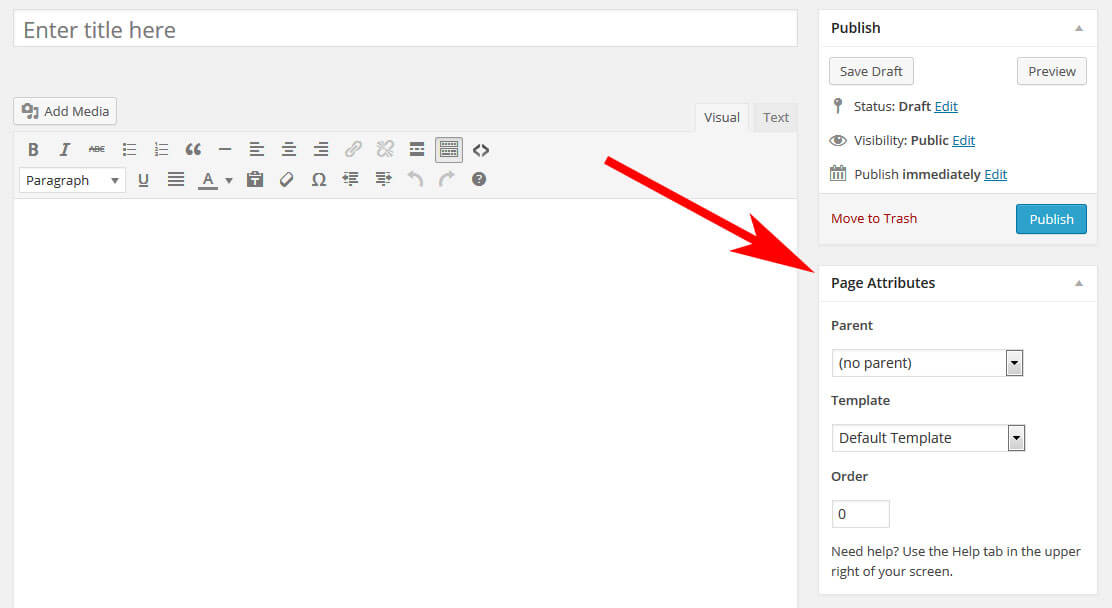
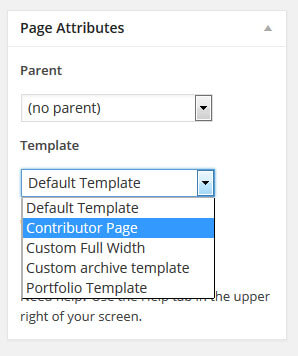
Clicking on it will give you a list of available page templates on your WordPress website. Choose the one you desire, save or update your page and you are done.
2. Setting A Custom Template Via Quick Edit #
The same can also be achieved without entering the WordPress editor. Go to ‘All Pages’ and hover over any item in the list there. A menu will become visible that includes the ‘Quick Edit’ item.
Click on it to edit the page settings directly from the list. You will see the same drop-down menu for choosing a different page template. Pick one, update the page and you are done.
Not so hard after all, is it? But what if you don’t have a custom page template yet? How do you create it so that your website looks exactly the way you want it? Don’t worry, that’s what the next part is all about.
A Step-By-Step Guide To Creating Custom Page Templates #
Putting together customized template files for your pages is not that hard but here are a few details you have to pay attention to. Therefore, let’s go over the process bit-by-bit.
1. FIND THE DEFAULT TEMPLATE #
A good way is to start by copying the template which is currently used by the page you want to modify. It’s easier to modify existing code than to write an entire page from scratch. In most cases this will be the page.php file.
(If you don’t know how to find out which template file is being used on the page you want to edit, the plugin What The File will prove useful.)
I will be using the Twenty Twelve theme for demonstration. Here is what its standard page template looks like:
<?php
/**
 * The template for displaying all pages
 *
 * This is the template that displays all pages by default.
 * Please note that this is the WordPress construct of pages
 * and that other 'pages' on your WordPress site will use a
 * different template.
 *
 * @package WordPress
 * @subpackage Twenty_Twelve
 * @since Twenty Twelve 1.0
 */
get_header(); ?>

  <div id="primary" class="site-content">
    <div id="content" role="main">

      <?php while ( have_posts() ) : the_post(); ?>
        <?php get_template_part( 'content', 'page' ); ?>
        <?php comments_template( ’, true ); ?>
      <?php endwhile; // end of the loop. ?>

    </div><!-- #content -->
  </div><!-- #primary -->

<?php get_sidebar(); ?>
<?php get_footer(); ?>
Copy
As you can see, nothing too fancy here: the usual calls for the header and footer, and the loop in the middle. The page in question looks like this:

2. COPY AND RENAME THE TEMPLATE FILE #
After identifying the default template file, it’s time to make a copy. We will use the duplicated file in order to make the desired changes to our page. For that we will also have to rename it. Can’t have two files of the same name, that’s just confusing for everyone.
You are free to give the file any name you like as long as it doesn’t start with any of the reserved theme filenames. So don’t be naming it page-something.php or anything else that would make WordPress think it is a dedicated template file.
It makes sense to use a name which easily identifies what this template file is used for, such as my-custom-template.php. In my case I will go with custom-full-width.php.
3. CUSTOMIZE THE TEMPLATE FILE HEADER #
Next we have to tell WordPress that this new file is a custom page template. For that, we will have to adjust the file header in the following way:
<?php
/*
 * Template Name: Custom Full Width
 * description: >-
  Page template without sidebar
 */

// Additional code goes here...
Copy
The name under ‘Template Name’ is what will be displayed under ‘Page Attributes’ in the WordPress editor. Make sure to adjust it to your template name.
4. CUSTOMIZE THE CODE #
Now it’s time to get to the meat and potatoes of the page template: the code. In my example, I merely want to remove the sidebar from my demo page.
This is relatively easy, as all I have to do is remove <?php get_sidebar(); ?> from my page template since that’s what is calling the sidebar. As a consequence, my custom template ends up looking like this:
<?php
/*
 * Template Name: Custom Full Width
 * description: >-
  Page template without sidebar
 */

get_header(); ?>

<div id="primary" class="site-content">
  <div id="content" role="main">

    <?php while ( have_posts() ) : the_post(); ?>
      <?php get_template_part( 'content', 'page' ); ?>
      <?php comments_template( ’, true ); ?>
    <?php endwhile; // end of the loop. ?>

  </div><!-- #content -->
</div><!-- #primary -->

<?php get_footer(); ?>
Copy
5. UPLOAD THE PAGE TEMPLATE #
After saving my customized file, it is now time to upload it to my website. Custom page templates can be saved in several places to be recognized by WordPress:
- Your active (child) theme’s folder
- The folder of your main parent theme
- A subfolder within either of these
I personally like to create a folder named page_templates in my child theme and place any customized templates in there. I find this easiest to retain an overview over my files and customizations.
6. ACTIVATE THE TEMPLATE #
As a last step, you need to activate the page template. As mentioned earlier, this is done under Page Attributes → Templates in the WordPress editor. Save, view the page and voilà! Here is my customized page without a sidebar:

Not so hard, is it? Don’t worry, you will quickly get the hang of it. To give you a better impression of what to use these page templates for, I will demonstrate additional use cases (including the code) for the remainder of the article.
Conclusion
Let us know your thoughts in the comment section below.
Check out other publications to gain access to more digital resources if you are just starting out with Flux Resource.
Also contact us today to optimize your business(s)/Brand(s) for Search Engines